This is the print version of this page. All content is copyright Indezine.com 2000-2026.
Definitions and resources for terms and techniques used in the world of presentations
See Also:
PowerPoint and Presenting Notes
PowerPoint and Presenting Glossary
Presentations Glossary in alphabetical order:
A |
B |
C |
D |
E |
F |
G |
H |
I |
J |
K |
L |
M |
N |
O |
P |
Q |
R |
S |
T |
U |
V |
W |
X |
Y |
Z
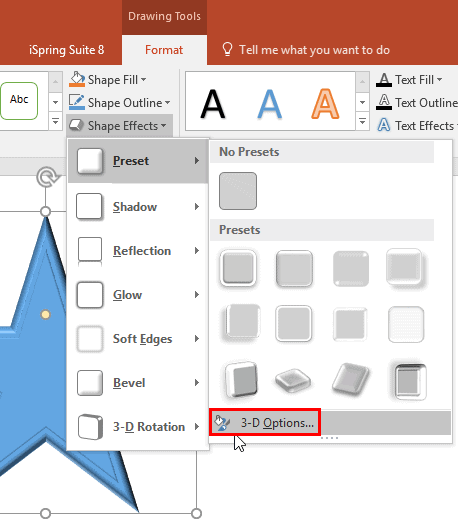
3-D Options in PowerPoint enable you to format the bevel style of a shape with many more options than those available in the conventional Bevel gallery. And when we say more, we actually mean a whole lot more! You can customize 3-D options such as contour, contour color, depth, depth color, materials, and lighting, almost like a full blown 3-D program.
To learn more, choose your version of PowerPoint. If we do not have a tutorial for your version of PowerPoint, explore the version closest to the one you use.
3-D Format Options for Shapes in PowerPoint 2016
3-D Format Options for Shapes in PowerPoint 2013
3-D Format Options for Shapes in PowerPoint 2010
3-D Format Options for Shapes in PowerPoint 2007
3-D Format Options for Shapes in PowerPoint 2003
3-D Format Options for Shapes in PowerPoint 2011
Tutorial Code: 08 03 16
Previous: 08 03 15 Apply 3D Depth to Shapes in PowerPoint
Next: 08 04 01 Shape Styles in PowerPoint
Filed Under:
S
Tagged as: 08-03, Fills Lines and Effects, PowerPoint Tutorials, Shape Effects
Comments Off on Shape Effects: 3D Format Options for Shapes in PowerPoint
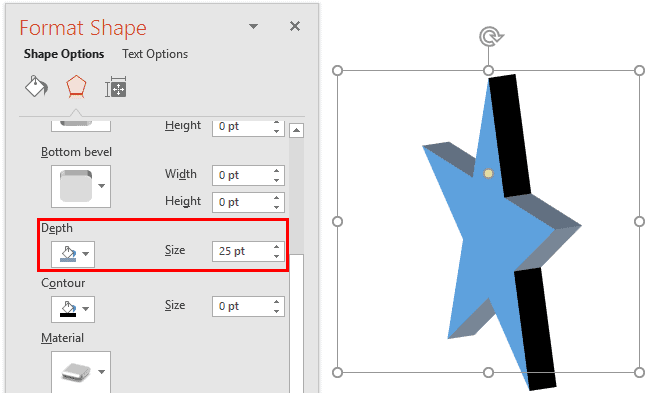
Depth, as a parameter for 3-D objects, plays a very important role. In simple terms, Depth is the distance from the highest to the lowest, and typically has a value that’s larger than zero. Even though you rotate a shape that has a Depth of zero, you won’t see any optimum results. So, you can first rotate your object, but you must add Depth soon after.
To learn more, choose your version of PowerPoint. If we do not have a tutorial for your version of PowerPoint, explore the version closest to the one you use.
Apply 3-D Depth to Shapes in PowerPoint 2016
Apply 3-D Depth to Shapes in PowerPoint 2013
Tutorial Code: 08 03 15
Previous: 08 03 14 3D Rotation Options for Shapes in PowerPoint
Next: 08 03 16 3D Format Options for Shapes in PowerPoint
Filed Under:
S
Tagged as: 08-03, Fills Lines and Effects, PowerPoint Tutorials, Shape Effects
Comments Off on Shape Effects: Apply 3D Depth to Shapes in PowerPoint
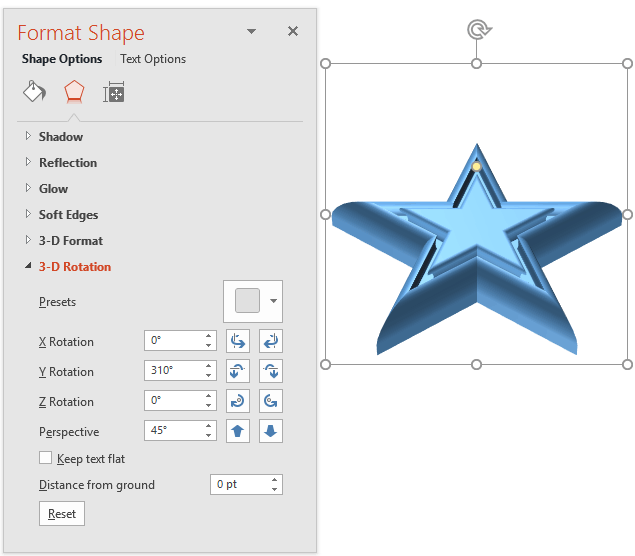
PowerPoint’s 3D options allow you to rotate shapes or add beveled edges. And these 3-D options are surprisingly powerful. In fact, some of these options are good enough to be compared to a basic 3-D program! While you can always apply a 3-D Rotation preset effect to a shape, you can actually rotate your shape in 3-D space on your own by altering the X, Y, and Z position coordinates.
To learn more, choose your version of PowerPoint. If we do not have a tutorial for your version of PowerPoint, explore the version closest to the one you use.
3-D Rotation Options for Shapes in PowerPoint 2016
3-D Rotation Options For Shapes in PowerPoint 2013
3-D Rotation Options For Shapes in PowerPoint 2010
3-D Rotation Options for Shapes in PowerPoint 2007
3-D Rotation Options for Shapes in PowerPoint 2003 and 2002
3-D Rotation Options For Shapes in PowerPoint 2011
Tutorial Code: 08 03 14
Previous: 08 03 13 Apply 3D Rotation Effects to Shapes in PowerPoint
Next: 08 03 15 Apply 3D Depth to Shapes in PowerPoint
Filed Under:
S
Tagged as: 08-03, Fills Lines and Effects, PowerPoint Tutorials, Shape Effects
Comments Off on Shape Effects: 3D Rotation Options for Shapes in PowerPoint
Among all the Shape Effects in PowerPoint, the 3-D ones stand apart. For any of the 3-D effects to work, you must understand two important 3-D parameters. These two parameters are 3-D Rotation and 3-D Depth. Although you can rotate any shape that has a Depth of zero, you really cannot see any Depth within a flat object.
To learn more, choose your version of PowerPoint. If we do not have a tutorial for your version of PowerPoint, explore the version closest to the one you use.
Apply 3-D Rotation Effects to Shape in PowerPoint 2016
Apply 3-D Rotation Effects to Shapes in PowerPoint 2013
Apply 3-D Rotation Effects to Shapes in PowerPoint 2010
Apply 3-D Rotation Effects to Shapes in PowerPoint 2007
Apply 3-D Rotation Effects to Shapes in PowerPoint 2011

Tutorial Code: 08 03 13
Previous: 08 03 12 Apply Bevel Effects to Shapes in PowerPoint
Next: 08 03 14 3D Rotation Options for Shapes in PowerPoint
Filed Under:
S
Tagged as: 08-03, Fills Lines and Effects, PowerPoint Tutorials, Shape Effects
Comments Off on Shape Effects: Apply 3D Rotation Effects to Shapes in PowerPoint
PowerPoint’s Merge Shapes commands open new opportunities and possibilities for you. Typically, whenever we need to create a jigsaw puzzle in PowerPoint, we source the actual jigsaw shapes from Office.com or from one of the many stock image sites. However, the Merge Shapes commands make it so easy to create your own jigsaws with nothing more than a few shapes!
To learn more, choose your version of PowerPoint. If we do not have a tutorial for your version of PowerPoint, explore the version closest to the one you use.
Create Jigsaw Shapes with Merge Shapes Commands in PowerPoint 2013

Tutorial Code: 06 10 11
Previous: 06 10 10 Merge Shapes with Pictures in PowerPoint
Next: 06 11 01 Callout Shapes in PowerPoint
Filed Under:
M
Tagged as: 06-10, Merge Shapes, PowerPoint Tutorials, Shapes
Comments Off on Merge Shapes: Create Jigsaw Shapes with Merge Shapes Commands in PowerPoint
Microsoft and the Office logo are trademarks or registered trademarks of Microsoft Corporation in the United States and/or other countries.