This is the print version of this page. All content is copyright Indezine.com 2000-2026.
Definitions and resources for terms and techniques used in the world of presentations
See Also:
PowerPoint and Presenting Notes
PowerPoint and Presenting Glossary
Presentations Glossary in alphabetical order:
A |
B |
C |
D |
E |
F |
G |
H |
I |
J |
K |
L |
M |
N |
O |
P |
Q |
R |
S |
T |
U |
V |
W |
X |
Y |
Z
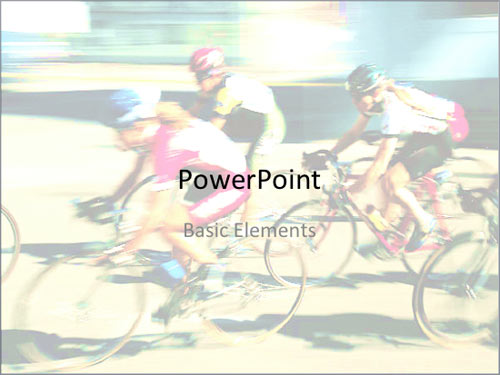
We have already shown you how you can apply picture fills as slide backgrounds, all the picture format options which can be applied on a picture also works for a picture background. Unfortunately, once you apply Office 2013’s Service Pack 1, many of the picture format options for picture backgrounds stop working.
To learn more, choose your version of PowerPoint. If we do not have a tutorial for your version of PowerPoint, explore the version closest to the one you use.
Workaround for Picture Backgrounds in PowerPoint 2013

Tutorial Code: 08 06 11
Previous: 08 06 10 Corrections and Color Options for Picture Backgrounds in PowerPoint
Next: 08 06 12 Using Custom Textures as Slide Backgrounds in PowerPoint
Filed Under:
F
Tagged as: 08-06, Fills for Slide Background, Fills Lines and Effects, PowerPoint Tutorials
Comments Off on Fills for Slide Background: Workaround for Picture Backgrounds in PowerPoint
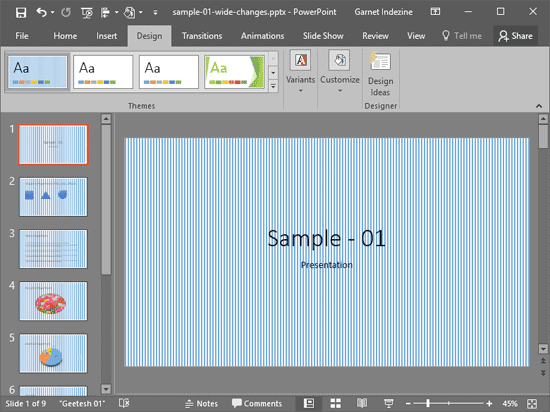
Patterns in PowerPoint are two-color designs comprising lines, dots, dashes, checks, etc. PowerPoint includes 48 such patterns with names like Plaid, Weaves, Shingle and Zigzag. This tutorial builds upon what you have already learned in the Format Slide Background tutorial, and shows how you can use a Pattern fill for your slide background.
To learn more, choose your version of PowerPoint. If we do not have a tutorial for your version of PowerPoint, explore the version closest to the one you use.
Pattern Fills for Slide Backgrounds in PowerPoint 2016
Pattern Fills for Slide Backgrounds in PowerPoint 2013
Pattern Fills for Slide Backgrounds in PowerPoint 2010
Pattern Fills for Slide Backgrounds in PowerPoint 2011
Tutorial Code: 08 06 08
Previous: 08 06 07 Texture Fills for Slide Backgrounds in PowerPoint
Next: 08 06 09 Artistic Effects for Picture Backgrounds in PowerPoint
Filed Under:
F
Tagged as: 08-06, Fills for Slide Background, Fills Lines and Effects, PowerPoint Tutorials
Comments Off on Fills for Slide Background: Pattern Fills for Slide Backgrounds in PowerPoint

Jennifer Rotondo is a Microsoft certified “PowerPoint Expert” who utilizes her abundance of knowledge in her Advanced PowerPoint Seminar and in several publications including Presentation Skills for Managers (McGraw-Hill), Point, Click & Wow! – (book with CDROM), PowerPoint 2000: Getting Professional Results (Microsoft) and Understanding Computers.
Here’s a list of links on Indezine.com where she has been featured:
 File Formats for PowerPoint
February 21, 2004
Using Visuals in Presentations
December 21, 2003
Filed Under:
J
Tagged as: Personality
Comments Off on Jennifer Rotondo
Textures are the “in” thing even in a world that looks so much at the new flat design concept, and the reason is not difficult to understand. The right texture can add interest, and make your slide content look crafted.
To learn more, choose your version of PowerPoint. If we do not have a tutorial for your version of PowerPoint, explore the version closest to the one you use.
Texture Fills for Slide Backgrounds in PowerPoint 2016
Texture Fills for Slide Backgrounds in PowerPoint 2013
Texture Fills for Slide Backgrounds in PowerPoint 2010
Texture Fills for Slide Backgrounds in PowerPoint 2011

Tutorial Code: 08 06 07
Previous: 08 06 06 Adjust Picture Used as Slide Background in PowerPoint
Next: 08 06 08 Pattern Fills for Slide Backgrounds in PowerPoint
Filed Under:
F
Tagged as: 08-06, Fills for Slide Background, Fills Lines and Effects, PowerPoint Tutorials
Comments Off on Fills for Slide Background: Texture Fills for Slide Backgrounds in PowerPoint
There are plenty of options in PowerPoint to make your slide background look great. Other than the default slide background styles, you can also explore solid, gradient, picture fills, texture fills, and pattern fills for your slide backgrounds. Among these alternatives, picture fills can look the most spectacular, but they can end up looking the most distracting as well. Clearly, there has to be some careful thought before you decide on a picture that’s suitable as a slide background.
To learn more, choose your version of PowerPoint. If we do not have a tutorial for your version of PowerPoint, explore the version closest to the one you use.
Adjust Picture Used as Slide Background in PowerPoint 2011
Tutorial Code: 08 06 06
Previous: 08 06 05 Picture Fills for Slide Backgrounds in PowerPoint
Next: 08 06 07 Texture Fills for Slide Backgrounds in PowerPoint
Filed Under:
F
Tagged as: 08-06, Fills for Slide Background, Fills Lines and Effects, PowerPoint Tutorials
Comments Off on Fills for Slide Background: Adjust Picture Used as Slide Background in PowerPoint
Microsoft and the Office logo are trademarks or registered trademarks of Microsoft Corporation in the United States and/or other countries.