
This is the print version of this page. All content is copyright Indezine.com 2000-2026.
Definitions and resources for terms and techniques used in the world of presentations
See Also:
PowerPoint and Presenting Notes
PowerPoint and Presenting Glossary
Presentations Glossary in alphabetical order:
A |
B |
C |
D |
E |
F |
G |
H |
I |
J |
K |
L |
M |
N |
O |
P |
Q |
R |
S |
T |
U |
V |
W |
X |
Y |
Z
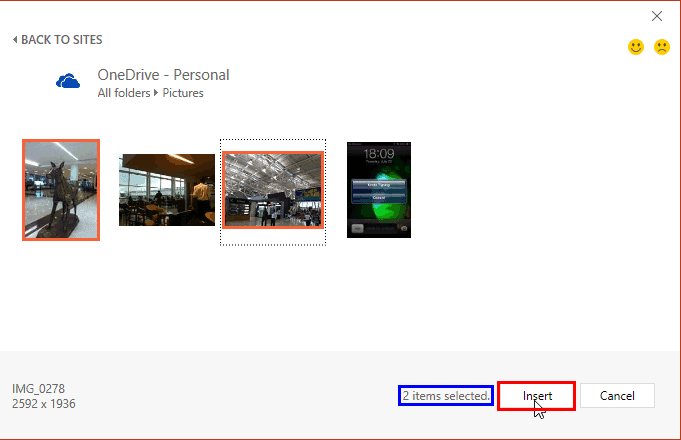
Our next option within the Insert Online Pictures in PowerPoint series of tutorials is exploring how you can insert pictures from your OneDrive account. Note that you must have some pictures already uploaded to your OneDrive folders for working with this tutorial. Luckily with OneDrive’s camera upload options for all phone platforms, most of us possibly already have tons of pictures in our OneDrive folders.
To learn more, choose your version of PowerPoint. If we do not have a tutorial for your version of PowerPoint, explore the version closest to the one you use.
Insert Pictures from OneDrive in PowerPoint 2016
Insert Pictures from OneDrive in PowerPoint 2013
Tutorial Code: 09 01 07
Previous: 09 01 06 Insert Pictures from Flickr in PowerPoint
Next: 09 01 08 Insert Pictures from Facebook in PowerPoint
Filed Under:
P
Tagged as: 09-01, Pictures and Visuals, Pictures Basics and Adjustments, PowerPoint Tutorials
Comments Off on Pictures Basics and Adjustments: Insert Pictures from OneDrive in PowerPoint
There are many, many options as far as inserting pictures from online sources within PowerPoint are concerned. Other than using the Bing Image Search options, you can also access Flickr. Flickr is probably the greatest online resource for pictures uploaded by photographers and enthusiasts all over the world.
To learn more, choose your version of PowerPoint. If we do not have a tutorial for your version of PowerPoint, explore the version closest to the one you use.
Insert Pictures from Flickr in PowerPoint 2016
Insert Pictures from Flickr in PowerPoint 2013

Tutorial Code: 09 01 06
Previous: 09 01 05 Insert Pictures from Bing in PowerPoint
Next: 09 01 07 Insert Pictures from OneDrive in PowerPoint
Filed Under:
P
Tagged as: 09-01, Pictures and Visuals, Pictures Basics and Adjustments, PowerPoint Tutorials
Comments Off on Pictures Basics and Adjustments: Insert Pictures from Flickr in PowerPoint
Although you can search for pictures on Google Images or Bing, these pictures show in web browsers, and even then, you cannot use most pictures in your slides since that would be a copyright violation. Fortunately, PowerPoint provides an option to search for pictures on Bing, which makes sure that you find Creative Common pictures so that you don’t end up being on the wrong side of the law.
To learn more, choose your version of PowerPoint. If we do not have a tutorial for your version of PowerPoint, explore the version closest to the one you use.
Insert Pictures from Bing in PowerPoint 2016
Insert Pictures from Bing in PowerPoint 2013
Tutorial Code: 09 01 05
Previous: 09 01 04 Insert Pictures from the Office ClipArt Collection in PowerPoint
Next: 09 01 06 Insert Pictures from Flickr in PowerPoint
Filed Under:
P
Tagged as: 09-01, Pictures and Visuals, Pictures Basics and Adjustments, PowerPoint Tutorials
Comments Off on Pictures Basics and Adjustments: Insert Pictures from Bing in PowerPoint
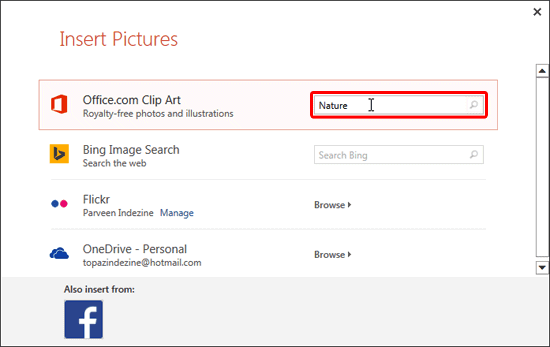
Within this first tutorial in our series that explores Insert Online Pictures in PowerPoint, we are going to explore the Office Clip Art option. This online picture service is provided by Microsoft and includes royalty-free photos and illustrations.
To learn more, choose your version of PowerPoint. If we do not have a tutorial for your version of PowerPoint, explore the version closest to the one you use.
Insert Picture from the Office ClipArt Collection in PowerPoint 2013
Tutorial Code: 09 01 04
Previous: 09 01 03 Insert Online Pictures in PowerPoint
Next: 09 01 05 Insert Pictures from Bing in PowerPoint
Filed Under:
P
Tagged as: 09-01, Pictures and Visuals, Pictures Basics and Adjustments, PowerPoint Tutorials
Comments Off on Pictures Basics and Adjustments: Insert Picture from the Office ClipArt Collection in PowerPoint
In this series of tutorials on Slide Background fills, you have already explored various slide background styles available. You have learned about solid, gradient, picture, and texture fills for Slide Backgrounds. When you use texture fills for your Slide Backgrounds, you need not limit yourself to only the default textures that PowerPoint offers.
To learn more, choose your version of PowerPoint. If we do not have a tutorial for your version of PowerPoint, explore the version closest to the one you use.
Using Custom Textures as Slide Backgrounds in PowerPoint 2011
Tutorial Code: 08 06 12
Previous: 08 06 11 Workaround for Picture Backgrounds in PowerPoint
Next: 09 01 01 Insert Pictures in PowerPoint
Filed Under:
F
Tagged as: 08-06, Fills for Slide Background, Fills Lines and Effects, PowerPoint Tutorials
Comments Off on Fills for Slide Background: Using Custom Textures as Slide Backgrounds in PowerPoint
Microsoft and the Office logo are trademarks or registered trademarks of Microsoft Corporation in the United States and/or other countries.

