
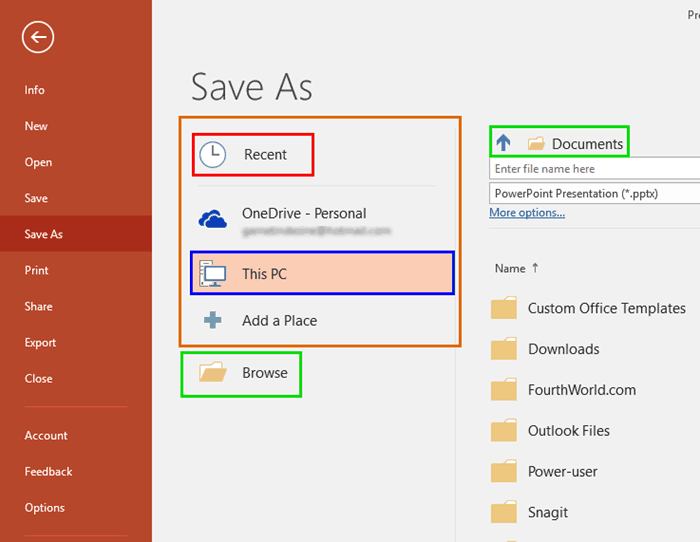
When you click the File menu and access Backstage view in PowerPoint, you see several options. Here, we explore two of these options: Save and Save As.
To learn more, choose your version of PowerPoint. If we do not have a tutorial for your version of PowerPoint, explore the version closest to the one you use.
Microsoft Windows
Save and Save As Tabs in Backstage View in PowerPoint 365
Save and Save As Tabs in Backstage View in PowerPoint 2019
Save and Save As Tabs in Backstage View in PowerPoint 2016
Save and Save As Tabs in Backstage View in PowerPoint 2013
Save and Save As Tabs in Backstage View in PowerPoint 2010
Apple Mac
Save and Save As Tabs in Backstage View in PowerPoint 365
Tutorial Code: 01 08 09
Previous: 01 08 08 Recent Tab of Backstage View in PowerPoint
Next: 01 08 10 Print Tab of Backstage View in PowerPoint