June 30th, 2022
Indents and Markers: Indent Markers (Carets) for Bulleted and Numbered Lists in PowerPoint

See Also:
PowerPoint and Presenting Notes
PowerPoint and Presenting Glossary
June 30th, 2022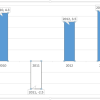 Advanced Chart Techniques: Using the Invert if Negative Option for Charts in PowerPoint
If your chart has negative values, then PowerPoint by default uses the same fill color for negative values in any chart. You can override this nature with the Invert if Negative option. To learn more, choose your version of PowerPoint. If we do not have a tutorial for your version of PowerPoint, explore the version ...
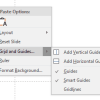 Working with Slides: Guide Options in PowerPoint
Among the many features in PowerPoint, there are some that are more useful than the others. Options for using Guides are certainly vital. Many users are not aware of all the capabilities that Guides offer. To learn more, choose your version of PowerPoint. If we do not have a tutorial for your version of PowerPoint ...
 Jamie Garroch
Jamie Garroch is a Technical Consultant at BrightCarbon, the specialist presentation and eLearning agency. He develops PowerPoint automation solutions and add-ins that enable presentation authors to work smarter. He also trains people to present more effectively using visuals and animated scenes that explain and reinforce key messages, which is supported by free resources and tips ...
Microsoft and the Office logo are trademarks or registered trademarks of Microsoft Corporation in the United States and/or other countries.