
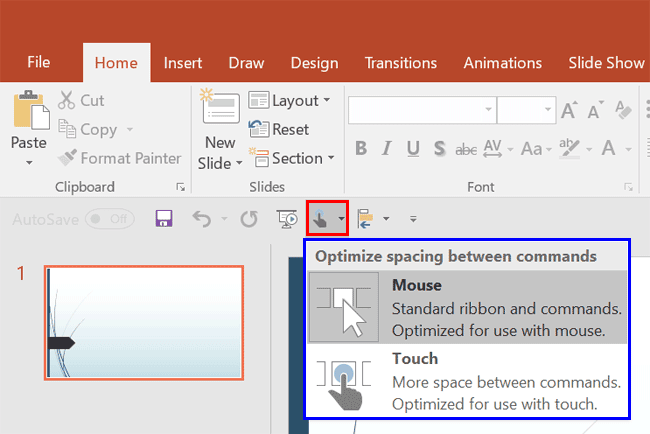
Look closely at the interface within PowerPoint, particularly the Customize Quick Access Toolbar drop-down menu, and you’ll find the Touch/Mouse Mode option. Essentially, this option is a toggle button that alternates between touch and mouse modes.
To learn more, choose your version of PowerPoint. If we do not have a tutorial for your version of PowerPoint, explore the version closest to the one you use.
Microsoft Windows
Touch or Mouse Mode in PowerPoint 365
Touch or Mouse Mode in PowerPoint 2016
Touch or Mouse Mode in PowerPoint 2013
Tutorial Code: 18 02 01
Previous: 18 01 03 Running Color Blind Tests Using Images Exported from PowerPoint
Next: 18 03 01 STAMP – Accessibility Add-in in PowerPoint