
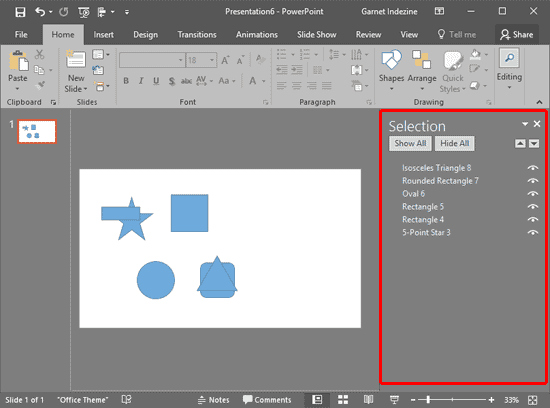
To format any slide object in PowerPoint, you must select it. There are a couple of ways with which you can select any slide object. Other than the obvious way of clicking the slide object to select, you can also use the Selection Pane. It’s always more difficult to select overlapping slide objects or objects placed behind a larger object in busy, populated slides — to select slide objects that are difficult to locate, you can use the Selection Pane.
To learn more, choose your version of PowerPoint. If we do not have a tutorial for your version of PowerPoint, explore the version closest to the one you use.
Microsoft Windows
Select, Deselect, View, and Hide Shapes Using the Selection Pane in PowerPoint 2016
Select, Deselect, View, and Hide Shapes Using the Selection Pane in PowerPoint 2013
Select, Deselect, View, and Hide Shapes Using the Selection Pane in PowerPoint 2010
Apple Mac
Select, Deselect, View, and Hide Shapes Using the Selection Pane in PowerPoint 2016
Tutorial Code: 06 03 02
Previous: 06 03 01 Select and Deselect Shapes in PowerPoint
Next: 06 04 01 Duplicate Shapes by Dragging in PowerPoint