
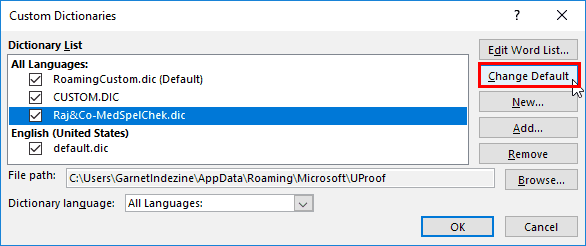
Any custom dictionary that you create within PowerPoint or any other Microsoft Office program is used by all the Office applications installed on your computer. Also, any changes made to the list of words within a custom dictionary reflect in proofing tools of all Office applications. Each logged-in user has a default custom dictionary called RoamingCustom.dic, stored in a separate folder for each local user.
To learn more, choose your version of PowerPoint. If we do not have a tutorial for your version of PowerPoint, explore the version closest to the one you use.
Microsoft Windows
Disable, Enable, and Set the Default Custom Dictionary in PowerPoint 365
Disable, Enable, and Set the Default Custom Dictionary in PowerPoint 2016
Disable, Enable, and Set the Default Custom Dictionary in PowerPoint 2013
Disable, Enable, and Set the Default Custom Dictionary in PowerPoint 2010
Apple Mac
Disable and Enable Custom Dictionaries in PowerPoint 2011
Tutorial Code: 05 08 16
Previous: 05 08 15 Sharing Custom Dictionaries in PowerPoint
Next: 05 08 17 Add and Remove Proofing Dictionaries for Foreign Languages in PowerPoint