
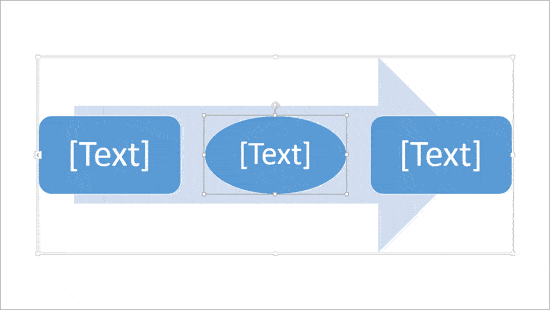
The default look of SmartArt graphics works great, and you may not want to change a thing! Yet, it’s good to know that you can change your SmartArt graphics to other layouts, change the color of SmartArt graphics, or apply a SmartArt Style to make your SmartArt graphic appear distinct and unique. You can also change the actual shapes within a SmartArt graphic. For instance, you can change some circles in your SmartArt graphic to squares with a mere click or two!
To learn more, choose your version of PowerPoint. If we do not have a tutorial for your version of PowerPoint, explore the version closest to the one you use.
Microsoft Windows
Change Shapes within a SmartArt Graphic in PowerPoint 2013
Change Shapes within a SmartArt Graphic in PowerPoint 2010
Apple Mac
Change Shapes within a SmartArt Graphic in PowerPoint 2011
Tutorial Code: 11 03 02
Previous: 11 03 01 Text Pane for SmartArt Graphics in PowerPoint
Next: 11 03 03 Resize Shapes within SmartArt Graphics in PowerPoint