
This is the print version of this page. All content is copyright Indezine.com 2000-2026.
Definitions and resources for terms and techniques used in the world of presentations
See Also:
PowerPoint and Presenting Notes
PowerPoint and Presenting Glossary
Presentations Glossary in alphabetical order:
A |
B |
C |
D |
E |
F |
G |
H |
I |
J |
K |
L |
M |
N |
O |
P |
Q |
R |
S |
T |
U |
V |
W |
X |
Y |
Z
As we explored in earlier tutorials, every clip media object within the Clip Organizer has keywords associated. These keywords can be edited as required. Similarly, clip media objects have certain other properties also such as the clip media name, type, resolution, etc.
To learn more, choose your version of PowerPoint. If we do not have a tutorial for your version of PowerPoint, explore the version closest to the one you use.
Clip Media Properties in Clip Organizer in PowerPoint 2010

Tutorial Code: 09 08 05
Previous: 09 08 04 Edit Keywords in Clip Organizer in PowerPoint
Next: 09 09 01 Downloading Maps from the Office.com Site in PowerPoint
Filed Under:
C
Tagged as: 09-08, Clip Organizer, Pictures and Visuals, PowerPoint Tutorials
Comments Off on Clip Organizer: Clip Media Properties in Clip Organizer in PowerPoint
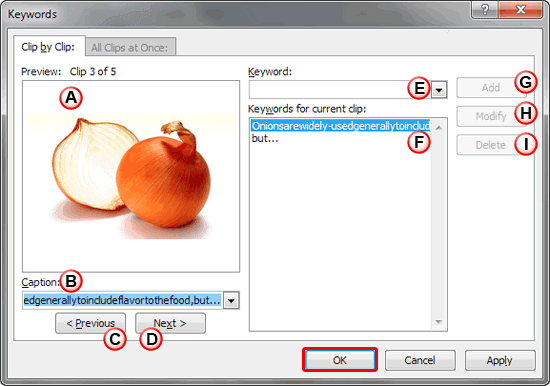
We showed you how to add clip media within the Clip Organizer. Then, we explored how you can create and organize Collections. Any clip media which is added has keywords associated with it. These keywords are helpful, especially when you are searching for results associated with a particular keyword. Clip Organizer enables you to add and edit these keywords.
To learn more, choose your version of PowerPoint. If we do not have a tutorial for your version of PowerPoint, explore the version closest to the one you use.
Edit Keywords in Clip Organizer in PowerPoint 2010
Tutorial Code: 09 08 04
Previous: 09 08 03 Create and Organize Collections in Clip Organizer in PowerPoint
Next: 09 08 05 Clip Media Properties in Clip Organizer in PowerPoint
Filed Under:
C
Tagged as: 09-08, Clip Organizer, Pictures and Visuals, PowerPoint Tutorials
Comments Off on Clip Organizer: Edit Keywords in Clip Organizer in PowerPoint
When you add clip media within the Clip Organizer, you need to select an existing Collection. There are some prerequisites though, and you can only add your own media to the My Collections folder, or any Collection you create as sub-folders with the My Collections folder. A Collection is just like a folder in which you save files. Taking the folder analogy further, you can also create Collections within the My Collections folder. Later you can rename, move, and delete a Collection altogether.
To learn more, choose your version of PowerPoint. If we do not have a tutorial for your version of PowerPoint, explore the version closest to the one you use.
Create and Organize Collections in Clip Organizer in PowerPoint 2010

Tutorial Code: 09 08 03
Previous: 09 08 02 Adding Clip Media to the Clip Organizer in PowerPoint
Next: 09 08 04 Edit Keywords in Clip Organizer in PowerPoint
Filed Under:
C
Tagged as: 09-08, Clip Organizer, Pictures and Visuals, PowerPoint Tutorials
Comments Off on Clip Organizer: Create and Organize Collections in Clip Organizer in PowerPoint
We explored the Clip Organizer previously, especially its interface. However, the real benefit of using Clip Organizer is only if you add your frequently used clips within its Collections. There are essentially two ways to add clip media.
To learn more, choose your version of PowerPoint. If we do not have a tutorial for your version of PowerPoint, explore the version closest to the one you use.
Adding Clip Media to the Clip Organizer in PowerPoint 2010

Tutorial Code: 09 08 02
Previous: 09 08 01 Clip Organizer in PowerPoint
Next: 09 08 03 Create and Organize Collections in Clip Organizer in PowerPoint
Filed Under:
C
Tagged as: 09-08, Clip Organizer, Pictures and Visuals, PowerPoint Tutorials
Comments Off on Clip Organizer: Adding Clip Media to the Clip Organizer in PowerPoint
Before we start discussing the Clip Organizer in PowerPoint, it’s important to first understand its scope. At the most basic level, the Clip Organizer is an entry-level digital asset management tool that lets you organize your clip media. We already learned how you can add media to the Clip Organizer within our Adding Clips to the Clip Organizer in PowerPoint.
To learn more, choose your version of PowerPoint. If we do not have a tutorial for your version of PowerPoint, explore the version closest to the one you use.
Clip Organizer in PowerPoint 2010

Tutorial Code: 09 08 01
Previous: 09 07 09 Photo Album Ideas and Samples in PowerPoint
Next: 09 08 02 Adding Clip Media to the Clip Organizer in PowerPoint
Filed Under:
C
Tagged as: 09-08, Clip Organizer, Pictures and Visuals, PowerPoint Tutorials
Comments Off on Clip Organizer: Clip Organizer in PowerPoint
Microsoft and the Office logo are trademarks or registered trademarks of Microsoft Corporation in the United States and/or other countries.