
This is the print version of this page. All content is copyright Indezine.com 2000-2026.
Definitions and resources for terms and techniques used in the world of presentations
See Also:
PowerPoint and Presenting Notes
PowerPoint and Presenting Glossary
Presentations Glossary in alphabetical order:
A |
B |
C |
D |
E |
F |
G |
H |
I |
J |
K |
L |
M |
N |
O |
P |
Q |
R |
S |
T |
U |
V |
W |
X |
Y |
Z
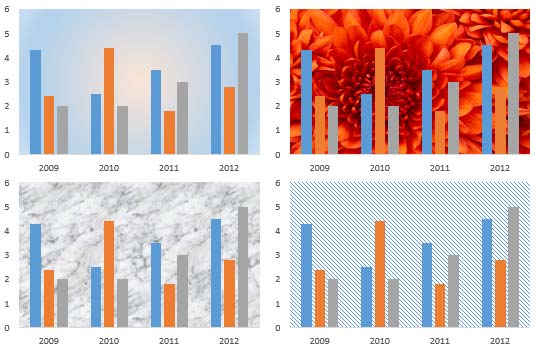
In a chart, the Plot Area is the backdrop upon which other chart elements such as Data Series and Gridlines are placed. This layer has axes on its perimeter. By default, the Plot Area has no fill attributes and is transparent. This may look plain, and that by itself is no reason to change the fill of the Plot Area.
To learn more, choose your version of PowerPoint. If we do not have a tutorial for your version of PowerPoint, explore the version closest to the one you use.
Apply Fills to Plot Area of Charts in PowerPoint 2013
Apply Fills to Plot Area of Charts in PowerPoint 2011
Tutorial Code: 10 03 02
Previous: 10 03 01 Plot Area for Charts in PowerPoint
Next: 10 03 03 Apply Solid Fills to Plot Area of Charts in PowerPoint
Filed Under:
P
Tagged as: 10-03, Charts and Graphs, Plot Area, PowerPoint Tutorials
Comments Off on Plot Area: Apply Fills to Plot Area of Charts in PowerPoint
In a chart, the Plot Area is the layer placed between the Chart Area and other chart elements such as Data Series and Gridlines. This layer typically also has the axes on its perimeter.
To learn more, choose your version of PowerPoint. If we do not have a tutorial for your version of PowerPoint, explore the version closest to the one you use.
Plot Area for Charts in PowerPoint 2013
Plot Area for Charts in PowerPoint 2011

Tutorial Code: 10 03 01
Previous: 10 02 06 Text Effects for Chart Area in PowerPoint
Next: 10 03 02 Apply Fills to Plot Area in PowerPoint
Filed Under:
P
Tagged as: 10-03, Charts and Graphs, Plot Area, PowerPoint Tutorials
Comments Off on Plot Area: Plot Area for Charts in PowerPoint

Paris Sims tells visual stories that move people. Whether it be conferences, trade shows, or new business pitches, his goal is to create something unique, memorable and to change the way people think about how they deliver information. His career includes stops at PR agencies Edelman, where he served as Art Director, and Golin, where he held the position of Creative Director. He has also had the esteemed honor to work independently on shows for Google, Facebook, and YouTube.
Here’s a list of links on Indezine.com where he has been featured:
 PowerPoint Presentation Design Deep Dive 2021: Conversation with Paris Sims
February 9, 2021
Filed Under:
P
Tagged as: Paris Sims, Personality
Comments Off on Paris Sims
PowerPoint provides you with various text fill and outline options for your chart text. Additionally, there are some text effects that can be applied to your chart text. The available Effects for chart text are very few, this may be because the chart text has its roots in Excel.
To learn more, choose your version of PowerPoint. If we do not have a tutorial for your version of PowerPoint, explore the version closest to the one you use.
Text Effects for Chart Area in PowerPoint 2013

Tutorial Code: 10 02 06
Previous: 10 02 05 Text Fill & Outline Options for Chart Area in PowerPoint
Next: 10 03 01 Plot Area in PowerPoint
Filed Under:
C
Tagged as: 10-02, Chart Area, Charts and Graphs, PowerPoint Tutorials
Comments Off on Chart Area: Text Effects for Chart Area in PowerPoint
Text used within a chart is not really formatted by default and looks very simple. Note that the font style used is derived from the information available within the Theme or template used for the slides. Now you really should not change the text formatting within your chart unless you have a compelling reason to do so.
To learn more, choose your version of PowerPoint. If we do not have a tutorial for your version of PowerPoint, explore the version closest to the one you use.
Text Fill & Outline Options for Chart Area in PowerPoint 2013

Tutorial Code: 10 02 05
Previous: 10 02 04 Size & Properties Options for Chart Area in PowerPoint
Next: 10 02 06 Text Effects for Chart Area in PowerPoint
Filed Under:
C
Tagged as: 10-02, Chart Area, Charts and Graphs, PowerPoint Tutorials
Comments Off on Chart Area: Text Fill & Outline Options for Chart Area in PowerPoint
Microsoft and the Office logo are trademarks or registered trademarks of Microsoft Corporation in the United States and/or other countries.