
This is the print version of this page. All content is copyright Indezine.com 2000-2026.
Definitions and resources for terms and techniques used in the world of presentations
See Also:
PowerPoint and Presenting Notes
PowerPoint and Presenting Glossary
Presentations Glossary in alphabetical order:
A |
B |
C |
D |
E |
F |
G |
H |
I |
J |
K |
L |
M |
N |
O |
P |
Q |
R |
S |
T |
U |
V |
W |
X |
Y |
Z
Different PowerPoint versions support a plethora of video file formats. Not surprisingly, the new PowerPoint versions support a larger number of file formats for video.
To learn more, click a link from the tutorials listed below.
PowerPoint Friendly Video Formats

Tutorial Code: 14 01 01
Previous: 13 10 06 Using Morph to Highlight Parts of an Image in PowerPoint
Next: 14 01 02 PowerPoint Friendly Audio Formats
Filed Under:
P
Tagged as: 14-01, Multimedia, PowerPoint Multimedia Basics, PowerPoint Tutorials
Comments Off on PowerPoint Multimedia Basics: PowerPoint Friendly Video Formats
A column chart is probably the most simple chart type that you can create in PowerPoint. What makes a column chart the most preferred chart type is that it follows human thinking. We are all used to identifying a taller column as representing more success, more sales, more profits, more reach, etc.
To learn more, choose your version of PowerPoint. If we do not have a tutorial for your version of PowerPoint, explore the version closest to the one you use.

Tutorial Code: 10 14 02
Previous: 10 14 01 Chart Types in PowerPoint
Next: 10 14 03 Bar Charts in PowerPoint
Filed Under:
P
Tagged as: 10-14, Charts and Graphs, PowerPoint Chart Types, PowerPoint Tutorials
Comments Off on PowerPoint Chart Types: Column Charts in PowerPoint
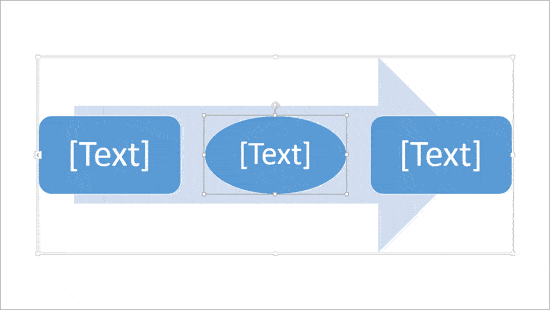
The default look of SmartArt graphics works great, and you may not want to change a thing! Yet, it’s good to know that you can change your SmartArt graphics to other layouts, change the color of SmartArt graphics, or apply a SmartArt Style to make your SmartArt graphic appear distinct and unique. You can also change the actual shapes within a SmartArt graphic. For instance, you can change some circles in your SmartArt graphic to squares with a mere click or two!
To learn more, choose your version of PowerPoint. If we do not have a tutorial for your version of PowerPoint, explore the version closest to the one you use.
Change Shapes within a SmartArt Graphic in PowerPoint 2013
Change Shapes within a SmartArt Graphic in PowerPoint 2010
Change Shapes within a SmartArt Graphic in PowerPoint 2011
Tutorial Code: 11 03 02
Previous: 11 03 01 Text Pane for SmartArt Graphics in PowerPoint
Next: 11 03 03 Resize Shapes within SmartArt Graphics in PowerPoint
Filed Under:
A
Tagged as: 11-03, Advanced, PowerPoint Tutorials, SmartArt Graphics
Comments Off on Advanced SmartArt: Change Shapes within a SmartArt Graphic in PowerPoint
It is easy to flip and rotate a picture on your slide. However, this same flipping can be a little tricky when you use a picture fill within a shape. In our attempt to flip the picture, we tried flipping the container shape. The result is that the picture does get flipped, but so does the shape.
To learn more, choose your version of PowerPoint. If we do not have a tutorial for your version of PowerPoint, explore the version closest to the one you use.
Flip and Rotate Picture Fills for Shapes in PowerPoint 365
Flip and Rotate Picture Fills for Shapes in PowerPoint 2013
Flip and Rotate Picture Fills for Shapes in PowerPoint 2010
Flip and Rotate Picture Fills for Shapes in PowerPoint 365
Flip and Rotate Picture Fills for Shapes in PowerPoint 2011

Tutorial Code: 06 02 06
Previous: 06 02 05 Finding Length of a Diagonal Line in PowerPoint
Next: 06 02 07 Working with Pie Shapes in PowerPoint
Filed Under:
A
Tagged as: 06-02, Advanced Shape Techniques, PowerPoint Tutorials, Shapes
Comments Off on Advanced Shape Techniques: Flip and Rotate Picture Fills for Shapes in PowerPoint
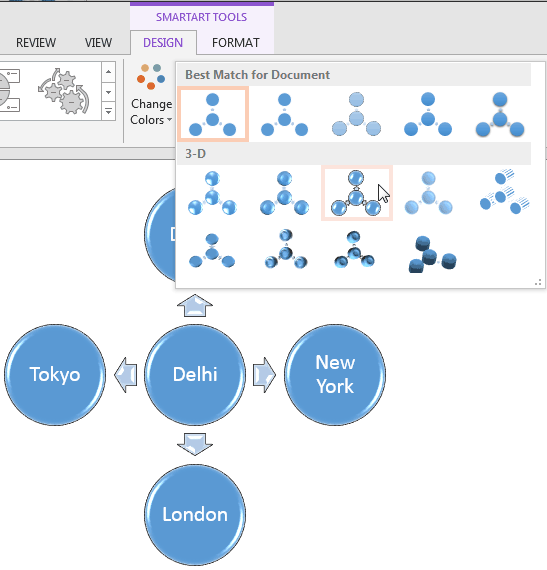
When you change colors of a SmartArt graphic, fill colors of individual shapes within the SmartArt change. Other attributes such as outlines or effects are not altered. Rather than individually add these attributes to your SmartArt, you can use the all-inclusive SmartArt Styles option to overcome this limitation.
To learn more, choose your version of PowerPoint. If we do not have a tutorial for your version of PowerPoint, explore the version closest to the one you use.
Apply SmartArt Styles in PowerPoint 2013
Apply SmartArt Styles in PowerPoint 2010
Apply SmartArt Styles in PowerPoint 2011
Tutorial Code: 11 02 06
Previous: 11 02 05 Shape Fills, Lines, and Effects for SmartArt in PowerPoint
Next: 11 03 01 Text Pane for SmartArt Graphics in PowerPoint
Filed Under:
W
Tagged as: 11-02, PowerPoint Tutorials, SmartArt Graphics, Working with SmartArt
Comments Off on Working with SmartArt: Apply SmartArt Styles in PowerPoint
Microsoft and the Office logo are trademarks or registered trademarks of Microsoft Corporation in the United States and/or other countries.