
This is the print version of this page. All content is copyright Indezine.com 2000-2026.
Definitions and resources for terms and techniques used in the world of presentations
See Also:
PowerPoint and Presenting Notes
PowerPoint and Presenting Glossary
Presentations Glossary in alphabetical order:
A |
B |
C |
D |
E |
F |
G |
H |
I |
J |
K |
L |
M |
N |
O |
P |
Q |
R |
S |
T |
U |
V |
W |
X |
Y |
Z
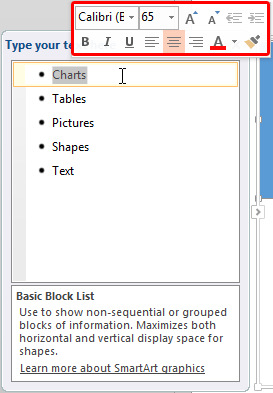
All the SmartArt layouts have text placeholders, which are basically text boxes. You can click and start typing within these placeholders to add text. In the previous tutorial, we showed you how to insert a SmartArt graphic within PowerPoint, or convert some bulleted text to SmartArt, and how the SmartArt Text Pane works.
To learn more, choose your version of PowerPoint. If we do not have a tutorial for your version of PowerPoint, explore the version closest to the one you use.
Format Text Attributes of SmartArt Graphics in PowerPoint 2013
Format Text Attributes of SmartArt Graphics in PowerPoint 2010
Format Text Attributes of SmartArt Graphics in PowerPoint 2011
Tutorial Code: 11 03 06
Previous: 11 03 05 Convert SmartArt Graphics to Shapes
Next: 11 03 07 Add Office.com SmartArt Graphics
Filed Under:
A
Tagged as: 11-03, Advanced, PowerPoint Tutorials, SmartArt Graphics
Comments Off on Advanced SmartArt: Format Text Attributes of SmartArt Graphics in PowerPoint
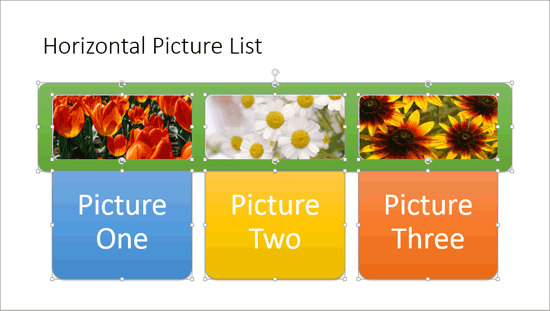
SmartArt is a great new feature that Microsoft added in PowerPoint. Yet, many users want to convert their SmartArt graphic to bulleted text, or even to individually editable shapes to manipulate further. Yes, you can convert SmartArt to individual shapes, but do remember that this is a one-way process, and you lose any editability for the SmartArt graphic from that point in time. However, converting to shapes does mean that you have complete control over moving, resizing, deleting, or formatting individual shapes.
To learn more, choose your version of PowerPoint. If we do not have a tutorial for your version of PowerPoint, explore the version closest to the one you use.
Convert SmartArt Graphics to Shapes in PowerPoint 2013
Convert SmartArt Graphics to Shapes in PowerPoint 2010
Convert SmartArt Graphics to Shapes in PowerPoint 2011
Tutorial Code: 11 03 05
Previous: 11 03 04 Move Shapes within SmartArt Graphics
Next: 11 03 06 Format Text Attributes of SmartArt Graphics in PowerPoint
Filed Under:
A
Tagged as: 11-03, Advanced, PowerPoint Tutorials, SmartArt Graphics
Comments Off on Advanced SmartArt: Convert SmartArt Graphics to Shapes
Pie charts show the size of items in one data series, proportional to the sum of the items. The data points in a pie chart are displayed as a percentage of the whole pie.
To learn more, click a link from the tutorials listed below.

Tutorial Code: 10 14 05
Previous: 10 14 04 Line Charts in PowerPoint
Next: 10 14 06 Area Charts in PowerPoint
Filed Under:
P
Tagged as: 10-14, Charts and Graphs, PowerPoint Chart Types, PowerPoint Tutorials
Comments Off on PowerPoint Chart Types: Pie Charts in PowerPoint
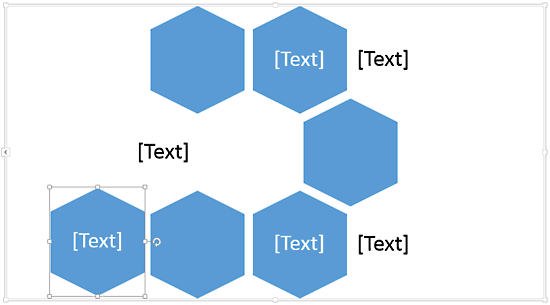
SmartArt graphics are easily inserted infographics that typically place common PowerPoint shapes in relation to each other to create a strong message. You can, of course, change those individual shapes within SmartArt, as in changing a square to a circle or anything else. But what many users don’t realize is that you can do much more. You can actually move some shapes around within the SmartArt graphic if you want. This sort of creative freedom lets you adapt existing SmartArt layouts to your liking to create something new.
To learn more, choose your version of PowerPoint. If we do not have a tutorial for your version of PowerPoint, explore the version closest to the one you use.
Move Shapes within a SmartArt Graphic in PowerPoint 2013
Move Shapes within a SmartArt Graphic in PowerPoint 2010
Move Shapes within a SmartArt Graphic in PowerPoint 2011
Tutorial Code: 11 03 04
Previous: 11 03 03 Resize Shapes within SmartArt Graphics
Next: 11 03 05 Convert SmartArt Graphics to Shapes
Filed Under:
A
Tagged as: 11-03, Advanced, PowerPoint Tutorials, SmartArt Graphics
Comments Off on Advanced SmartArt: Move Shapes within SmartArt Graphics
Similar to how you can change an individual shape within SmartArt, you can even resize shapes within a SmartArt graphic. This can be helpful if you want one shape to be larger than the others. Perhaps you want one shape to stand out? Whatever be the reason behind you wanting to resize these shapes, these tutorials will explore how you can resize individual shapes within a SmartArt graphic in PowerPoint.
To learn more, choose your version of PowerPoint. If we do not have a tutorial for your version of PowerPoint, explore the version closest to the one you use.
Resize Shapes within SmartArt Graphics in PowerPoint 2013
Resize Shapes within SmartArt Graphics in PowerPoint 2010
Resize Shapes within SmartArt Graphics in PowerPoint 2011

Tutorial Code: 11 03 03
Previous: 11 03 02 Change Shapes within SmartArt Graphics
Next: 11 03 04 Move Shapes within SmartArt Graphics
Filed Under:
A
Tagged as: 11-03, Advanced, PowerPoint Tutorials, SmartArt Graphics
Comments Off on Advanced SmartArt: Resize Shapes within SmartArt Graphics
Microsoft and the Office logo are trademarks or registered trademarks of Microsoft Corporation in the United States and/or other countries.