
This is the print version of this page. All content is copyright Indezine.com 2000-2026.
Definitions and resources for terms and techniques used in the world of presentations
See Also:
PowerPoint and Presenting Notes
PowerPoint and Presenting Glossary
Presentations Glossary in alphabetical order:
A |
B |
C |
D |
E |
F |
G |
H |
I |
J |
K |
L |
M |
N |
O |
P |
Q |
R |
S |
T |
U |
V |
W |
X |
Y |
Z
Since there is no easy, intuitive way to create semi-circles in PowerPoint, we already showed you three ways to create them! And now here’s one more way to do just that but this might be the easiest of them all.
To learn more, choose your version of PowerPoint. If we do not have a tutorial for your version of PowerPoint, explore the version closest to the one you use.
Semi-Circles Again in PowerPoint 2003

Tutorial Code: 06 07 04
Previous: 06 07 03 Creating Semi-Circle Shapes in PowerPoint
Next: 06 07 05 Creating Half Circles in PowerPoint
Filed Under:
C
Tagged as: 06-07, Circles and Squares, PowerPoint Tutorials, Shapes
Comments Off on Circles and Squares: Semi-Circles Again in PowerPoint
It’s possible to do all grouping and ungrouping of slide objects in PowerPoint with menus and contextual Ribbon tabs, depending upon which version of PowerPoint you are using but it’s even quicker to do it with shortcut keys.
To learn more, choose your version of PowerPoint. If we do not have a tutorial for your version of PowerPoint, explore the version closest to the one you use.
Grouping and Ungrouping Shortcut Keys in PowerPoint

Tutorial Code: 06 06 08
Previous: 06 06 07 Troubleshooting Ungrouping in PowerPoint
Next: 06 07 01 Drawing a Perfect Circle in PowerPoint
Filed Under:
G
Tagged as: 06-06, Group Nudge and Reorder Shapes, PowerPoint Tutorials, Shapes
Comments Off on Group, Nudge, and Reorder Shapes: Grouping and Ungrouping Shortcut Keys in PowerPoint
Ungrouping can sometimes seem ineffective because you still see groups even after you ungroup. This can happen if you have nested groups of slide objects, as in the case of a group that consists of grouped objects. In this case, when you ungroup, you still have one or more grouped objects that need to be ungrouped again!
To learn more, choose your version of PowerPoint. If we do not have a tutorial for your version of PowerPoint, explore the version closest to the one you use.
Filed Under:
G
Tagged as: 06-06, Group Nudge and Reorder Shapes, PowerPoint Tutorials, Shapes
Comments Off on Group, Nudge, and Reorder Shapes: Troubleshooting Ungrouping in PowerPoint
Animation in PowerPoint makes slide objects move. These slide objects can be anything you can select such as text, pictures, charts, SmartArt graphics, shapes, and even video clips. But did you know that you can combine multiple animations to happen at the same time for the same slide object, creating a custom animation effect? Imagine, an object fading and zooming at the same time!
To learn more, click a link from the tutorials listed below.
Filed Under:
B
Tagged as: 13-01, Animations and Transitions, Basics of PowerPoint Animation, PowerPoint Tutorials
Comments Off on Basics of Animation: Apply Two or More Animations to One Object at the Same Time in PowerPoint
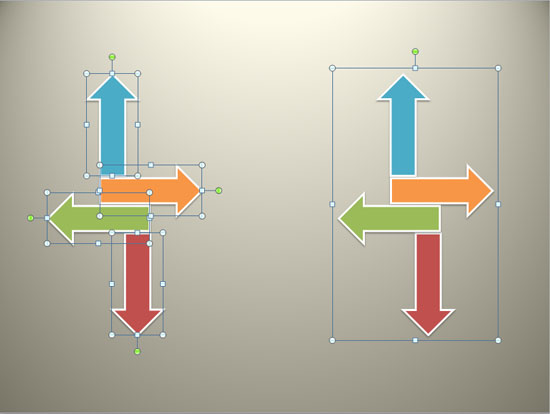
This happens when you are trying to group placeholders on a slide with other slide objects. Placeholders are special objects on a slide that are part of the slide layout. For example in a conventional bulleted slide, the title and text box are often placeholders, and these cannot be grouped with other inserted slide objects like shapes, pictures, or charts. Similarly, there are other grouping problems you may run into while using PowerPoint.
To learn more, choose your version of PowerPoint. If we do not have a tutorial for your version of PowerPoint, explore the version closest to the one you use.
Troubleshooting Grouping in PowerPoint 2007, 2003, and 2002
Tutorial Code: 06 06 06
Previous: 06 06 05 Dynamic Reorder of Overlapping Shapes in PowerPoint
Next: 06 06 07 Troubleshooting Ungrouping in PowerPoint
Filed Under:
G
Tagged as: 06-06, Group Nudge and Reorder Shapes, PowerPoint Tutorials, Shapes
Comments Off on Group, Nudge, and Reorder Shapes: Troubleshooting Grouping in PowerPoint
Microsoft and the Office logo are trademarks or registered trademarks of Microsoft Corporation in the United States and/or other countries.