
This is the print version of this page. All content is copyright Indezine.com 2000-2026.
Definitions and resources for terms and techniques used in the world of presentations
See Also:
PowerPoint and Presenting Notes
PowerPoint and Presenting Glossary
Presentations Glossary in alphabetical order:
A |
B |
C |
D |
E |
F |
G |
H |
I |
J |
K |
L |
M |
N |
O |
P |
Q |
R |
S |
T |
U |
V |
W |
X |
Y |
Z
The Search feature in PowerPoint is an option that brings up definitions, images, and other results from various online resources about a word or phrase, right within PowerPoint. In some versions of PowerPoint, this feature is also known as Smart Lookup or Insights.
To learn more, choose your version of PowerPoint. If we do not have a tutorial for your version of PowerPoint, explore the version closest to the one you use.
Search Online Resources in PowerPoint 365
Search Online Resources in PowerPoint 2016

Tutorial Code: 05 08 01
Previous: 05 07 13 Advanced Text Transforms in PowerPoint
Next: 05 08 02 Spell Check in PowerPoint
Filed Under:
S
Tagged as: 05-08, AutoCorrect Entries in PowerPoint, PowerPoint Tutorials, Spelling AutoCorrect and Reference Tools
Comments Off on Spelling, AutoCorrect, and Reference Tools: Search Online Resources in PowerPoint
You can crop pictures in PowerPoint, and of course you can animate them. But as you may observe frequently in life, synergy yields results that exceed the mere sum of two or more initiatives. And that’s true in a way for the technique we will explore on this page, we call this Slice and Animate. The two techniques being used for this synergy are cropping pictures and adding animation.
To learn more, click a link from the tutorials listed below.
Slice and Animate Pictures in PowerPoint

Tutorial Code: 13 03 12
Previous: 13 03 11 Animation Sounds in PowerPoint
Next: 13 04 01 Animate Ungrouped Tables in PowerPoint
Filed Under:
A
Tagged as: 13-03, Advanced Animation Concepts, Animations and Transitions, PowerPoint Tutorials
Comments Off on Advanced Animation Concepts: Slice and Animate Pictures in PowerPoint
Adding an animation to any slide object imparts movement of some sort to that object, and draws the attention of the audience to that object. Of course, you can tweak the animation event, the speed of the animation, and also the delay time before the animation happens. In this tutorial, we’ll explore how you can add sound to an animation.
To learn more, choose your version of PowerPoint. If we do not have a tutorial for your version of PowerPoint, explore the version closest to the one you use.
Animation Sounds in PowerPoint 2013
Animation Sounds in PowerPoint 2010
Animation Sounds in PowerPoint 2007
Animation Sounds in PowerPoint 2011

Tutorial Code: 13 03 11
Previous: 13 03 10 Animation Painter in PowerPoint
Next: 13 03 12 Slice and Animate Pictures in PowerPoint
Filed Under:
A
Tagged as: 13-03, Advanced Animation Concepts, Animations and Transitions, PowerPoint Tutorials
Comments Off on Advanced Animation Concepts: Animation Sounds in PowerPoint
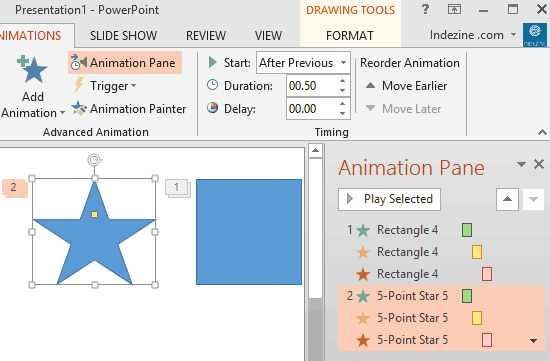
Let’s imagine you got your animation just right. You tweaked the speed and set the animation event. You also added a series of simultaneous and sequential animations to the same slide object, so that it fades and wipes at the same time; then it grows in size, stays on screen without animation for a requisite amount of time using a delay, and finally, the object exits using a simple fade animation. Now, you need to apply the same animation to 50 other slide objects within the presentation! The Animation Painter can help.
To learn more, choose your version of PowerPoint. If we do not have a tutorial for your version of PowerPoint, explore the version closest to the one you use.
Animation Painter in PowerPoint 2013
Animation Painter in PowerPoint 2010
Tutorial Code: 13 03 10
Previous: 13 03 09 Build and Sequence Animations in PowerPoint
Next: 13 03 11 Animation Sounds in PowerPoint
Filed Under:
A
Tagged as: 13-03, Advanced Animation Concepts, Animations and Transitions, PowerPoint Tutorials
Comments Off on Advanced Animation Concepts: Animation Painter in PowerPoint

Paul J. Radich has worked with Dr. Andrew Abela on the development and delivery of the Extreme Presentation workshop since its inception in 2005. He has served on the Ethics Committee of the American Marketing Association and is Assistant Professor and Marketing Area Head in the School of Business and Economics at The Catholic University of America in Washington, DC. His areas of focus include consumer behavior, marketing strategy, and international marketing. He provides consulting and education on effective communication of complex information, for major organizations like JPMorgan Chase, Visa, Volkswagen, and the US White House Executive Councils.
Here’s a list of links on Indezine.com where he has been featured:
 The Encyclopedia of Slide Layouts: Conversation with Paul J. Radich
June 5, 2015
 The Encyclopedia of Slide Layouts: Conversation with Dr. Andrew Abela
June 3, 2015
Filed Under:
P
Tagged as: Personality
Comments Off on Paul J. Radich
Microsoft and the Office logo are trademarks or registered trademarks of Microsoft Corporation in the United States and/or other countries.