
This is the print version of this page. All content is copyright Indezine.com 2000-2026.
Definitions and resources for terms and techniques used in the world of presentations
See Also:
PowerPoint and Presenting Notes
PowerPoint and Presenting Glossary
Presentations Glossary in alphabetical order:
A |
B |
C |
D |
E |
F |
G |
H |
I |
J |
K |
L |
M |
N |
O |
P |
Q |
R |
S |
T |
U |
V |
W |
X |
Y |
Z
Styling text is one of those features that are either grossly overlooked or entirely over-used in PowerPoint. And, either of those situations can be a shame since PowerPoint allows you to do so much to text with its powerful WordArt feature.
To learn more, choose your version of PowerPoint. If we do not have a tutorial for your version of PowerPoint, explore the version closest to the one you use.
WordArt Styles (Quick Styles) in PowerPoint 2013
WordArt Styles (Quick Styles) in PowerPoint 2010
WordArt Styles (Quick Styles) in PowerPoint 2011

Tutorial Code: 05 07 01
Previous: 05 06 14 Set as Default Text Box in PowerPoint
Next: 05 07 02 Text Fills in PowerPoint
Filed Under:
W
Tagged as: 05-07, PowerPoint Tutorials, Text and Fonts, WordArt (incl Text Fills; Lines; and Effects)
Comments Off on WordArt (incl. Text Fills, Lines, and Effects): WordArt Styles (Quick Styles) in PowerPoint
Imagine this scenario: you place a text box on your slide. Then you change the color of the font, reduce or increase the font size, set autofit options, tweak the margins, etc. At this point in time, you are happy with your settings.
To learn more, choose your version of PowerPoint. If we do not have a tutorial for your version of PowerPoint, explore the version closest to the one you use.
Set as Default Text Box in PowerPoint 2013
Set as Default Text Box in PowerPoint 2010
Set as Default Text Box in PowerPoint 2011

Tutorial Code: 05 06 14
Previous: 05 06 13 Format Text Attributes Within the Mini Toolbar in PowerPoint
Next: 05 07 01 WordArt Styles (Quick Styles) in PowerPoint
Filed Under:
T
Tagged as: 05-06, PowerPoint Tutorials, Text and Fonts, Text Formatting
Comments Off on Text Formatting: Set as Default Text Box in PowerPoint
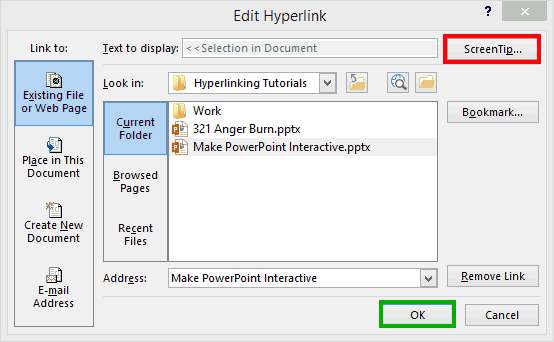
We have explored several hyperlinking tutorials in PowerPoint. However, what happens when you hover any of these hyperlinks before you actually click the anchor? Typically PowerPoint just uses something for the ScreenTip (screen tip) when you hover over a hyperlinked slide object.
To learn more, click a link from the tutorials listed below.
Screen Tips for Hyperlinks in PowerPoint 2013
Tutorial Code: 15 02 10
Previous: 15 02 09 Create a Hyperlink to a New Email Message in PowerPoint
Next: 15 02 11 Linking to Any File in PowerPoint
Filed Under:
H
Tagged as: 15-02, Hyperlinking, Interactivity and Linking, PowerPoint Tutorials
Comments Off on Hyperlinking: Screen Tips for Hyperlinks in PowerPoint
Text in PowerPoint presentations needs to be edited in many ways. Sometimes, you need certain words to be in a different color, or bold, italicized, or underlined. Whatever the option required to format your text, you’ll find that the Mini Toolbar is an excellent location to make these changes quickly.
To learn more, choose your version of PowerPoint. If we do not have a tutorial for your version of PowerPoint, explore the version closest to the one you use.
Format Text Attributes Within the Mini Toolbar in PowerPoint 2013
Format Text Attributes Within the Mini Toolbar in PowerPoint 2010

Tutorial Code: 05 06 13
Previous: 05 06 12 Copying Text Attributes With Format Painter in PowerPoint
Next: 05 06 14 Set as Default Text Box in PowerPoint
Filed Under:
T
Tagged as: 05-06, PowerPoint Tutorials, Text and Fonts, Text Formatting
Comments Off on Text Formatting: Format Text Attributes Within the Mini Toolbar in PowerPoint
PowerPoint’s Format Painter option does an absolutely amazing job of copying all the formatting attributes from one slide object to another. For instance, you can copy all attributes of a shape (and even the text that the shape contains) to another shape, text box, or even a text placeholder.
To learn more, choose your version of PowerPoint. If we do not have a tutorial for your version of PowerPoint, explore the version closest to the one you use.
Copying Text Attributes With Format Painter in PowerPoint 2013
Copying Text Attributes With Format Painter in PowerPoint 2010
Copying Text Attributes With Format Painter in PowerPoint 2011

Tutorial Code: 05 06 12
Previous: 05 06 11 Change Text Case in PowerPoint
Next: 05 06 13 Format Text Attributes Within the Mini Toolbar in PowerPoint
Filed Under:
T
Tagged as: 05-06, PowerPoint Tutorials, Text and Fonts, Text Formatting
Comments Off on Text Formatting: Copying Text Attributes With Format Painter in PowerPoint
Microsoft and the Office logo are trademarks or registered trademarks of Microsoft Corporation in the United States and/or other countries.