
This is the print version of this page. All content is copyright Indezine.com 2000-2026.
Definitions and resources for terms and techniques used in the world of presentations
See Also:
PowerPoint and Presenting Notes
PowerPoint and Presenting Glossary
Presentations Glossary in alphabetical order:
A |
B |
C |
D |
E |
F |
G |
H |
I |
J |
K |
L |
M |
N |
O |
P |
Q |
R |
S |
T |
U |
V |
W |
X |
Y |
Z
Sometimes you may wonder why PowerPoint does not provide options for the shapes that you want to use! The other day someone wanted to create a shape resembling Pacman! How many of you remember Pacman, the lovable character from the computer game? Well, lovable or not, it is still easy to draw a Pacman shape in PowerPoint as long as you know what to start with! And the answer is to start with the Pie shape!
To learn more, choose your version of PowerPoint. If we do not have a tutorial for your version of PowerPoint, explore the version closest to the one you use.
Working with Pie Shapes in PowerPoint

Tutorial Code: 06 02 07
Previous: 06 02 06 Flip and Rotate Picture Fills for Shapes in PowerPoint
Next: 06 02 08 Drawing Arcs in PowerPoint
Filed Under:
A
Tagged as: 06-02, Advanced Shape Techniques, PowerPoint Tutorials, Shapes
Comments Off on Advanced Shape Techniques: Working with Pie Shapes in PowerPoint

Cindy Tingley juggles many roles, but they are all tied to her main passion, which is creating and delivering engaging and impactful content for learners, and teaching others to do the same. She is the Events Director at the Presentation Guild, and a vocal proponent of utilizing presentation design to deliver maximum impact and retention for the audience and eliminate the dreaded “Death by PowerPoint.”
Here’s a list of links on Indezine.com where she has been featured:
 Presentation Summit 2022: Conversation with Cindy Tingley
August 31, 2022
Filed Under:
C
Tagged as: Personality
Comments Off on Cindy Tingley
Working on a presentation and creating slides that can attract attention is always a challenge. This is more challenging when you want to draw attention to a motto, a slogan, or an axiom. To make such text stand apart, it is easy to apply text transform effects to your selected text. Apart from using presets, you can go further and tweak any of the presets to make your own distinctive Transform effect.
To learn more, choose your version of PowerPoint. If we do not have a tutorial for your version of PowerPoint, explore the version closest to the one you use.
Advanced Text Transforms in PowerPoint 2013
Advanced Text Transforms in PowerPoint 2010
Advanced Text Transforms in PowerPoint 2011

Tutorial Code: 05 07 13
Previous: 05 07 12 Text Transforms in PowerPoint
Next: 05 08 01 Search Online Resources in PowerPoint
Filed Under:
W
Tagged as: 05-07, PowerPoint Tutorials, Text and Fonts, WordArt (incl Text Fills; Lines; and Effects)
Comments Off on WordArt (incl. Text Fills, Lines, and Effects): Advanced Text Transforms in PowerPoint

Leon Conrad is a gifted orator, story structure consultant, and an inspiring voice-centered communication skills coach who helps people improve their voice use, public speaking, and presentation skills. He says, “I help people’s thoughts shine more brightly, so they communicate more effectively, and resonate with presence.”
Here’s a list of links on Indezine.com where he has been featured:
 Story and Structure: Conversation with Leon Conrad
October 21, 2022
 Odyssey – Dynamic Learning System: Conversation with Leon Conrad
May 25, 2015
Filed Under:
L
Tagged as: Personality
Comments Off on Leon Conrad
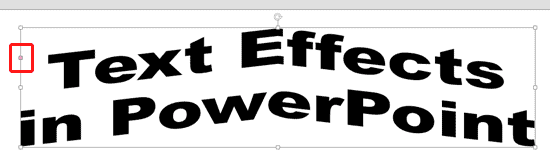
Have you ever tried your text to fit along the edge of a circle, or even within a circle? Or, on a curved path, or even as a roller coaster? Most of the time, you need not play as much with words but sometimes if you want to create a quick logo, or even an easy graphic, then you will find PowerPoint’s Transform tools for text very useful.
To learn more, choose your version of PowerPoint. If we do not have a tutorial for your version of PowerPoint, explore the version closest to the one you use.
Text Transforms in PowerPoint 2013
Text Transforms in PowerPoint 2010
Text Transforms in PowerPoint 2011
Tutorial Code: 05 07 12
Previous: 05 07 11 Text Effects in PowerPoint
Next: 05 07 13 Advanced Text Transforms in PowerPoint
Filed Under:
W
Tagged as: 05-07, PowerPoint Tutorials, Text and Fonts, WordArt (incl Text Fills; Lines; and Effects)
Comments Off on WordArt (incl. Text Fills, Lines, and Effects): Text Transforms in PowerPoint
Microsoft and the Office logo are trademarks or registered trademarks of Microsoft Corporation in the United States and/or other countries.