
This is the print version of this page. All content is copyright Indezine.com 2000-2026.
Definitions and resources for terms and techniques used in the world of presentations
See Also:
PowerPoint and Presenting Notes
PowerPoint and Presenting Glossary
Presentations Glossary in alphabetical order:
A |
B |
C |
D |
E |
F |
G |
H |
I |
J |
K |
L |
M |
N |
O |
P |
Q |
R |
S |
T |
U |
V |
W |
X |
Y |
Z
After you create custom slide shows, you will want to present them to your audience. Yes, you could access the Custom Shows dialog box, and then select a show and then choose to play it, but that’s a long process indeed. In this tutorial, we will show how you can access the same custom show more easily. And then we will also show you how you can set any custom show as the default, this means that when you actually play your presentation in Slide Show view, only the slides within the custom show you select will be shown!
To learn more, choose your version of PowerPoint. If we do not have a tutorial for your version of PowerPoint, explore the version closest to the one you use.
Playing Custom Shows in PowerPoint 2013
Playing Custom Shows in PowerPoint 2010
Playing Custom Shows in PowerPoint 2011

Tutorial Code: 16 09 02
Previous: 16 09 01 Creating Custom Slide Shows in PowerPoint
Next: 16 09 03 Tips for Custom Shows in PowerPoint
Filed Under:
C
Tagged as: 16-09, Custom Slide Show, PowerPoint Tutorials, Share and Prepare
Comments Off on Custom Slide Show: Playing Custom Shows in PowerPoint

Dr. C. June Maker is a researcher and professor of education for the gifted and early childhood education at the University of Arizona in Tucson. Her more than 30 years in academia have focused on developing assessment and teaching methods to measure and develop giftedness. Her work has culminated in the DISCOVER Projects—a comprehensive set of assessment instruments and curricular models for grades K-12.
Here’s a list of links on Indezine.com where she has been featured:
 PowerPoint Rebellion: Experimentation with Interactivity
March 10, 2009
Filed Under:
C
Tagged as: Personality
Comments Off on Dr. C. June Maker
Kiosk mode is a subset of Slide Show mode in PowerPoint. It’s been available since a very long time, and in past versions some options would behave differently than they do now, some users will no doubt complain that Kiosk mode was more useable before.
To learn more, choose your version of PowerPoint. If we do not have a tutorial for your version of PowerPoint, explore the version closest to the one you use.
Kiosk Mode and Kiosk Assistant
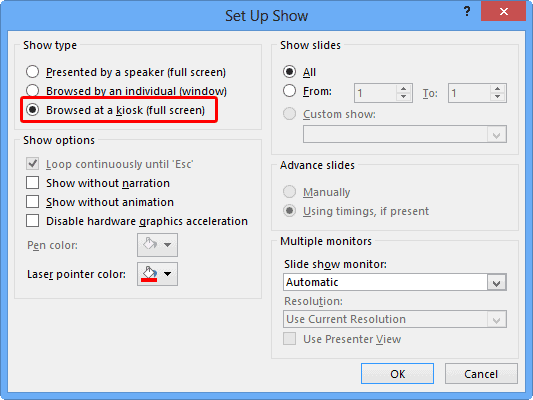
Tutorial Code: 16 08 03
Previous: 16 08 02 Record Slide Show in PowerPoint
Next: 16 09 01 Creating Custom Slide Shows in PowerPoint
Filed Under:
S
Tagged as: 16-08, PowerPoint Tutorials, Share and Prepare, Slide Show
Comments Off on Slide Show: Kiosk Mode and Kiosk Assistant in PowerPoint
We explored commenting within the PowerPoint for the web (OneDrive). Use PowerPoint Online for a while, and you will discover that this web-based version of PowerPoint works similarly to the desktop versions of PowerPoint, although it does have fewer options.
To learn more, choose your version of PowerPoint. If we do not have a tutorial for your version of PowerPoint, explore the version closest to the one you use.
Open Presentations within OneDrive in PowerPoint for the Web

Tutorial Code: 16 07 04
Previous: 16 07 03 Comment on OneDrive in PowerPoint for the Web
Next: 16 08 01 Rehearse Slide Timings in PowerPoint
Filed Under:
C
Tagged as: 16-07, Commenting, PowerPoint Tutorials, Share and Prepare
Comments Off on Commenting: Open Presentations within OneDrive in PowerPoint for the Web
OneDrive (previously known as SkyDrive) is a great way to share your presentations online while you are still working on the slides. When you are collaborating on a presentation with someone else, you want to give and receive feedback without actually editing the slides themselves. To do that, you can use the Comments option that works differently in the OneDrive version of PowerPoint compared to the desktop versions.
To learn more, choose your version of PowerPoint. If we do not have a tutorial for your version of PowerPoint, explore the version closest to the one you use.
Comment on OneDrive in PowerPoint for the Web

Tutorial Code: 16 07 03
Previous: 16 07 02 Comment and Collaborate on Web and Desktop in PowerPoint
Next: 16 07 04 Open Presentations within OneDrive in PowerPoint for the Web
Filed Under:
C
Tagged as: 16-07, Commenting, PowerPoint Tutorials, Share and Prepare
Comments Off on Commenting: Comment on OneDrive in PowerPoint for the Web
Microsoft and the Office logo are trademarks or registered trademarks of Microsoft Corporation in the United States and/or other countries.