
This is the print version of this page. All content is copyright Indezine.com 2000-2026.
Definitions and resources for terms and techniques used in the world of presentations
See Also:
PowerPoint and Presenting Notes
PowerPoint and Presenting Glossary
Presentations Glossary in alphabetical order:
A |
B |
C |
D |
E |
F |
G |
H |
I |
J |
K |
L |
M |
N |
O |
P |
Q |
R |
S |
T |
U |
V |
W |
X |
Y |
Z
In olden days, you just had to insert a chart in PowerPoint to end up with a 3D chart! Yes, that’s true! To say that such charts looked horrible is an understatement.
To learn more, click a link from the tutorials listed below.
PowerPoint Chart Tips 07: Stay Away From 3D Charts

Tutorial Code: 10 15 08
Previous: 10 15 07 PowerPoint Chart Tips 06: Consider Tables
Next: 10 15 09 PowerPoint Chart Tips 08: Should Charts be Animated?
Filed Under:
T
Tagged as: 10-15, Charts and Graphs, PowerPoint Tutorials, Ten Tips for Cool PowerPoint Charts
Comments Off on Ten Tips for Cool PowerPoint Charts: Stay Away From 3D Charts

Thomas Häger is the founder and owner of a Management Consulting business specialized in Operations Strategy and Working Capital Efficiency. Thomas has 20+ years of experience in Management Consulting and Business Development driving transformation projects and improvement programs in different industries. Lately Thomas is also turning the “improvement spotlight” on his own trade of Management Consulting and providing tools for more efficient and professional communication and PowerPoint sliding.
Here’s a list of links on Indezine.com where he has been featured:
 SPICE add-in for PowerPoint: Conversation with Thomas Häger
June 1, 2023
 Heron Add-in for PowerPoint: Conversation with Thomas Häger
January 10, 2022
Filed Under:
T
Tagged as: Personality
Comments Off on Thomas Häger
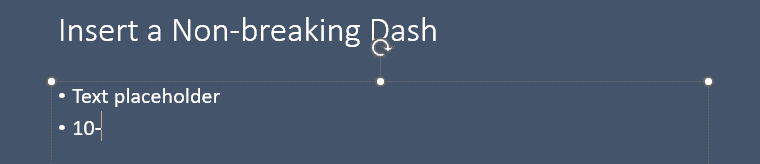
Whenever you want to add a dash, you choose from one of the dashes available to type in your keyboard. However, these are normal breaking dashes. Let us imagine that you want to type a date in a format such as 10-10-2023. However, if this date happens to be near the edge of the slide or a text box, part of the date may show up in the next line. The solution is to type in a non-breaking dash that will ensure that the date we explored above stays in the same line without breaking up between two lines.
To learn more, choose your version of PowerPoint. If we do not have a tutorial for your version of PowerPoint, explore the version closest to the one you use.
Insert a Nonbreaking Dash in PowerPoint for Windows
Tutorial Code: 05 05 06
Previous: 05 05 05 Add Subscript and Superscript to Text in PowerPoint
Next: 05 05 07 Insert a Nonbreaking Space in PowerPoint
Filed Under:
S
Tagged as: 05-05, PowerPoint Tutorials, Symbols, Text and Fonts
Comments Off on Symbols: Insert a Nonbreaking Dash in PowerPoint
Do you need to draw two lines so that they are angled out at a certain value from each other? Do you need to do so accurately so that these drawings can be used in reports, research findings, education and elsewhere? There is no automated option within PowerPoint to do so, but you can still attain some amazing results if you know where and how to get started. To achieve these results, we will use a combination of drawing, rotating, and grouping techniques.
To learn more, choose your version of PowerPoint. If we do not have a tutorial for your version of PowerPoint, explore the version closest to the one you use.

Tutorial Code: 06 02 09
Previous: 06 02 08 Drawing Arcs in PowerPoint
Next: 06 03 01 Select and Deselect Shapes in PowerPoint
Filed Under:
A
Tagged as: 06-02, Advanced Shape Techniques, PowerPoint Tutorials, Shapes
Comments Off on Advanced Shape Techniques: Drawing Angles in PowerPoint
Did you read the title of this page correctly? Are we really suggesting that you should consider using a table rather than a chart? You might have heard the reverse more often, about using charts rather than tables but like for everything else in life, there’s not one glove that fits all hands, or in this case, there’s not one solution that can work with all sorts of data.
To learn more, click a link from the tutorials listed below.
PowerPoint Chart Tips 06: Consider Tables

Tutorial Code: 10 15 07
Previous: 10 15 06 PowerPoint Chart Tips 05: Reverse Engineer Charts
Next: 10 15 08 PowerPoint Chart Tips 07: Stay Away From 3D Charts
Filed Under:
T
Tagged as: 10-15, Charts and Graphs, PowerPoint Tutorials, Ten Tips for Cool PowerPoint Charts
Comments Off on Ten Tips for Cool PowerPoint Charts: Consider Tables
Microsoft and the Office logo are trademarks or registered trademarks of Microsoft Corporation in the United States and/or other countries.