
This is the print version of this page. All content is copyright Indezine.com 2000-2026.
Definitions and resources for terms and techniques used in the world of presentations
See Also:
PowerPoint and Presenting Notes
PowerPoint and Presenting Glossary
Presentations Glossary in alphabetical order:
A |
B |
C |
D |
E |
F |
G |
H |
I |
J |
K |
L |
M |
N |
O |
P |
Q |
R |
S |
T |
U |
V |
W |
X |
Y |
Z
You can do any of the typical positioning tasks in PowerPoint for your pictures such as resizing, aligning, and grouping. In addition, you can also reorder the pictures on your slide. In fact, you can also reorder a bunch of pictures and other slide objects such as shapes quite easily using the various ordering options available within the program.
To learn more, choose your version of PowerPoint. If we do not have a tutorial for your version of PowerPoint, explore the version closest to the one you use.
Reorder Pictures in PowerPoint 2013
Reorder Pictures in PowerPoint 2010
Reorder Pictures in PowerPoint 2011

Tutorial Code: 09 06 04
Previous: 09 06 03 Group Pictures in PowerPoint
Next: 09 07 01 Create Photo Album in PowerPoint
Filed Under:
P
Tagged as: 09-06, Pictures - Position and Order, Pictures and Visuals, PowerPoint Tutorials
Comments Off on Pictures – Position and Order: Reorder Pictures in PowerPoint
Grouping pictures can be helpful in various scenarios. You may want to resize or rotate all pictures. Rather than rotate them individually, you can group them and thereafter rotate.
To learn more, choose your version of PowerPoint. If we do not have a tutorial for your version of PowerPoint, explore the version closest to the one you use.
Group Pictures in PowerPoint 2013
Group Pictures in PowerPoint 2010
Group Pictures in PowerPoint 2011

Tutorial Code: 09 06 03
Previous: 09 06 02 Align and Distribute Pictures in PowerPoint
Next: 09 06 04 Reorder Pictures in PowerPoint
Filed Under:
P
Tagged as: 09-06, Pictures - Position and Order, Pictures and Visuals, PowerPoint Tutorials
Comments Off on Pictures – Position and Order: Group Pictures in PowerPoint
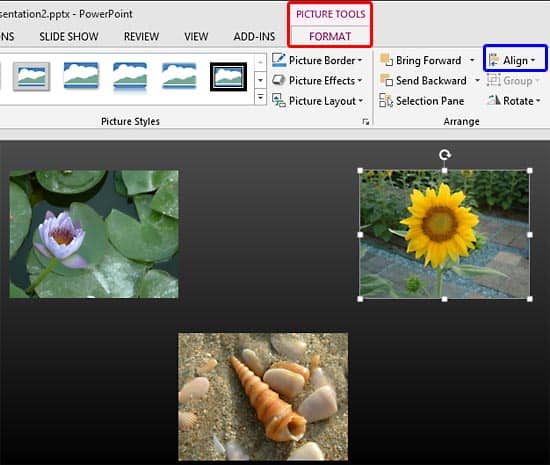
Whichever slide objects you place on your PowerPoint slide, their position and alignment matters a lot, be it shapes or even the many inserted pictures.
To learn more, choose your version of PowerPoint. If we do not have a tutorial for your version of PowerPoint, explore the version closest to the one you use.
Align and Distribute Pictures in PowerPoint 2016
Align and Distribute Pictures in PowerPoint 2013
Align and Distribute Pictures in PowerPoint 2010
Align and Distribute Pictures in PowerPoint 2011
Tutorial Code: 09 06 02
Previous: 09 06 01 Resize, Rotate, and Flip Pictures in PowerPoint
Next: 09 06 03 Group Pictures in PowerPoint
Filed Under:
P
Tagged as: 09-06, Pictures - Position and Order, Pictures and Visuals, PowerPoint Tutorials
Comments Off on Pictures – Position and Order: Align and Distribute Pictures in PowerPoint
PowerPoint provides various picture enhancement options such as: Picture Adjustments, Picture Styles, Picture Effects, and Picture Borders. Beyond these options, there are some very significant yet basic picture editing options that you should consider. These include learning how you can Resize, Rotate, and Flip pictures. All of these options help you to enhance the look of your inserted pictures.
To learn more, choose your version of PowerPoint. If we do not have a tutorial for your version of PowerPoint, explore the version closest to the one you use.
Resize, Rotate, and Flip Pictures in PowerPoint 2016
Resize, Rotate, and Flip Pictures in PowerPoint 2013
Resize, Rotate, and Flip Pictures in PowerPoint 2010
Resize, Rotate, and Flip Pictures in PowerPoint 2011
Resize, Rotate, and Flip Pictures in PowerPoint Online

Tutorial Code: 09 06 01
Previous: 09 05 05 Picture Styles in PowerPoint
Next: 09 06 02 Align and Distribute Pictures in PowerPoint
Filed Under:
P
Tagged as: 09-06, Pictures - Position and Order, Pictures and Visuals, PowerPoint Tutorials
Comments Off on Pictures – Position and Order: Resize, Rotate, and Flip Pictures in PowerPoint
After inserting pictures within your PowerPoint slide, you may want to change their appearance. You can add distinctive borders to your pictures or use the various Adjust Picture options. Alternatively, you can directly apply preset Picture Styles as well. These Picture Styles are based on PowerPoint’s Picture Effects capabilities and add some effects with a click. Most of the time, this means that a single Picture Style adds a reflection, a glow, and a border to your picture.
To learn more, choose your version of PowerPoint. If we do not have a tutorial for your version of PowerPoint, explore the version closest to the one you use.
Picture Effects in PowerPoint 2016
Picture Effects in PowerPoint 2013
Picture Effects in PowerPoint 2010
Picture Effects in PowerPoint 2011

Tutorial Code: 09 05 04
Previous: 09 05 03 Picture Borders in PowerPoint
Next: 09 05 05 Picture Styles in PowerPoint
Filed Under:
P
Tagged as: 09-05, Pictures - Appearance, Pictures and Visuals, PowerPoint Tutorials
Comments Off on Pictures – Appearance: Picture Effects in PowerPoint
Microsoft and the Office logo are trademarks or registered trademarks of Microsoft Corporation in the United States and/or other countries.