
This is the print version of this page. All content is copyright Indezine.com 2000-2026.
Definitions and resources for terms and techniques used in the world of presentations
See Also:
PowerPoint and Presenting Notes
PowerPoint and Presenting Glossary
Presentations Glossary in alphabetical order:
A |
B |
C |
D |
E |
F |
G |
H |
I |
J |
K |
L |
M |
N |
O |
P |
Q |
R |
S |
T |
U |
V |
W |
X |
Y |
Z
PowerPoint provides various picture enhancement options such as: Picture Adjustments, Picture Styles, Picture Effects, and Picture Borders. Beyond these options, there are some very significant yet basic picture editing options that you should consider. These include learning how you can Resize, Rotate, and Flip pictures. All of these options help you to enhance the look of your inserted pictures.
To learn more, choose your version of PowerPoint. If we do not have a tutorial for your version of PowerPoint, explore the version closest to the one you use.
Resize, Rotate, and Flip Pictures in PowerPoint 2016
Resize, Rotate, and Flip Pictures in PowerPoint 2013
Resize, Rotate, and Flip Pictures in PowerPoint 2010
Resize, Rotate, and Flip Pictures in PowerPoint 2011
Resize, Rotate, and Flip Pictures in PowerPoint Online

Tutorial Code: 09 06 01
Previous: 09 05 05 Picture Styles in PowerPoint
Next: 09 06 02 Align and Distribute Pictures in PowerPoint
Filed Under:
P
Tagged as: 09-06, Pictures - Position and Order, Pictures and Visuals, PowerPoint Tutorials
Comments Off on Pictures – Position and Order: Resize, Rotate, and Flip Pictures in PowerPoint
After inserting pictures within your PowerPoint slide, you may want to change their appearance. You can add distinctive borders to your pictures or use the various Adjust Picture options. Alternatively, you can directly apply preset Picture Styles as well. These Picture Styles are based on PowerPoint’s Picture Effects capabilities and add some effects with a click. Most of the time, this means that a single Picture Style adds a reflection, a glow, and a border to your picture.
To learn more, choose your version of PowerPoint. If we do not have a tutorial for your version of PowerPoint, explore the version closest to the one you use.
Picture Effects in PowerPoint 2016
Picture Effects in PowerPoint 2013
Picture Effects in PowerPoint 2010
Picture Effects in PowerPoint 2011

Tutorial Code: 09 05 04
Previous: 09 05 03 Picture Borders in PowerPoint
Next: 09 05 05 Picture Styles in PowerPoint
Filed Under:
P
Tagged as: 09-05, Pictures - Appearance, Pictures and Visuals, PowerPoint Tutorials
Comments Off on Pictures – Appearance: Picture Effects in PowerPoint
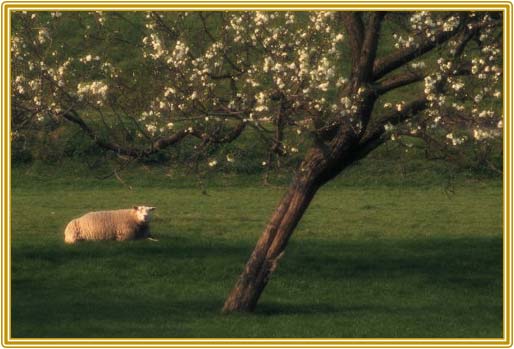
In PowerPoint, the Picture Border option adds an outline or even a beautiful frame to your picture. Once you insert a picture on your slide, you can apply various Adjust Picture options. You can also apply any of the preset Picture Styles available for the picture.
To learn more, choose your version of PowerPoint. If we do not have a tutorial for your version of PowerPoint, explore the version closest to the one you use.
Picture Borders in PowerPoint 2016
Picture Borders in PowerPoint 2013
Picture Borders in PowerPoint 2010
Picture Borders in PowerPoint 2011
Tutorial Code: 09 05 03
Previous: 09 05 02 Advanced Background Removal Options for Pictures in PowerPoint
Next: 09 05 04 Picture Effects in PowerPoint
Filed Under:
P
Tagged as: 09-05, Pictures - Appearance, Pictures and Visuals, PowerPoint Tutorials
Comments Off on Pictures – Appearance: Picture Borders in PowerPoint
Similar to Shape Styles for the shapes on your slide, PowerPoint also provides Picture Styles for your inserted pictures. With a single click, Picture Styles can transform a simple looking picture to something that’s more distinct. Note that unlike Shape Styles, Picture Styles are not Theme specific. They just transform your picture to make it look stylish by applying a border, or 3-D effect, or by changing the frame shape, etc.
To learn more, choose your version of PowerPoint. If we do not have a tutorial for your version of PowerPoint, explore the version closest to the one you use.
Picture Styles in PowerPoint 2016
Picture Styles in PowerPoint 2013
Picture Styles in PowerPoint 2010
Picture Styles in PowerPoint 2011
Picture Styles in PowerPoint Online

Tutorial Code: 09 05 05
Previous: 09 05 04 Picture Effects in PowerPoint
Next: 09 06 01 Resize, Rotate, and Flip Pictures in PowerPoint
Filed Under:
P
Tagged as: 09-05, Pictures - Appearance, Pictures and Visuals, PowerPoint Tutorials
Comments Off on Pictures – Appearance: Picture Styles in PowerPoint
In PowerPoint, transition duration and transition timings are not the same. Transition time is the actual time that the slide stays active during a slide show before moving on to the next slide. Transition duration is the amount of time it takes to move between slides. Normally, during slide show, you can advance to the next slide by mouse click (or pressing the Enter key on your keyboard). Using transition timings on the other hand, you can set your slides to advance on their own instead, and display each slide for a specific amount of time that you decide. This option is useful for unattended presentations, such as at a trade show booth, a narrated presentation, or even a picture slide show.
To learn more, choose your version of PowerPoint. If we do not have a tutorial for your version of PowerPoint, explore the version closest to the one you use.
Slide Transition Timings in PowerPoint 2013
Slide Transition Timings in PowerPoint 2010
Slide Transition Timings in PowerPoint 2011

Tutorial Code: 13 08 03
Previous: 13 08 02 Slide Transition Duration in PowerPoint
Next: 13 08 04 Slide Transition Sounds in PowerPoint
Filed Under:
S
Tagged as: 13-08, Animations and Transitions, PowerPoint Tutorials, Slide Transitions
Comments Off on Slide Transitions: Slide Transition Timings in PowerPoint
Microsoft and the Office logo are trademarks or registered trademarks of Microsoft Corporation in the United States and/or other countries.