
This is the print version of this page. All content is copyright Indezine.com 2000-2026.
Definitions and resources for terms and techniques used in the world of presentations
See Also:
PowerPoint and Presenting Notes
PowerPoint and Presenting Glossary
Presentations Glossary in alphabetical order:
A |
B |
C |
D |
E |
F |
G |
H |
I |
J |
K |
L |
M |
N |
O |
P |
Q |
R |
S |
T |
U |
V |
W |
X |
Y |
Z
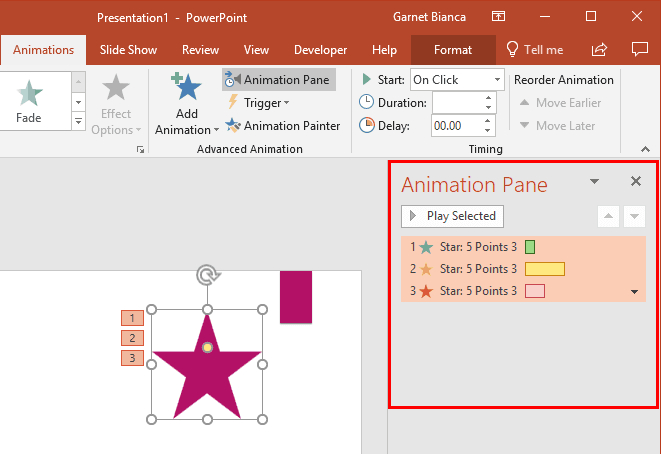
Removing an animation in PowerPoint is a simple select-and-click option, but even before you remove any animations, do ascertain why you want to remove them. If the animation is there for a particular reason, you may want to look at other options first, as explained below.
To learn more, choose your version of PowerPoint. If we do not have a tutorial for your version of PowerPoint, explore the version closest to the one you use.
Remove Animations in PowerPoint 2016
Remove Animations in PowerPoint 2013
Remove Animations in PowerPoint 2010
Remove Animations in PowerPoint 2007
Remove Animations in PowerPoint 2011
Tip: Do you want to remove all animations from your slides? Is there a magic button somewhere in PowerPoint that can get rid of all animations all together? Yes, you can do this easily in PowerPoint using some simple VBA code, says John Wilson. Read more in our VBA Code: Remove Animations in PowerPoint.
Tutorial Code: 13 03 03
Previous: 13 03 02 Animation Speed in PowerPoint
Next: 13 03 04 Reorder Animations in PowerPoint
Filed Under:
A
Tagged as: 13-03, Advanced Animation Concepts, Animations and Transitions, PowerPoint Tutorials
Comments Off on Advanced Animation Concepts: Remove Animations in PowerPoint

Kurt Dupont, based out of Belgium heads PresentationPoint, a company that creates several amazing PowerPoint add-ins. After his Computer Science studies, Kurt started with Andersen Consulting (Accenture nowadays) in Brussels. After three years he moved to the Brussels Airport Terminal Company that runs the Brussels airport – this last placement inspired the start-up of Take-off (now known as PresentationPoint) in 1998.
Filed Under:
K
Tagged as: Add-in, Kurt Dupont, Personality, PowerPoint, PresentationPoint
Comments Off on Kurt Dupont
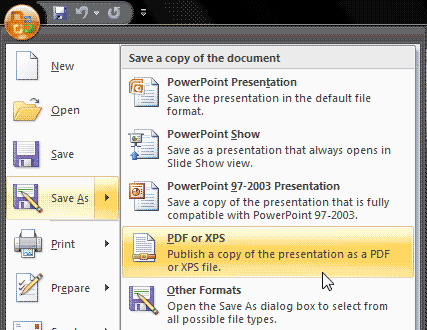
Saving a PowerPoint presentation as a PDF has its pros and cons. The biggest advantage is that recipients won’t be able to edit, and you can embed fonts easily. An even better advantage is that you may use PDFs as a substitute for printing drafts or finished slides, thus saving so much paper. Disadvantages include that you cannot be entirely multimedia-friendly. Whatever your thoughts may be, PowerPoint makes it very easy to create PDFs.
To learn more, choose your version of PowerPoint. If we do not have a tutorial for your version of PowerPoint, explore the version closest to the one you use.
Save as PDF in PowerPoint 2016
Save as PDF in PowerPoint 2013
Save as PDF in PowerPoint 2010
Save as PDF in PowerPoint 2007
Save as PDF in PowerPoint 2011
Tutorial Code: 16 04 04
Previous: 16 04 03 Exporting Graphic File Formats in PowerPoint
Next: 16 04 05 Getting Save as PDF Add-in in PowerPoint
Filed Under:
E
Tagged as: 16-04, Exporting Slides, PowerPoint Tutorials, Share and Prepare
Comments Off on Exporting Slides: Save as PDF in PowerPoint
Once you place a Shape on a PowerPoint slide, you may format it by changing its fill or outline — or you may add animation to it. Later if you realize that you used a wrong form — maybe you used a Star in place of a Triangle, you may be tempted to delete the original Shape altogether and start from scratch by adding a new one, and change its fill and add animation to it.
To learn more, choose your version of PowerPoint. If we do not have a tutorial for your version of PowerPoint, explore the version closest to the one you use.
Change One Shape to Another in PowerPoint 365
Change One Shape to Another in PowerPoint 2016
Change One Shape to Another in PowerPoint 2013
Change One Shape to Another in PowerPoint 2010
Change One Shape to Another in PowerPoint 2002 and 2003
Change One Shape to Another in PowerPoint 365
Change One Shape to Another in PowerPoint 2011
Change One Shape to Another in PowerPoint for the Web

Tutorial Code: 06 02 01
Previous: 06 01 07 Rotation Fun in PowerPoint
Next: 06 02 02 Manipulating Shapes by Dragging Yellow Handles in PowerPoint
Filed Under:
S
Tagged as: 06-02, Advanced Shape Techniques, PowerPoint Tutorials, Shapes
Comments Off on Advanced Shape Techniques: Change One Shape to Another in PowerPoint
Have you ever been in a situation where your presentation looked so awesome with some amazing typography, but when you opened the same presentation on another computer, the text looked positively terrible! This behavior may happen if the font you used is not available on the other computer. The best solution to this problem is to use safe fonts that are available on most computers, or you may also explore the option to embed fonts in your PowerPoint presentation.
Filed Under:
F
Tagged as: 05-02, Embed Fonts in PowerPoint, Fonts, PowerPoint Tutorials, Text and Fonts
Comments Off on Fonts: Embed Fonts in PowerPoint
Microsoft and the Office logo are trademarks or registered trademarks of Microsoft Corporation in the United States and/or other countries.