
This is the print version of this page. All content is copyright Indezine.com 2000-2026.
Definitions and resources for terms and techniques used in the world of presentations
See Also:
PowerPoint and Presenting Notes
PowerPoint and Presenting Glossary
Presentations Glossary in alphabetical order:
A |
B |
C |
D |
E |
F |
G |
H |
I |
J |
K |
L |
M |
N |
O |
P |
Q |
R |
S |
T |
U |
V |
W |
X |
Y |
Z
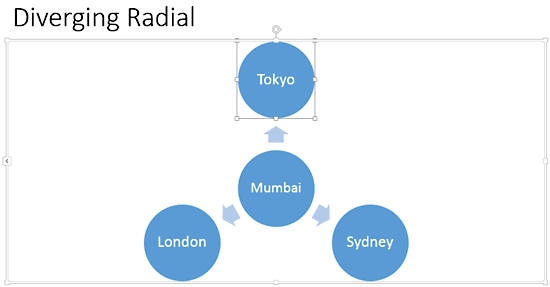
After inserting a SmartArt graphic within PowerPoint, or converting some bulleted text to SmartArt, you can easily add more shapes to your SmartArt graphics with just a click or two. You can even delete shapes from any existing SmartArt graphic.
To learn more, choose your version of PowerPoint. If we do not have a tutorial for your version of PowerPoint, explore the version closest to the one you use.
Delete Shapes from Existing SmartArt Graphics in PowerPoint 2016
Delete Shapes from Existing SmartArt Graphics in PowerPoint 2013
Delete Shapes from Existing SmartArt Graphics in PowerPoint 2010
Delete Shapes from Existing SmartArt Graphics in PowerPoint 2011
Tutorial Code: 11 02 02
Previous: 11 02 01 Adding Shapes to Existing SmartArt Graphics in PowerPoint
Next: 11 02 03 Change SmartArt Graphic Layouts in PowerPoint
Filed Under:
W
Tagged as: 11-02, PowerPoint Tutorials, SmartArt Graphics, Working with SmartArt
Comments Off on Working with SmartArt: Delete Shapes from Existing SmartArt Graphics in PowerPoint
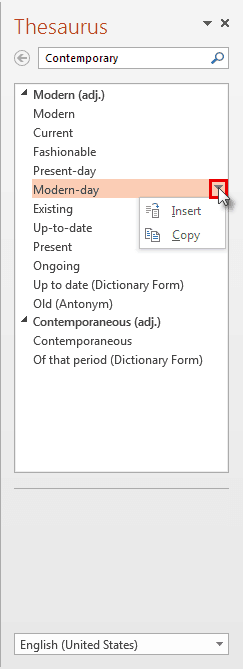
Why would you need the thesaurus in PowerPoint? Are you stuck for a word? Do you know a similar word, and want to try your luck? This can happen to anyone! And help is available right within the program. Did you know that PowerPoint already has a Thesaurus that can help? There are several ways to access this reference source. Also, these techniques work the same way even in Word, Excel, and other Microsoft Office programs.
To learn more, choose your version of PowerPoint. If we do not have a tutorial for your version of PowerPoint, explore the version closest to the one you use.
Note: If you are the type of person who loves to use the Thesaurus and other language resources, you will love Grammarly that works within Microsoft Word and Outlook. I use it every single day. Try Grammarly.
Tutorial Code: 05 08 23
Previous: 05 08 22 Research Options in PowerPoint
Next: 05 08 24 Translation in PowerPoint
Filed Under:
P
Tagged as: 05-08, PowerPoint Tutorials, Spelling AutoCorrect and Reference Tools, Text and Fonts
Comments Off on Spelling, AutoCorrect, and Reference Tools: Thesaurus in PowerPoint
We explored how you can convert your normal bulleted text to a SmartArt graphic with just a click or two. However, you’ll soon discover that it is neither easy nor intuitive to edit, add, or delete text within a shape inside a SmartArt graphic. Fortunately, all the text edits can be easily performed within the convenient Text Pane of the SmartArt graphic.
To learn more, choose your version of PowerPoint. If we do not have a tutorial for your version of PowerPoint, explore the version closest to the one you use.
Text Pane for SmartArt Graphics in PowerPoint 2016
Text Pane for SmartArt Graphics in PowerPoint 2013
Text Pane for SmartArt Graphics in PowerPoint 2010
Text Pane for SmartArt Graphics in PowerPoint 2007
Text Pane for SmartArt Graphics in PowerPoint 2011

Tutorial Code: 11 03 01
Previous: 11 02 06 Apply SmartArt Styles in PowerPoint
Next: 11 03 02 Change Shapes within a SmartArt Graphic in PowerPoint
Filed Under:
A
Tagged as: 11-03, Advanced, PowerPoint Tutorials, SmartArt Graphics
Comments Off on Advanced SmartArt: Text Pane for SmartArt Graphics in PowerPoint
While it is indeed easy to spell check your entire presentation for any misspelled words, there are other options that you need to be aware of that will help to check your slides for spelling errors. Here are some tips to help you understand how you can do better proofing of your text content
To learn more, choose your version of PowerPoint. If we do not have a tutorial for your version of PowerPoint, explore the version closest to the one you use.
More Spelling Options in PowerPoint 365
More Spelling Options in PowerPoint 2016
More Spelling Options in PowerPoint 2013
More Spelling Options in PowerPoint 2010
More Spelling Options in PowerPoint 2011

Tutorial Code: 05 08 03
Previous: 05 08 02 Spell Check in PowerPoint
Next: 05 08 04 Setting Spell Check Options in PowerPoint
Filed Under:
S
Tagged as: 05-08, AutoCorrect Entries in PowerPoint, PowerPoint Tutorials, Spelling AutoCorrect and Reference Tools
Comments Off on Spelling, AutoCorrect, and Reference Tools: More Spelling Options in PowerPoint
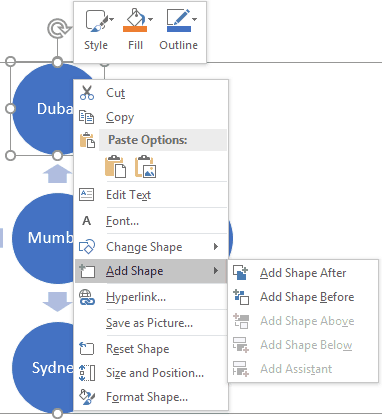
Once you insert a SmartArt graphic within PowerPoint, or convert some bulleted text to SmartArt, you may want to add more shapes to your SmartArt graphic. Fortunately, you can make these additions and later edit them too. You can add more shapes to your existing SmartArt graphics either from within the SmartArt graphic itself or through the Text Pane. Note that adding a new shape to a SmartArt graphic entirely depends on the SmartArt variant that you are using; some variants offer more options than the others.
To learn more, choose your version of PowerPoint. If we do not have a tutorial for your version of PowerPoint, explore the version closest to the one you use.
Adding Shapes to Existing SmartArt Graphics in PowerPoint 2016
Adding Shapes to Existing SmartArt Graphics in PowerPoint 2013
Adding Shapes to Existing SmartArt Graphics in PowerPoint 2010
Adding Shapes to Existing SmartArt Graphics in PowerPoint 2007
Adding Shapes to Existing SmartArt Graphics in PowerPoint 2011
Tutorial Code: 11 02 01
Previous: 11 01 05 Some SmartArt Samples
Next: 11 02 02 Delete Shapes from Existing SmartArt Graphics in PowerPoint
Filed Under:
W
Tagged as: 11-02, PowerPoint Tutorials, SmartArt Graphics, Working with SmartArt
Comments Off on Working with SmartArt: Adding Shapes to Existing SmartArt Graphics in PowerPoint
Microsoft and the Office logo are trademarks or registered trademarks of Microsoft Corporation in the United States and/or other countries.