
This is the print version of this page. All content is copyright Indezine.com 2000-2026.
Definitions and resources for terms and techniques used in the world of presentations
See Also:
PowerPoint and Presenting Notes
PowerPoint and Presenting Glossary
Presentations Glossary in alphabetical order:
A |
B |
C |
D |
E |
F |
G |
H |
I |
J |
K |
L |
M |
N |
O |
P |
Q |
R |
S |
T |
U |
V |
W |
X |
Y |
Z
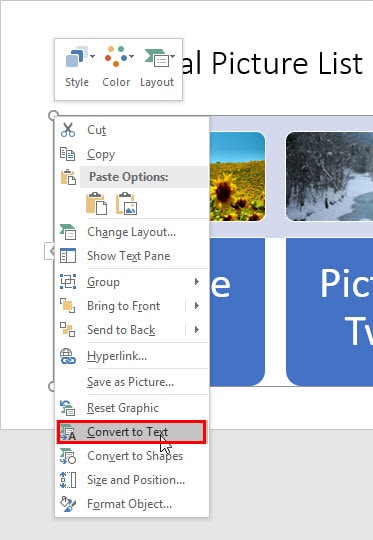
One of PowerPoint’s amazing options is the feature that lets you convert your existing bulleted text to a SmartArt graphic. Many times, though, you might want to do the reverse; that is converting SmartArt back to bulleted text. When Microsoft introduced SmartArt in PowerPoint 2007, this reverse conversion was not possible but in later versions, Microsoft added this ability.
To learn more, choose your version of PowerPoint. If we do not have a tutorial for your version of PowerPoint, explore the version closest to the one you use.
Convert SmartArt Graphics to Text in PowerPoint 2016
Convert SmartArt Graphics to Text in PowerPoint 2013
Convert SmartArt Graphics to Text in PowerPoint 2010
Convert SmartArt Graphics to Text in PowerPoint 2011
Tutorial Code: 11 01 03
Previous: 11 01 02 Convert Bulleted Text to SmartArt in PowerPoint
Next: 11 01 04 What is SmartArt?
Filed Under:
S
Tagged as: 11-01, PowerPoint Tutorials, SmartArt Basics, SmartArt Graphics
Comments Off on SmartArt Basics: Convert SmartArt Graphics to Text in PowerPoint
Pictures have an important role in presentation slides since they add imagination and visualization to your slides. To make pictures more impactful, you can even apply borders and effects to them, and also try some Picture Styles that PowerPoint offers. Other than these options, there is one more option that works in the same way as how you convert text to SmartArt. This is the Picture Layout option that similarly converts selected pictures into SmartArt.
To learn more, choose your version of PowerPoint. If we do not have a tutorial for your version of PowerPoint, explore the version closest to the one you use.
Picture Layouts in PowerPoint 2016
Picture Layouts in PowerPoint 2013
Picture Layouts in PowerPoint 2010

Tutorial Code: 09 02 01
Previous: 09 01 19 Reset Pictures in PowerPoint
Next: 09 02 02 Slice and Animate Pictures in PowerPoint
Filed Under:
A
Tagged as: 09-02, Advanced Picture Concepts, Pictures and Visuals, PowerPoint Tutorials
Comments Off on Advanced Picture Concepts: Picture Layouts in PowerPoint
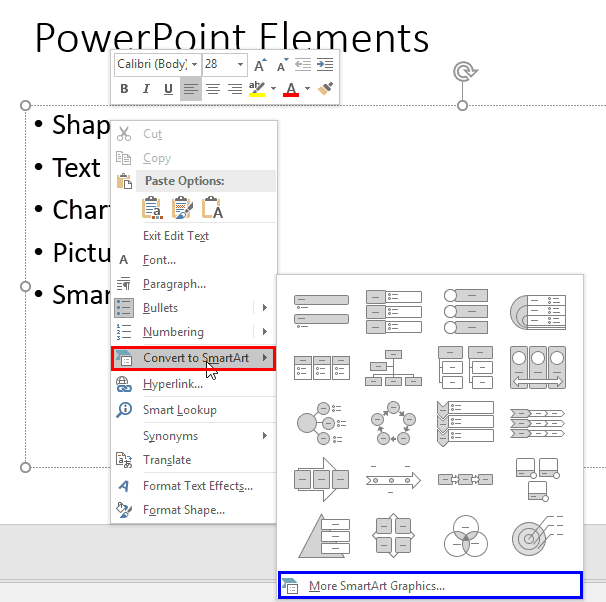
Bulleted text on slides is synonomous with many PowerPoint presentations, even though some people abhor using bulleted content altogether. On the other hand, many others just cannot do without bulleted lists. And if you are part of either of these two opposing camps, you will love this cool feature in PowerPoint that takes a middle road approach by using SmartArt.
To learn more, choose your version of PowerPoint. If we do not have a tutorial for your version of PowerPoint, explore the version closest to the one you use.
Convert Bulleted Text to SmartArt in PowerPoint 2016
CConvert Bulleted Text to SmartArt in PowerPoint 2013
Convert Bulleted Text to SmartArt in PowerPoint 2010
Convert Bulleted Text to SmartArt in PowerPoint 2007
Convert Bulleted Text to SmartArt in PowerPoint 2011
Tutorial Code: 11 01 02
Previous: 11 01 01 Inserting SmartArt in PowerPoint
Next: 11 01 03 Convert SmartArt Graphics to Text in PowerPoint
Filed Under:
S
Tagged as: 11-01, PowerPoint Tutorials, SmartArt Basics, SmartArt Graphics
Comments Off on SmartArt Basics: Convert Bulleted Text to SmartArt in PowerPoint
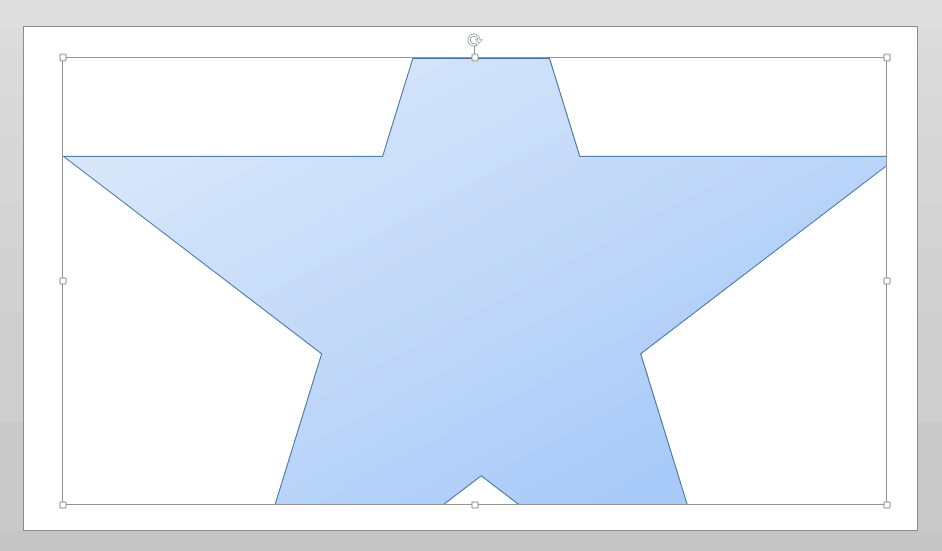
PowerPoint lets you take a bunch of selected shapes and then apply one of the five Merge Shapes options to end up with some amazing results. However, the Intersect option that we are exploring within this tutorial works a little differently than the Combine, Fragment, Subtract, or Union options that we explore in other tutorials. Before we look at how the Intersect option is different, let us understand what it does.
To learn more, choose your version of PowerPoint. If we do not have a tutorial for your version of PowerPoint, explore the version closest to the one you use.
Shape Intersect Command in PowerPoint 2016
Shape Intersect Command in PowerPoint 2013
Shape Intersect Command in PowerPoint 2010
Shape Intersect Command in PowerPoint 2016
Shape Intersect Command in PowerPoint 2011
Tutorial Code: 06 10 06
Previous: 06 10 05 Shape Fragment Command in PowerPoint
Next: 06 10 07 Shape Subtract Command in PowerPoint
Filed Under:
M
Tagged as: 06-10, Merge Shapes, PowerPoint Tutorials, Shapes
Comments Off on Merge Shapes: Shape Intersect Command in PowerPoint
There are so many shapes available in PowerPoint, and that’s good because that means so many more possibilities to create your own unique shapes by using any of the Merge Shapes commands. One of the amazing options within Merge Shapes is Combine, which retains areas where the shapes do not overlap while removing the overlapping areas. Think of Combine as an amazing cutout option!
To learn more, choose your version of PowerPoint. If we do not have a tutorial for your version of PowerPoint, explore the version closest to the one you use.
Shape Combine Command in PowerPoint 2016
Shape Combine Command in PowerPoint 2013
Shape Combine Command in PowerPoint 2010
Shape Combine Command in PowerPoint 2016
Shape Combine Command in PowerPoint 2011

Tutorial Code: 06 10 03
Previous: 06 10 02 Add Combine Shape Commands to the Quick Access Toolbar in PowerPoint
Next: 06 10 04 Shape Union Command in PowerPoint
Filed Under:
M
Tagged as: 06-10, Merge Shapes, PowerPoint Tutorials, Shapes
Comments Off on Merge Shapes: Shape Combine Command in PowerPoint
Microsoft and the Office logo are trademarks or registered trademarks of Microsoft Corporation in the United States and/or other countries.