
This is the print version of this page. All content is copyright Indezine.com 2000-2026.
Definitions and resources for terms and techniques used in the world of presentations
See Also:
PowerPoint and Presenting Notes
PowerPoint and Presenting Glossary
Presentations Glossary in alphabetical order:
A |
B |
C |
D |
E |
F |
G |
H |
I |
J |
K |
L |
M |
N |
O |
P |
Q |
R |
S |
T |
U |
V |
W |
X |
Y |
Z
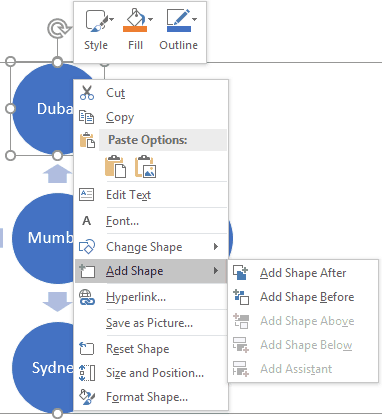
Once you insert a SmartArt graphic within PowerPoint, or convert some bulleted text to SmartArt, you may want to add more shapes to your SmartArt graphic. Fortunately, you can make these additions and later edit them too. You can add more shapes to your existing SmartArt graphics either from within the SmartArt graphic itself or through the Text Pane. Note that adding a new shape to a SmartArt graphic entirely depends on the SmartArt variant that you are using; some variants offer more options than the others.
To learn more, choose your version of PowerPoint. If we do not have a tutorial for your version of PowerPoint, explore the version closest to the one you use.
Adding Shapes to Existing SmartArt Graphics in PowerPoint 2016
Adding Shapes to Existing SmartArt Graphics in PowerPoint 2013
Adding Shapes to Existing SmartArt Graphics in PowerPoint 2010
Adding Shapes to Existing SmartArt Graphics in PowerPoint 2007
Adding Shapes to Existing SmartArt Graphics in PowerPoint 2011
Tutorial Code: 11 02 01
Previous: 11 01 05 Some SmartArt Samples
Next: 11 02 02 Delete Shapes from Existing SmartArt Graphics in PowerPoint
Filed Under:
W
Tagged as: 11-02, PowerPoint Tutorials, SmartArt Graphics, Working with SmartArt
Comments Off on Working with SmartArt: Adding Shapes to Existing SmartArt Graphics in PowerPoint
For presentations that contain slides with too much text, or even little text, there are always chances of spelling mistakes showing up! However, you don’t necessarily have to search for these mistakes by skimming all your slides one by one since PowerPoint lets you do a spell check of the entire presentation, and make corrections as well. However there are some caveats associated with spell checking, and this does not have anything to do with PowerPoint.
To learn more, choose your version of PowerPoint. If we do not have a tutorial for your version of PowerPoint, explore the version closest to the one you use.
Spell Check in PowerPoint 2016
Spell Check in PowerPoint 2013
Spell Check in PowerPoint 2010
Spell Check in PowerPoint 2011

Tutorial Code: 05 08 02
Previous: 05 08 01 Search Online Resources in PowerPoint
Next: 05 08 03 More Spelling Options in PowerPoint
Filed Under:
S
Tagged as: 05-08, AutoCorrect Entries in PowerPoint, PowerPoint Tutorials, Spelling AutoCorrect and Reference Tools
Comments Off on Spelling, AutoCorrect, and Reference Tools: Spell Check in PowerPoint
Has it ever happened that you know that a particular word is misspelled, but PowerPoint’s spell check doesn’t seem to think so! That may be because your word may be in all CAPS, or it may contain some numbers. In these cases, and in several other instances, PowerPoint just ignores any misspellings. Fortunately, you can turn off the options that instruct PowerPoint to ignore these misspellings.
To learn more, choose your version of PowerPoint. If we do not have a tutorial for your version of PowerPoint, explore the version closest to the one you use.
Setting Spell Check Options in PowerPoint 365
Setting Spell Check Options in PowerPoint 2016
Setting Spell Check Options in PowerPoint 2013
Setting Spell Check Options in PowerPoint 2010
Setting Spell Check Options in PowerPoint 2011

Tutorial Code: 05 08 04
Previous: 05 08 03 More Spelling Options in PowerPoint
Next: 05 08 05 AutoCorrect in PowerPoint
Filed Under:
S
Tagged as: 05-08, AutoCorrect Entries in PowerPoint, PowerPoint Tutorials, Spelling AutoCorrect and Reference Tools
Comments Off on Spelling, AutoCorrect, and Reference Tools: Setting Spell Check Options in PowerPoint
The Advanced tab of the PowerPoint Options dialog box contains advanced, and some not-so-advanced options related to the appearance and working of the PowerPoint interface. Changes to these options can result in a very different and more efficient workflow.
To learn more, choose your version of PowerPoint. If we do not have a tutorial for your version of PowerPoint, explore the version closest to the one you use.
Advanced Program Options in PowerPoint 365
Advanced Program Options in PowerPoint 2016
Advanced Program Options in PowerPoint 2013
Advanced Program Options in PowerPoint 2010

Tutorial Code: 01 08 18
Previous: 01 08 17 General Program Options in PowerPoint
Next: 01 08 19 Accessibility Program Options in PowerPoint
Filed Under:
F
Tagged as: File Types File Menu and Backstage View, Interface and Basics, PowerPoint Advanced Options, PowerPoint Tutorials
Comments Off on File Types, File Menu, and Backstage View: Advanced Program Options in PowerPoint
The General tab of the PowerPoint Options dialog box contains basic, yet some very important options related to the appearance and working of the PowerPoint interface. Changes to these options can result in a very different and more efficient workflow.
To learn more, choose your version of PowerPoint. If we do not have a tutorial for your version of PowerPoint, explore the version closest to the one you use.
General Program Options in PowerPoint 365
General Program Options in PowerPoint 2016
General Program Options in PowerPoint 2013
General Program Options in PowerPoint 2010

Tutorial Code: 01 08 17
Previous: 01 08 16 Feedback Tab of Backstage View in PowerPoint
Next: 01 08 18 Advanced Program Options in PowerPoint
Filed Under:
F
Tagged as: 01-08, File Types File Menu and Backstage View, Interface and Basics, PowerPoint Tutorials
Comments Off on File Types, File Menu, and Backstage View: General Program Options in PowerPoint
Microsoft and the Office logo are trademarks or registered trademarks of Microsoft Corporation in the United States and/or other countries.