
This is the print version of this page. All content is copyright Indezine.com 2000-2026.
Definitions and resources for terms and techniques used in the world of presentations
See Also:
PowerPoint and Presenting Notes
PowerPoint and Presenting Glossary
Presentations Glossary in alphabetical order:
A |
B |
C |
D |
E |
F |
G |
H |
I |
J |
K |
L |
M |
N |
O |
P |
Q |
R |
S |
T |
U |
V |
W |
X |
Y |
Z
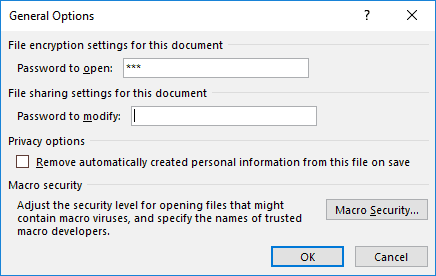
There are various reasons why you would want to encrypt your PowerPoint file with a password. There are two password levels you can implement within a PowerPoint file: a password to open and a password to edit. However, even if you add a password to your presentation, there may come a time when you want to remove it. Or, you may want to change the password.
To learn more, choose your version of PowerPoint. If we do not have a tutorial for your version of PowerPoint, explore the version closest to the one you use.
Remove and Change Passwords in PowerPoint 2016
Remove and Change Passwords in PowerPoint 2013
Remove and Change Passwords in PowerPoint 2010
Tutorial Code: 16 02 04
Previous: 16 02 03 Encrypt with Password Option in PowerPoint
Next: 16 03 01 AutoRecover and AutoSave Options in PowerPoint
Filed Under:
M
Tagged as: 16-02, Mark as Final and Password Protection, PowerPoint Tutorials, Share and Prepare
Comments Off on Mark as Final and Password Protection: Remove and Change Passwords in PowerPoint
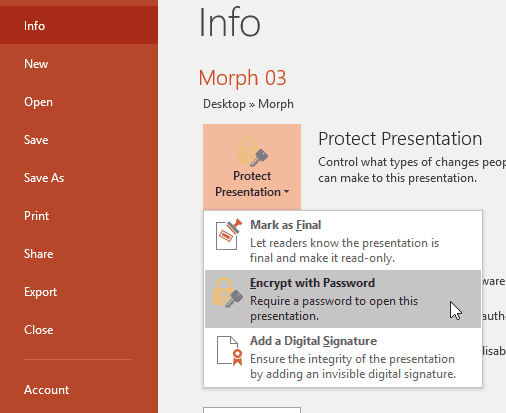
When you share your PowerPoint presentations with other people, you may want to protect or lock your content so that the slides may be accessed by only the people whom you permit to open the presentation. Or perhaps you have no problems with the recipients viewing slides but do not want them to be able to edit the presentation. PowerPoint 2016 provides an Encrypt with Password option to protect your presentation. However, let us ponder about why anyone would need to password-protect their PowerPoint presentations.
To learn more, choose your version of PowerPoint. If we do not have a tutorial for your version of PowerPoint, explore the version closest to the one you use.
Encrypt with Password Option in PowerPoint 2016
Encrypt with Password Option in PowerPoint 2013
Encrypt with Password Option in PowerPoint 2010
Encrypt with Password Option in PowerPoint 2007
Encrypt with Password Option in PowerPoint 2003 and 2002
Tutorial Code: 16 02 03
Previous: 16 02 02 Remove Mark as Final in PowerPoint
Next: 16 02 04 Remove and Change Passwords in PowerPoint
Filed Under:
M
Tagged as: 16-02, Mark as Final and Password Protection, PowerPoint Tutorials, Share and Prepare
Comments Off on Mark as Final and Password Protection: Encrypt with Password Option in PowerPoint
Using the different Slide Layouts in PowerPoint, you can create good looking slides. For example, you can use the ready-made layouts available that contain pictures or charts or you could use a separate layout for the opening slide. These layouts can be edited or duplicated/renamed within Slide Master view to create even more Slide Layouts. While duplicating and editing Slide Layouts is a great way to make small changes, it’s not the same as creating a Slide Layout from scratch. As an analogy, duplicating and editing a Slide Layout is more like using a coloring book to fill color between the lines of pre-drawn art. However, creating your Slide Layout from scratch is more like starting with a blank sheet of paper and drawing your art before you start coloring between the lines.
Filed Under:
S
Tagged as: 04-07, PowerPoint Tutorials, Slide Master and Slide Layouts, Themes Templates Masters and Layouts
Comments Off on Slide Master and Slide Layouts: Add New Slide Layouts in PowerPoint
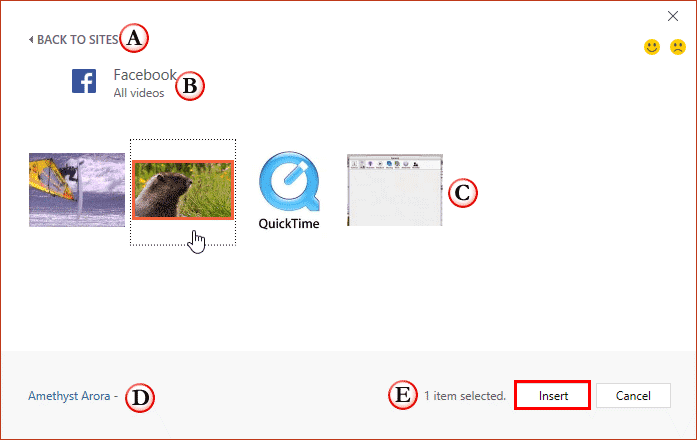
The last option within our tutorials of the Insert Online Video series is bringing in videos from Facebook. There is a prerequisite though. To insert video from your Facebook account, you must add Facebook as a connected Service within your Microsoft account.
To learn more, choose your version of PowerPoint. If we do not have a tutorial for your version of PowerPoint, explore the version closest to the one you use.
Insert Video from Facebook in PowerPoint 2016
Insert Video from Facebook in PowerPoint 2013
Tutorial Code: 14 05 06
Previous: 14 05 05 Insert Video Using Video Embed Code in PowerPoint
Next: 14 06 01 Screen Recording in PowerPoint
Filed Under:
O
Tagged as: 14-05, Multimedia, Online Video Clips, PowerPoint Tutorials
Comments Off on Online Video Clips: Insert Video from Facebook in PowerPoint
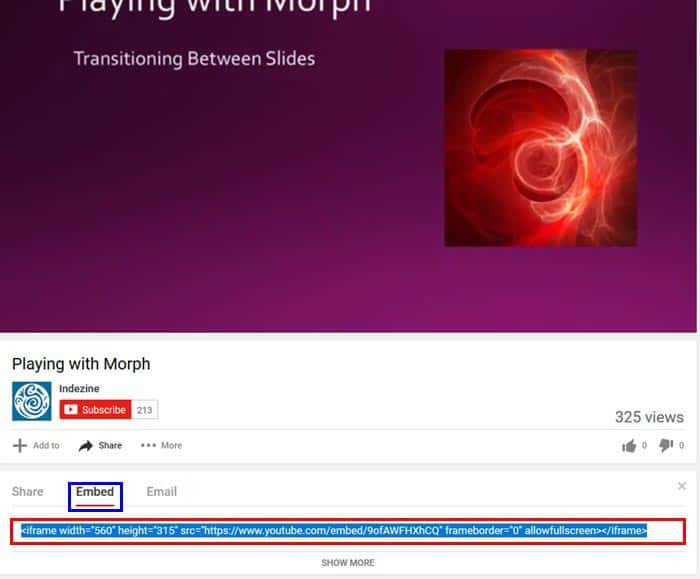
The next option in our Insert Online Video series is inserting video from a Video Embed Code. Here you can use the embed code from any site and paste into Insert Video dialog box to insert the video clip into your slide. Technically, this option should work with YouTube, Vimeo, Dailymotion, and most other sites.
To learn more, choose your version of PowerPoint. If we do not have a tutorial for your version of PowerPoint, explore the version closest to the one you use.
Insert Video Using Video Embed Code in PowerPoint 2016
Insert Video Using Video Embed Code in PowerPoint 2013
Tutorial Code: 14 05 05
Previous: 14 05 04 Insert Video from YouTube in PowerPoint
Next: 14 05 06 Insert Video from Facebook in PowerPoint
Filed Under:
O
Tagged as: 14-05, Multimedia, Online Video Clips, PowerPoint Tutorials
Comments Off on Online Video Clips: Insert Video Using Video Embed Code in PowerPoint
Microsoft and the Office logo are trademarks or registered trademarks of Microsoft Corporation in the United States and/or other countries.