
This is the print version of this page. All content is copyright Indezine.com 2000-2026.
Definitions and resources for terms and techniques used in the world of presentations
See Also:
PowerPoint and Presenting Notes
PowerPoint and Presenting Glossary
Presentations Glossary in alphabetical order:
A |
B |
C |
D |
E |
F |
G |
H |
I |
J |
K |
L |
M |
N |
O |
P |
Q |
R |
S |
T |
U |
V |
W |
X |
Y |
Z
You have already explored what a digital signature is, and how a digital signature can be important for use in PowerPoint presentations. To digitally sign a presentation, you need a digital certificate. In these tutorials, we will explore how you can both acquire or create a digital signature using PowerPoint.
To learn more, choose your version of PowerPoint. If we do not have a tutorial for your version of PowerPoint, explore the version closest to the one you use.
Acquire or Create a Digital Signature in PowerPoint 2013
Acquire or Create a Digital Signature in PowerPoint 2010

Tutorial Code: 16 10 02
Previous: 16 10 01 Get Started with a Digital Signature in PowerPoint
Next: 16 10 03 Creating Digital Certificates Outside in PowerPoint
Filed Under:
D
Tagged as: 16-10, Digital Signatures, PowerPoint Tutorials, Share and Prepare
Comments Off on Digital Signatures: Acquire or Create a Digital Signature in PowerPoint
When you insert a video clip in PowerPoint, you may find that the inserted video starts playing abruptly when started within the Slide Show view, causing a jarring interruption to the flow of your slides. Fortunately, this is avoidable if you opt to add Fade In and Fade Out effects to the beginning and end of your video clip.
To learn more, choose your version of PowerPoint. If we do not have a tutorial for your version of PowerPoint, explore the version closest to the one you use.
Fade Effect for Video Clips in PowerPoint 2016
Fade Effect for Video Clips in PowerPoint 2013
Fade Effect for Video Clips in PowerPoint 2010

Tutorial Code: 14 04 03
Previous: 14 04 02 Video Compression Options in PowerPoint
Next: 14 04 04 Advanced Video Options in PowerPoint
Filed Under:
V
Tagged as: 14-04, Multimedia, PowerPoint Tutorials, Video in PowerPoint - Advanced
Comments Off on Video in PowerPoint – Advanced: Fade Effect for Video Clips in PowerPoint
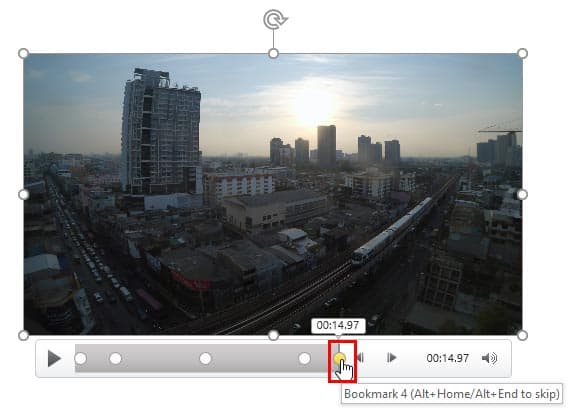
After adding Bookmarks to video clips, you may want to know how you can edit and remove those Bookmarks. PowerPoint does not let you edit inserted Bookmarks. For instance, you cannot change the time of the Bookmark from 25 seconds to 28 seconds. You will have to remove the Bookmark you wanted to edit and add a new Bookmark all over again! On the other hand, removing a Bookmark is easy!
To learn more, choose your version of PowerPoint. If we do not have a tutorial for your version of PowerPoint, explore the version closest to the one you use.
Remove Bookmarks from Video Clips in PowerPoint 2016
Remove Bookmarks from Video Clips in PowerPoint 2013
Remove Bookmarks from Video Clips in PowerPoint 2010
Tutorial Code: 14 03 02
Previous: 14 03 01 Add Bookmarks to Video Clips in PowerPoint
Next: 14 04 01 Trim Video Clips in PowerPoint
Filed Under:
B
Tagged as: 14-03, Bookmarks in Video Clips, Multimedia, PowerPoint Tutorials
Comments Off on Bookmarks in Video Clips: Remove Bookmarks from Video Clips in PowerPoint
When you insert a video clip within a PowerPoint slide, you’ll find it placed as a traditional rectangular shape. And that’s what most users expect, as it seems safe and conventional. However, PowerPoint allows your video to play within different shapes such as a circle or oval, or a wave, a triangle, or any of the shapes that PowerPoint’s Shapes gallery includes. However, just the fact that a video can be placed within a shape is no reason to forego the conventional rectangle. Do remember that most other shapes may crop out important parts of your video clips.
To learn more, choose your version of PowerPoint. If we do not have a tutorial for your version of PowerPoint, explore the version closest to the one you use.
Video Shapes in PowerPoint 2016
Video Shapes in PowerPoint 2013
Video Shape in PowerPoint 2010
Movie Shape in PowerPoint 2011

Tutorial Code: 14 02 09
Previous: 14 02 08 Video Effects in PowerPoint
Next: 14 02 10 Crop Video in PowerPoint
Filed Under:
V
Tagged as: 14-02, Multimedia, PowerPoint Tutorials, Video in PowerPoint - Basics
Comments Off on Video in PowerPoint – Basics: Video Shapes in PowerPoint
Here’s the most comprehensive list of PowerPoint keyboard shortcuts that we know. How many of these do you presently use? Speed up your PowerPoint usage with these shortcuts, and enjoy some free time!
Filed Under:
K
Tagged as: 02-01, Customize PowerPoint, Keyboard Shortcuts and Sequences, PowerPoint Tutorials
Comments Off on Keyboard Shortcuts and Sequences: Keyboard Shortcuts for PowerPoint
Microsoft and the Office logo are trademarks or registered trademarks of Microsoft Corporation in the United States and/or other countries.