
This is the print version of this page. All content is copyright Indezine.com 2000-2026.
Definitions and resources for terms and techniques used in the world of presentations
See Also:
PowerPoint and Presenting Notes
PowerPoint and Presenting Glossary
Presentations Glossary in alphabetical order:
A |
B |
C |
D |
E |
F |
G |
H |
I |
J |
K |
L |
M |
N |
O |
P |
Q |
R |
S |
T |
U |
V |
W |
X |
Y |
Z
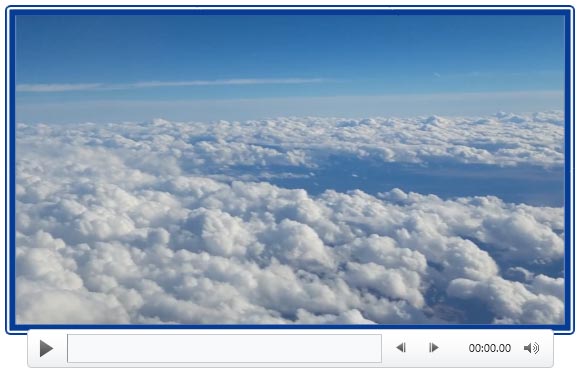
Once you insert a video clip on your slide, you can do so much more to enhance its look. Probably, you may want to apply corrections or recolor your videos. Additionally, you can also apply any of the preset Video Styles available. This is a quick and easy way to add some character to your video without spending too much time. Further, there are small niceties that PowerPoint provides, such as adding a border to your video clip.
To learn more, choose your version of PowerPoint. If we do not have a tutorial for your version of PowerPoint, explore the version closest to the one you use.
Video Borders in PowerPoint 2016
Video Borders in PowerPoint 2013
Video Borders in PowerPoint 2010
Video Borders in PowerPoint 2011
Tutorial Code: 14 02 07
Previous: 14 02 06 Video Styles in PowerPoint
Next: 14 02 08 Video Effects in PowerPoint
Filed Under:
V
Tagged as: 14-02, Multimedia, PowerPoint Tutorials, Video in PowerPoint - Basics
Comments Off on Video in PowerPoint – Basics: Video Borders in PowerPoint
Similar to Shape Styles that you apply to shapes, PowerPoint provides you with Video Styles for your inserted video clips. These pre-built Video Styles add edges, shapes, and effects to videos, and apply with just a single click. Your videos no longer need to be rectangular. Some of the Video Styles make the video clip to play within an oval or a rounded rectangle. Video Styles also transform the look of your inserted videos by applying borders, 3-D effects, shadows, frames, etc. around your video clip.
To learn more, choose your version of PowerPoint. If we do not have a tutorial for your version of PowerPoint, explore the version closest to the one you use.
Video Styles in PowerPoint 2016
Video Styles in PowerPoint 2013
Video Styles in PowerPoint 2010
Movie Styles in PowerPoint 2011

Tutorial Code: 14 02 06
Previous: 14 02 05 Video Recolor Options in PowerPoint
Next: 14 02 07 Video Borders in PowerPoint
Filed Under:
V
Tagged as: 14-02, Multimedia, PowerPoint Tutorials, Video in PowerPoint - Basics
Comments Off on Video in PowerPoint – Basics: Video Styles in PowerPoint
Sometimes, the original look of the inserted video may not work well with the color palette of your presentation. In such situations, you could play around with the brightness and contrast for an inserted video by using the Corrections option. Additionally, you can also completely recolor your inserted video. Further, you can make your full-color video appear as a grayscale video, or even like a duotone video such as blue and grayscale. Do remember that the video Color options work almost similar to the Color options for the pictures.
To learn more, choose your version of PowerPoint. If we do not have a tutorial for your version of PowerPoint, explore the version closest to the one you use.
Video Recolor Options in PowerPoint 2016
Video Recolor Options in PowerPoint 2013
Video Recolor Options in PowerPoint 2010
Video Recolor Options in PowerPoint 2011

Tutorial Code: 14 02 05
Previous: 14 02 04 Video Correction Adjustments in PowerPoint
Next: 14 02 06 Video Styles in PowerPoint
Filed Under:
V
Tagged as: 14-02, Multimedia, PowerPoint Tutorials, Video in PowerPoint - Basics
Comments Off on Video in PowerPoint – Basics: Video Recolor Options in PowerPoint
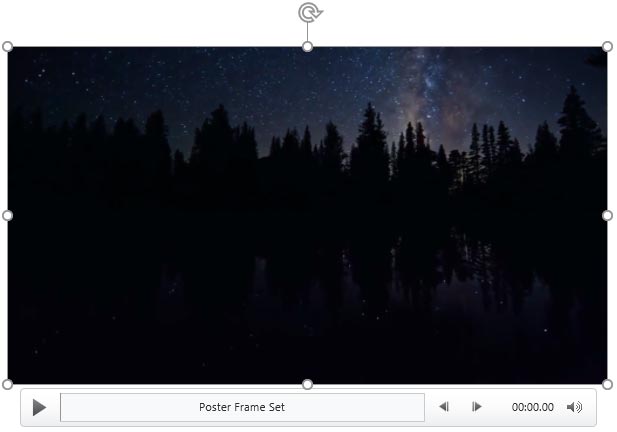
Sometimes, when you insert a video clip on your slide within PowerPoint, it may appear too dark or light. Luckily, adjustments can be made to any of the video clips you insert within your PowerPoint slides. These kinds of adjustments may be not only necessary for the appearance of the video clips on your computer, but also for how they show when projected onto a screen or even on a connected TV.
To learn more, choose your version of PowerPoint. If we do not have a tutorial for your version of PowerPoint, explore the version closest to the one you use.
Video Correction Adjustments in PowerPoint 2016
Video Correction Adjustments in PowerPoint 2013
Video Correction Adjustments in PowerPoint 2010
Video Correction Adjustments in PowerPoint 2011
Tutorial Code: 14 02 04
Previous: 14 02 03 Poster Frames for Videos in PowerPoint
Next: 14 02 05 Video Recolor Options in PowerPoint
Filed Under:
V
Tagged as: 14-02, Multimedia, PowerPoint Tutorials, Video in PowerPoint - Basics
Comments Off on Video in PowerPoint – Basics: Video Correction Adjustments in PowerPoint
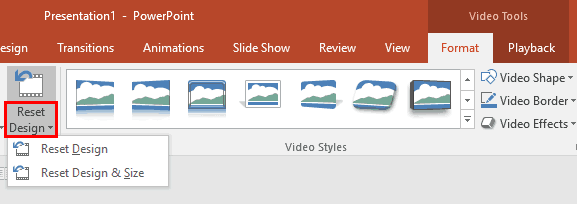
Apply video editing options such as recoloring, corrections, preset video styles, video borders, video effects, resizing/flipping, etc. to your video clip, and the resultant video may appear to be entirely different from your source The fact that you can make your videos look so different in PowerPoint with customizations galore can sometimes prove to be a disadvantage, especially if you want to get rid of all customizations and get back to original state of your video clip. Fortunately, the Reset Design option is just what you need at this point!
To learn more, choose your version of PowerPoint. If we do not have a tutorial for your version of PowerPoint, explore the version closest to the one you use.
Reset Options for Videos in PowerPoint 2016
Reset Options for Videos in PowerPoint 2013
Reset Options for Videos in PowerPoint 2010
Reset Option for Movies in PowerPoint 2011
Tutorial Code: 14 02 12
Previous: 14 02 11 Resize, Rotate, and Flip Videos in PowerPoint
Next: 14 03 01 Add Bookmarks to Video Clips in PowerPoint
Filed Under:
V
Tagged as: 14-02, Multimedia, PowerPoint Tutorials, Video in PowerPoint - Basics
Comments Off on Videos in PowerPoint – Basics: Reset Options for Videos in PowerPoint
Microsoft and the Office logo are trademarks or registered trademarks of Microsoft Corporation in the United States and/or other countries.