
This is the print version of this page. All content is copyright Indezine.com 2000-2026.
Definitions and resources for terms and techniques used in the world of presentations
See Also:
PowerPoint and Presenting Notes
PowerPoint and Presenting Glossary
Presentations Glossary in alphabetical order:
A |
B |
C |
D |
E |
F |
G |
H |
I |
J |
K |
L |
M |
N |
O |
P |
Q |
R |
S |
T |
U |
V |
W |
X |
Y |
Z
Here’s the most comprehensive list of PowerPoint keyboard shortcuts that we know. How many of these do you presently use? Speed up your PowerPoint usage with these shortcuts, and enjoy some free time!
Filed Under:
K
Tagged as: 02-01, Customize PowerPoint, Keyboard Shortcuts and Sequences, PowerPoint Tutorials
Comments Off on Keyboard Shortcuts and Sequences: Keyboard Shortcuts for PowerPoint
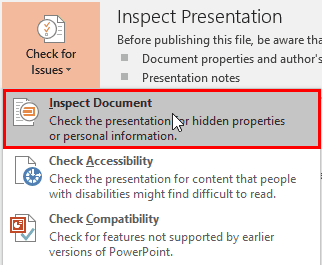
If you need to share a PowerPoint presentation with colleagues, or even publish it online, remember that your slides may include hidden data or information that you or your company may not want to share. The Inspect Document option enables you to check your presentation for such hidden properties and personal information, and clean whatever information or data you want to be removed.
To learn more, choose your version of PowerPoint. If we do not have a tutorial for your version of PowerPoint, explore the version closest to the one you use.
Inspect Document in PowerPoint 2016
Inspect Document in PowerPoint 2013
Inspect Document in PowerPoint 2010
Tutorial Code: 16 01 03
Previous: 16 01 02 Check Accessibility in PowerPoint
Next: 16 01 04 Exporting Word Handouts in PowerPoint
Filed Under:
P
Tagged as: 16-01, PowerPoint Tutorials, Prepare for Sharing, Share and Prepare
Comments Off on Prepare for Sharing: Inspect Document in PowerPoint
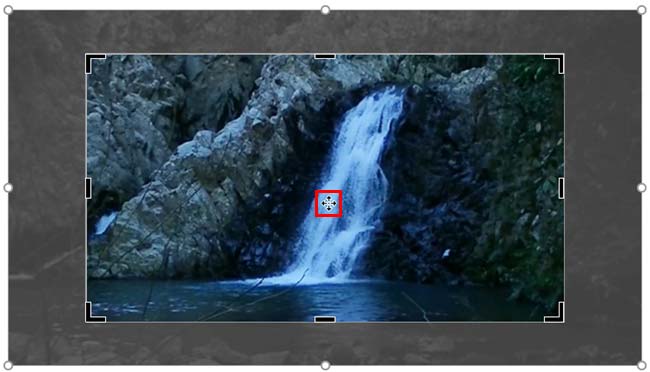
Once you insert a video in your slide, you can crop it in almost the same way you crop a picture. The Crop option allows you to remove non-required areas of a video. For example, if the subject of your video is a speaker surrounded by a large, distracting background of other people or moving objects, you may want to crop the video so that the cropped video now focuses more on the speaker, and gets rid of all extra distractions.
To learn more, choose your version of PowerPoint. If we do not have a tutorial for your version of PowerPoint, explore the version closest to the one you use.
Tutorial Code: 14 02 10
Previous: 14 02 09 Video Shapes in PowerPoint
Next: 14 02 11 Resize, Rotate, and Flip Videos in PowerPoint
Filed Under:
V
Tagged as: 14-02, Multimedia, PowerPoint Tutorials, Video in PowerPoint - Basics
Comments Off on Video in PowerPoint – Basics: Crop Video in PowerPoint
After inserting a video within your presentation, you may see a blank/black rectangle instead—caused by the file format of the video clip inserted on the slide. Not all the formats show these blank/black rectangles. In fact, you may also see the first frame of the video clip in some cases. However, if you do see this blank/black rectangle, do note that it may look professional. With PowerPoint’s Poster Frame option, you can easily overcome this limitation, and change the black rectangle to a picture of your choice by selecting a frame from the video itself, or even a picture from a different source.
To learn more, choose your version of PowerPoint. If we do not have a tutorial for your version of PowerPoint, explore the version closest to the one you use.
Poster Frames for Videos in PowerPoint 2016
Poster Frames for Videos in PowerPoint 2013
Poster Frames for Videos in PowerPoint 2010
Poster Frames for Videos in PowerPoint 2011

Tutorial Code: 14 02 03
Previous: 14 02 02 Insert Video Clips from the Clip Art Pane in PowerPoint
Next: 14 02 04 Video Correction Adjustments in PowerPoint
Filed Under:
V
Tagged as: 14-02, Multimedia, PowerPoint Tutorials, Video in PowerPoint - Basics
Comments Off on Video in PowerPoint – Basics: Poster Frames for Videos in PowerPoint
In PowerPoint, if you want to enhance the look of your inserted video, you are certainly not limited to options we have already explored including Corrections, Recolor, Video Styles, and Video Borders. In addition to these options, you can also apply Video Effects such as shadows, glows, bevels, 3-D rotation, etc. to your video clip.
To learn more, choose your version of PowerPoint. If we do not have a tutorial for your version of PowerPoint, explore the version closest to the one you use.
Video Effects in PowerPoint 2016
Video Effects in PowerPoint 2013
Video Effects in PowerPoint 2010
Movie Effects in PowerPoint 2011

Tutorial Code: 14 02 08
Previous: 14 02 07 Video Borders in PowerPoint
Next: 14 02 09 Video Shapes in PowerPoint
Filed Under:
V
Tagged as: 14-02, Multimedia, PowerPoint Tutorials, Video in PowerPoint - Basics
Comments Off on Video in PowerPoint – Basics: Video Effects in PowerPoint
Microsoft and the Office logo are trademarks or registered trademarks of Microsoft Corporation in the United States and/or other countries.