
This is the print version of this page. All content is copyright Indezine.com 2000-2026.
Definitions and resources for terms and techniques used in the world of presentations
See Also:
PowerPoint and Presenting Notes
PowerPoint and Presenting Glossary
Presentations Glossary in alphabetical order:
A |
B |
C |
D |
E |
F |
G |
H |
I |
J |
K |
L |
M |
N |
O |
P |
Q |
R |
S |
T |
U |
V |
W |
X |
Y |
Z
If you want to really benefit from customizing your Ribbon in PowerPoint, then you’ll certainly want to add some commands that are not placed by default within any of the Ribbon tabs. Or maybe you want a particular command available on the Home tab of the Ribbon. Whatever your intent may be, you cannot place any commands within the existing groups that are built within PowerPoint. You first need to add a custom group within any of the tabs available in the Ribbon. Thereafter, you need to populate them with commands.
Filed Under:
W
Tagged as: 01-06, Interface and Basics, PowerPoint Tutorials, Working with QAT and Ribbons
Comments Off on Working with QAT and Ribbons: Adding Commands to Custom Groups in PowerPoint
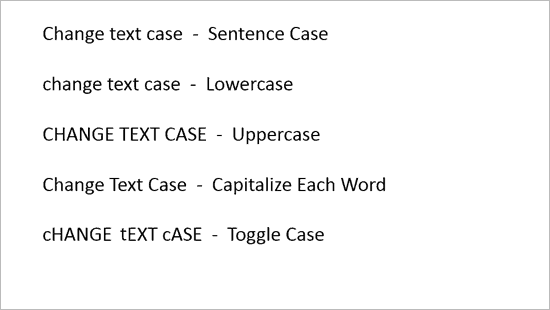
Often, you may receive some content for your presentation from someone. And rather than typing all that content, you may just copy it from an email or a document, and paste it within PowerPoint. The problem with this approach may stem from the fact that whoever sent you the content is one of those people who type everything in small case, or maybe they just turn on the Caps Lock button and forget turning it off! Whatever the reason may be, you will end up with text that is certainly not usable on your slide.
To learn more, choose your version of PowerPoint. If we do not have a tutorial for your version of PowerPoint, explore the version closest to the one you use.
Change Text Case in PowerPoint 2013
Change Text Case in PowerPoint 2010
Change Text Case in PowerPoint 2011
Tutorial Code: 05 06 11
Previous: 05 06 10 Columns Within Text Containers in PowerPoint
Next: 05 06 12 Copying Text Attributes With Format Painter in PowerPoint
Filed Under:
T
Tagged as: 05-06, PowerPoint Tutorials, Text and Fonts, Text Formatting
Comments Off on Text Formatting: Change Text Case in PowerPoint
All Ribbon tabs in PowerPoint may have any number of buttons that represent commands but they are not scattered all over the tab area. In fact, they are all neatly arranged together in Groups. Each of these Groups has a name that describes what the commands within that Group do. For example, the Slide Show tab in the Ribbon has a group named Set Up, which contains all commands that help you set up your slideshow, such as changing show settings, hiding slides, rehearsing and recording slideshows, etc.
It is only sensible to imagine that you should use this Group concept while creating your own custom Ribbon tabs. In fact, PowerPoint will not let you add any command anywhere else other than within a custom Group.
Filed Under:
W
Tagged as: 01-06, Interface and Basics, PowerPoint Tutorials, Working with QAT and Ribbons
Comments Off on Working with QAT and Ribbons: Working with Custom Groups in Ribbon Tabs in PowerPoint
Look closely at the interface within PowerPoint, particularly the Customize Quick Access Toolbar drop-down menu, and you’ll find the Touch/Mouse Mode command. This essentially is a toggle button that alternates between touch and mouse modes. Touch mode is the default mode when using PowerPoint on a touch device such as the Microsoft Surface or other tablets, and lets you use the program even without a mouse. And Mouse mode is the default mode for PowerPoint when working on a non-touch enabled desktop or laptop. The larger question though is why you can toggle to the Touch mode in a non-touch device. If you are using PowerPoint on a desktop, why you need the Touch mode?
Filed Under:
A
Tagged as: PowerPoint Tutorials
Comments Off on Accessibility: Touch/Mouse Mode in PowerPoint
While presenting and interacting with your audience, annotation on a slide can play an important role, and PowerPoint provides you with useful Pen and Highlighter tools that can change your static slide into a whiteboard upon which you can doodle and write!
Filed Under:
W
Tagged as: Interface and Basics, PowerPoint Tutorials, Working with Slides
Comments Off on Working with Slides: Pen and Highlighter Tools in PowerPoint
Microsoft and the Office logo are trademarks or registered trademarks of Microsoft Corporation in the United States and/or other countries.