
This is the print version of this page. All content is copyright Indezine.com 2000-2026.
Definitions and resources for terms and techniques used in the world of presentations
See Also:
PowerPoint and Presenting Notes
PowerPoint and Presenting Glossary
Presentations Glossary in alphabetical order:
A |
B |
C |
D |
E |
F |
G |
H |
I |
J |
K |
L |
M |
N |
O |
P |
Q |
R |
S |
T |
U |
V |
W |
X |
Y |
Z
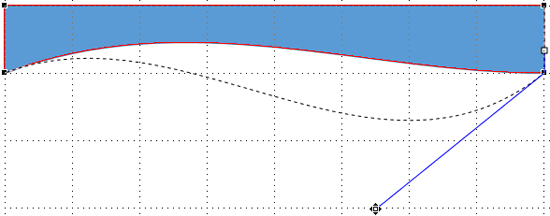
PowerPoint provides an extensive array of built-in shapes which help you create great looking graphics for your slides. You can manipulate these graphics by dragging their yellow squares or combining them, but at times, you may not achieve the exact appearance you want. For instance, you might want a little curve in your shape edges rather than conventional straight lines. PowerPoint does allow you to tweak and make your shape look more organic than geometric curved lines.
To learn more, choose your version of PowerPoint. If we do not have a tutorial for your version of PowerPoint, explore the version closest to the one you use.
Creating Curved Shapes in PowerPoint 2013
Creating Curved Shapes in PowerPoint 2010
Creating Curved Shapes in PowerPoint 2011
Tutorial Code: 06 08 01
Previous: 06 07 05 Creating Half Circles in PowerPoint
Next: 06 09 01 Text Within Shapes in PowerPoint
Filed Under:
D
Tagged as: 06-08, Drawing Common Shapes, PowerPoint Tutorials, Shapes
Comments Off on Drawing Common Shapes: Creating Curved Shapes in PowerPoint
Drawing with the Scribble line tool is almost the same as drawing with the Freeform line tool, but there is one vital difference. You don’t need to double-click to create an endpoint for your line with the Scribble tool. Also, once you start drawing with the Scribble tool, you can’t release the mouse button until you finish drawing. So, you can’t draw a perfect, straight line as you would do with the Freeform line tool. The point where you release the mouse button will be the endpoint for the drawing.
Filed Under:
D
Tagged as: Drawing Lines, PowerPoint Tutorials, Shapes
Comments Off on Drawing Lines: Drawing Scribble Lines in PowerPoint
The Freeform drawing tool lets you draw anything almost like drawing with a pencil on a piece of paper. Also, you can create straight lines; this dual capability of the Freeform tool provides you with more creative freedom. Significantly, it takes a while to master the Freeform tool. Practice alone will make your attempts perfect!
Filed Under:
D
Tagged as: Drawing Lines, PowerPoint Tutorials, Shapes
Comments Off on Drawing Lines: Drawing Freeform Lines in PowerPoint
Drawing a simple straight, point to point line in PowerPoint 2016 is a piece of cake. Now, in this tutorial, we’ll move on further to show you how you can draw a curved line. With curved lines, you can create both open and closed shapes.
Filed Under:
D
Tagged as: Drawing Lines, PowerPoint Tutorials, Shapes
Comments Off on Drawing Lines: Drawing Curved Lines in PowerPoint
When you change Background Style of the Slide Master, the Background Style for all dependent Slide Layouts will also change. However, it is not necessary for all your Slide Layouts to possess the same Background Style as the Slide Master.
Filed Under:
S
Tagged as: 04-07, PowerPoint Tutorials, Slide Master and Slide Layouts, Themes Templates Masters and Layouts
Comments Off on Slide Master and Slide Layouts: Change Background Styles for Slide Layouts
Microsoft and the Office logo are trademarks or registered trademarks of Microsoft Corporation in the United States and/or other countries.