
This is the print version of this page. All content is copyright Indezine.com 2000-2026.
Definitions and resources for terms and techniques used in the world of presentations
See Also:
PowerPoint and Presenting Notes
PowerPoint and Presenting Glossary
Presentations Glossary in alphabetical order:
A |
B |
C |
D |
E |
F |
G |
H |
I |
J |
K |
L |
M |
N |
O |
P |
Q |
R |
S |
T |
U |
V |
W |
X |
Y |
Z
Like the Standard Toolbar, the Formatting Toolbar continues to exist in PowerPoint on some versions, even though these new versions have the Ribbon. You can see the Formatting Toolbar right below the Standard Toolbar.
To learn more, choose your version of PowerPoint. If we do not have a tutorial for your version of PowerPoint, explore the version closest to the one you use.
Formatting Toolbar in PowerPoint 2011

Tutorial Code: 01 05 19
Previous: 01 05 18 Standard Toolbar in PowerPoint
Next: 01 05 20 Toolbox in PowerPoint
Filed Under:
I
Tagged as: Interface - Overview, Interface and Basics, PowerPoint Tutorials
Comments Off on Interface Overview: Formatting Toolbar in PowerPoint
PowerPoint sports the Ribbon interface but some versions continue having menus and toolbars. Among the most important of the toolbars is the Standard Toolbar that is located beneath the menu bar.
To learn more, choose your version of PowerPoint. If we do not have a tutorial for your version of PowerPoint, explore the version closest to the one you use.
Standard Toolbar in PowerPoint 2011

Tutorial Code: 01 05 18
Previous: 01 05 17 Outlining Toolbar in PowerPoint
Next: 01 05 19 Formatting Toolbar in PowerPoint
Filed Under:
I
Tagged as: Interface - Overview, Interface and Basics, PowerPoint Tutorials
Comments Off on Interface Overview: Standard Toolbar in PowerPoint
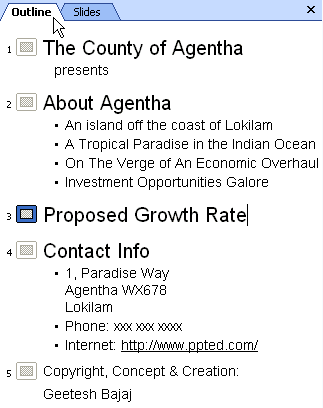
PowerPoint provides many toolbars, and these can be handy for one-click operations. But since there are so many toolbars, you might not have all of them visible, or maybe you have also created a customized toolbar. The Outlining toolbar helps organize the title and text content of the slides, in other words, it just works with the outline of the presentation. This can be a good thing, since this makes it easier to organize your outline, in the process, you can add or merge slides, and do much more.
To learn more, choose your version of PowerPoint. If we do not have a tutorial for your version of PowerPoint, explore the version closest to the one you use.
Outlining Toolbar in PowerPoint 2003 and 2002
Tutorial Code: 01 05 17
Previous: 01 05 16 Office Button in PowerPoint
Next: 01 05 18 Standard Toolbar in PowerPoint
Filed Under:
I
Tagged as: Interface - Overview, Interface and Basics, PowerPoint Tutorials
Comments Off on Interface Overview: Outlining Toolbar in PowerPoint
PowerPoint takes the Merge Shapes command to a whole new level where you can merge shapes with other shapes and text, and you can also merge shapes with pictures! First you may wonder what’s so awesome about merging shapes with pictures? But play a bit and you’ll realize that this opens up huge possibilities. We will start simple and explore how you can create cookie cutter shapes with this option.
To learn more, choose your version of PowerPoint. If we do not have a tutorial for your version of PowerPoint, explore the version closest to the one you use.
Merge Shapes with Pictures in PowerPoint 2016
Merge Shapes with Pictures in PowerPoint 2013
Merge Shapes with Pictures in PowerPoint 2016

Tutorial Code: 06 10 10
Previous: 06 10 09 Convert Text to Shapes by Fragmentation in PowerPoint
Next: 06 10 11 Create Jigsaw Shapes with Merge Shapes Commands in PowerPoint
Filed Under:
M
Tagged as: 06-10, Merge Shapes, PowerPoint Tutorials, Shapes
Comments Off on Merge Shapes: Merge Shapes with Pictures in PowerPoint
In PowerPoint 2007 interface, the old File menu is replaced by the new Office Button. It’s a round button placed on the top left of the interface that works in almost the same way as the File menu. When the Office Button is clicked, you’ll get a list of menu options. These options are New, Open, Save, Save As, Print, Send, and Close.
To learn more, choose your version of PowerPoint. If we do not have a tutorial for your version of PowerPoint, explore the version closest to the one you use.
Office Button in PowerPoint 2007

Tutorial Code: 01 05 16
Previous: 01 05 15 Black Interface in PowerPoint
Next: 01 05 17 Outlining Toolbar in PowerPoint
Filed Under:
I
Tagged as: Interface - Overview, Interface and Basics, PowerPoint Tutorials
Comments Off on Interface Overview: Office Button in PowerPoint
Microsoft and the Office logo are trademarks or registered trademarks of Microsoft Corporation in the United States and/or other countries.