
This is the print version of this page. All content is copyright Indezine.com 2000-2026.
Definitions and resources for terms and techniques used in the world of presentations
See Also:
PowerPoint and Presenting Notes
PowerPoint and Presenting Glossary
Presentations Glossary in alphabetical order:
A |
B |
C |
D |
E |
F |
G |
H |
I |
J |
K |
L |
M |
N |
O |
P |
Q |
R |
S |
T |
U |
V |
W |
X |
Y |
Z
Everyone who uses PowerPoint has faced this situation: you know what you want to do with a slide or a slide object, but you don’t know where to find the related option in PowerPoint! PowerPoint has a feature called Tell Me that will tell you what you need to do! Tell Me is a text field that you can see in PowerPoint after the last Tab of the Ribbon.
Filed Under:
H
Tagged as: Help and Online Services, Interface and Basics, PowerPoint Tutorials
Comments Off on Help and Online Services: Tell Me in PowerPoint
The Recent option within the Backstage View provides you with a list of recently opened presentations so that you can quickly select the one that you want to work upon. Further, the Recent option provides you with a couple of other tricks.
Filed Under:
F
Tagged as: 01-08, File Types File Menu and Backstage View, Interface and Basics, PowerPoint Tutorials
Comments Off on File Types, File Menu, and Backstage View: Recent Tab of Backstage View in PowerPoint
PowerPoint provides many types of fills for shapes, slide backgrounds, and even charts and tables. A picture fill is an attribute for shapes and other slide objects in PowerPoint that lets the object be filled up entirely with a picture you choose. Typically our tutorials address shapes but the techniques remain similar for almost all slide objects.
Filed Under:
S
Tagged as: 08-01, Fills Lines and Effects, PowerPoint Tutorials, Shape Fills
Comments Off on Shapes Fills: Advanced Picture Fill Options in PowerPoint
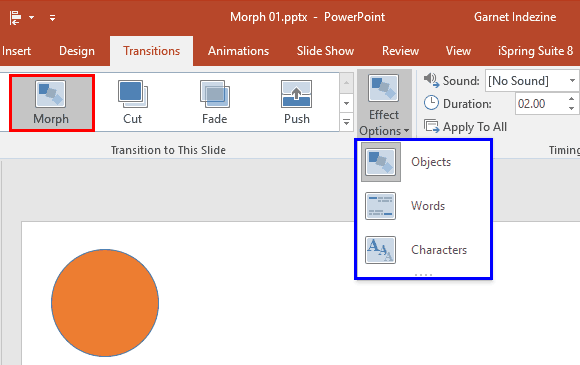
Every new release of PowerPoint brings forth new features, and some of these features have made people sit up and take notice. The most popular of these features has been the Morph transition effect.
To learn more, click a link from the tutorials listed below.
Getting Started with Morph in PowerPoint
Tutorial Code: 13 10 01
Previous: 13 09 04 Morph Slide Transition Effect in PowerPoint
Next: 13 10 02 Using the Morph Transition with Curve Shapes in PowerPoint
Filed Under:
M
Tagged as: 13-10, Animations and Transitions, Morph in PowerPoint, PowerPoint Tutorials
Comments Off on Morph in PowerPoint: Getting Started with Morph in PowerPoint
Microsoft’s Office Clip Art Gallery, which was earlier known as Office Online has been shut down. This includes Microsoft’s Office.com Clip Art and image search service, and also the Clip Art task panes in Microsoft Office applications such as PowerPoint, Word, and Excel.
To learn more, click the link below.
Alternatives for Office Clip Art Gallery

Tutorial Code: 09 11 08
Previous: 09 11 07 Public Domain Pictures
Next: 09 12 01 Bing Image Search
Filed Under:
P
Tagged as: 09-11, Picture Basics, Pictures and Visuals, PowerPoint Tutorials
Comments Off on Picture Basics: Alternatives for Office Clip Art Gallery
Microsoft and the Office logo are trademarks or registered trademarks of Microsoft Corporation in the United States and/or other countries.