
This is the print version of this page. All content is copyright Indezine.com 2000-2026.
Definitions and resources for terms and techniques used in the world of presentations
See Also:
PowerPoint and Presenting Notes
PowerPoint and Presenting Glossary
Presentations Glossary in alphabetical order:
A |
B |
C |
D |
E |
F |
G |
H |
I |
J |
K |
L |
M |
N |
O |
P |
Q |
R |
S |
T |
U |
V |
W |
X |
Y |
Z
Color is something that we can all differentiate between. Most of us have little problem differentiating between red and blue, or even between red and pink. Color is also something that’s been part of our lives, and part of our education system. Most of us learned about color before we learned the alphabet. Yet, as we grew, many of us forgot what a joy color can be!
Filed Under:
C
Tagged as: Color Models, Colors, PowerPoint Tutorials
Comments Off on Colors: Color Models
A fascinating quality of color is contrast. Contrast is the quality that distinguishes one color’s luminosity from another. If you place black next to white, you will end up with striking contrast. But yellow placed next to white will certainly not provide the same contrast.
Filed Under:
C
Tagged as: Color Contrast, Colors, PowerPoint Tutorials
Comments Off on Colors: Color Contrast
The fact that you can customize options within the menus and toolbars in PowerPoint 2011 for Mac may mean that sometimes you may just get carried away and make more changes than you intended. Or, you made some changes for an important project that’s over, and now you want the menus and toolbars to go back to their pristine, default state. Whatever your intent may be, PowerPoint’s Reset option lets achieve this default state with a couple of clicks.
Filed Under:
C
Tagged as: Customize Interface, Customize PowerPoint, PowerPoint Tutorials
Comments Off on Customize Interface: Reset Toolbars and Menus in PowerPoint
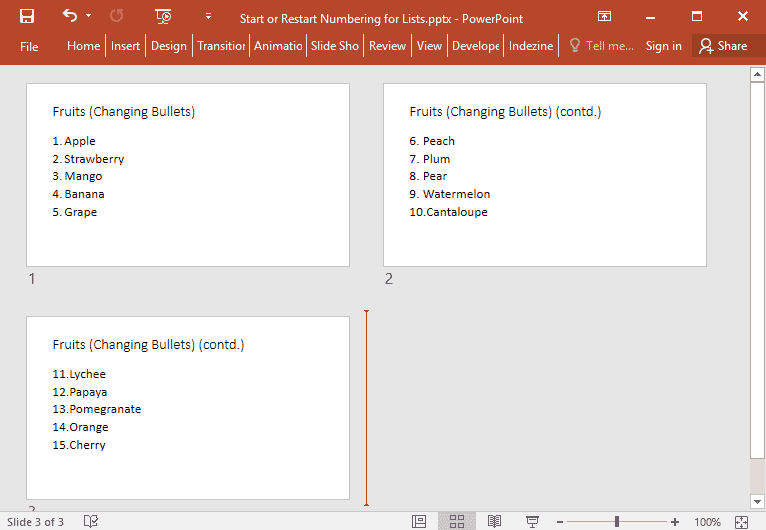
Imagine that you have a long numbered list that forms the content within your PowerPoint slide. Now, it is not uncommon for slides to have numbered lists that comprise twenty lines, and that is singularly unfortunate because even if members of your audience have perfect eyesight, they won’t be able to read the teeny-weeny sized text!
To learn more, choose your version of PowerPoint. If we do not have a tutorial for your version of PowerPoint, explore the version closest to the one you use.
Start or Restart Numbering for Lists in PowerPoint 2016
Start or Restart Numbering for Lists in PowerPoint 2013
Start or Restart Numbering for Lists in PowerPoint 2010
Start or Restart Numbering for Lists in PowerPoint 365
Start or Restart Numbering for Lists in PowerPoint 2016
Start or Restart Numbering for Lists in PowerPoint 2011
Tutorial Code: 05 03 09
Previous: 05 03 08 Change the Numbered List Style in PowerPoint
Next: 05 04 01 Indent Markers (Carets) for Bulleted and Numbered Lists in PowerPoint
Filed Under:
B
Tagged as: 05-03, Bullets and Numbering, PowerPoint Tutorials, Text and Fonts
Comments Off on Bullets and Numbering: Start or Restart Numbering for Lists in PowerPoint
Working with the Ribbon in PowerPoint 2011 is intuitive to a very large extent, and it certainly involves a little more than just learning to minimize and maximize the Ribbon tabs. In fact, you can customize to the extent of hiding the entire Ribbon altogether, or changing the Ribbon tab color from orange and a more muted gray.
Filed Under:
C
Tagged as: Customize Interface, Customize PowerPoint, PowerPoint Tutorials
Comments Off on Customize Interface: Ribbon Preferences in PowerPoint
Microsoft and the Office logo are trademarks or registered trademarks of Microsoft Corporation in the United States and/or other countries.