
This is the print version of this page. All content is copyright Indezine.com 2000-2026.
Definitions and resources for terms and techniques used in the world of presentations
See Also:
PowerPoint and Presenting Notes
PowerPoint and Presenting Glossary
Presentations Glossary in alphabetical order:
A |
B |
C |
D |
E |
F |
G |
H |
I |
J |
K |
L |
M |
N |
O |
P |
Q |
R |
S |
T |
U |
V |
W |
X |
Y |
Z
You will need to have both Microsoft Access and PowerPoint installed on the same system for this tutorial to work. Also, this works best if versions of both the products are identical, as in PowerPoint 2003 and Access 2003 or PowerPoint 2007 and Access 2007.
To learn more, choose your version of PowerPoint. If we do not have a tutorial for your version of PowerPoint, explore the version closest to the one you use.
Advanced Distance Cartograms in PowerPoint
Using Access Content in PowerPoint 2007, 2003, and 2002

Tutorial Code: 19 05 04
Previous: 19 05 03 PivotTable in PowerPoint
Next: 19 05 05 Create a Slide Show That Really Slides in PowerPoint
Filed Under:
M
Tagged as: 19-05, More Cool Ideas, PowerPoint Cool Stuff, PowerPoint Tutorials
Comments Off on More Cool Ideas: Access in PowerPoint
Microsoft Access is like a giant, digital filing cabinet that helps you store, organize, and manage data—but way smarter than a bunch of paper folders! Imagine you run a lemonade stand. You need to keep track of customers, sales, supplies, and recipes. Instead of scribbling notes everywhere (and losing them), Access lets you neatly organize all that information in one place.

Here are some pages on Indezine that talk about Microsoft Access:
Comments Off on Microsoft Access
Not everyone sees colors the same way! If your slides rely only on color to show meaning, some people might miss the message entirely! On this page, we will explore how you can check your existing slides for color-blindness issues.
To learn more, choose your version of PowerPoint. If we do not have a tutorial for your version of PowerPoint, explore the version closest to the one you use.
Running Color Blind Tests within PowerPoint for the Web

Tutorial Code: 18 01 02
Previous: 18 01 01 PowerPoint Slides for Color-Blind Audiences
Next: 18 01 03 Running Color Blind Tests Using Images Exported from PowerPoint
Filed Under:
C
Tagged as: 18-01, Accessibility, Color-Blindness, PowerPoint Tutorials
Comments Off on Color-Blindness: Running Color Blind Tests within PowerPoint

Naresh Nichani is based in Chennai, India, and runs a software development firm that specializes in Visual Basic development and Office integration. He enjoys programming with Microsoft technologies as they are fairly easy to use and developers can build fairly complex solutions for customers with visually appealing interfaces quickly. Naresh does custom development.
Here’s a list of links on Indezine.com where he has been featured:
 Access in PowerPoint
February 16, 2009
 PivotTables in PowerPoint
January 24, 2008
 Excel Content in PowerPoint 2007, 2003, and 2002 for Windows
January 18, 2008
Filed Under:
N
Tagged as: Personality
Comments Off on Naresh Nichani
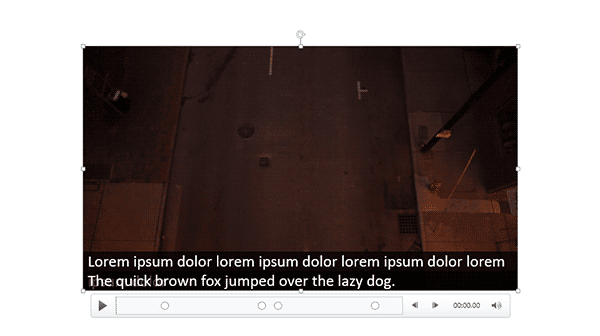
The STAMP add-in for PowerPoint is a free download from Microsoft that lets you add captions to media such as movie clips inserted in your slides. When installed, the STAMP add-in creates new buttons in the Video Tools Playback tab of the Ribbon in PowerPoint, within the Captions group of the Video Tools Playback tab, There are several options in this group that can be helpful while working with your existing captions.
To learn more, choose your version of PowerPoint. If we do not have a tutorial for your version of PowerPoint, explore the version closest to the one you use.
Caption Options – STAMP Add-in in PowerPoint 2016, 2013, and 2010
Tutorial Code: 18 03 07
Previous: 18 03 06 Edit Captions – STAMP Add-in in PowerPoint
Next: 19 01 01 PowerPoint Designer in PowerPoint
Filed Under:
S
Tagged as: 18-03, Accessibility, PowerPoint Tutorials, STAMP
Comments Off on STAMP: Caption Options – STAMP Add-in in PowerPoint
Microsoft and the Office logo are trademarks or registered trademarks of Microsoft Corporation in the United States and/or other countries.