This is the print version of this page. All content is copyright Indezine.com 2000-2026.
Definitions and resources for terms and techniques used in the world of presentations
See Also:
PowerPoint and Presenting Notes
PowerPoint and Presenting Glossary
Presentations Glossary in alphabetical order:
A |
B |
C |
D |
E |
F |
G |
H |
I |
J |
K |
L |
M |
N |
O |
P |
Q |
R |
S |
T |
U |
V |
W |
X |
Y |
Z
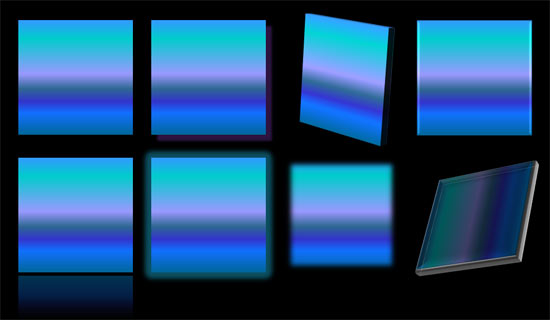
So what are the effects in PowerPoint? Effects are different than fills and outlines. With the plethora of effects available in PowerPoint, you can make a Shape stand apart with a drop shadow. Other effects allow you to create convincing reflections, spreading glows, 3D bevel effects, and even soft edges. Even better, all these effects are not destructible and can be turned on and off at your will.
To learn more, choose your version of PowerPoint. If we do not have a tutorial for your version of PowerPoint, explore the version closest to the one you use.
Applying Effects for Shapes in PowerPoint 2016
Applying Effects for Shapes in PowerPoint 2013
Applying Effects for Shapes in PowerPoint 2010
Applying Effects for Shapes in PowerPoint 2007
Applying Effects for Shapes in PowerPoint 2011
Tutorial Code: 08 03 01
Previous: 08 02 08 Transparency for Shape Lines in PowerPoint
Next: 08 03 02 Apply Preset Effects to Shapes in PowerPoint
Filed Under:
E
Tagged as: 08-03, Fills Lines and Effects, PowerPoint Tutorials, Shape Effects
Comments Off on Shape Effects: Applying Effects for Shapes in PowerPoint

Glen Millar is a PowerPoint expert. Based near Brisbane, Australia, Glen is a regular on the Microsoft support newsgroups, and a featured speaker at conferences.
Here are a few features on Indezine.com where he has been featured:
 Ric’s Podcast: Presentation Party Invitation to PowerPoint Live
January 20, 2008
 False Backgrounds: Conversation with Glen Millar
January 11, 2008
 Perspector Tutorial from Glen Millar
August 8, 2005
 Wrapping Images in PowerPoint
June 3, 2004
Customizing PowerPoint Toolbars
March 11, 2004
Filed Under:
G
Tagged as: Personality
Comments Off on Glen Millar
We have already showed you how you can format line attributes (outlines) in PowerPoint. Patterned lines are one attribute that’s not available in recent versions of PowerPoint.
Filed Under:
S
Tagged as: 08-02, Fills Lines and Effects, PowerPoint Tutorials, Shape Lines
Comments Off on Shape Lines: Pattern Lines for Shapes in PowerPoint
Techsmith Corporation is a company that creates products for screen and video captures, screencasting, and audio-video editing, for both Microsoft Windows and Apple mac OS.
Here are a few features on Indezine.com where Techsmith has been featured:
 PowerPoint to Flash: Articulate or Camtasia?
December 14, 2006
 Using Stamps in SnagIt
May 15, 2006
 Taking PowerPoint to Video and Publishing it to DVD – by Betsy Weber
January 2, 2005
 Snagit: An Interview with Tony Dunckel
June 01, 2004
Filed Under:
T
Comments Off on Techsmith
PowerPoint provides two types of shapes: open and close shapes. Shapes, such as rectangles, circles, etc. are closed shapes. Regular line shapes, such as straight lines, curves, scribbles, etc. are open shapes. Arrowheads can be added only to open shapes. That’s because an arrow needs a pronounced, visible beginning and end.
To learn more, choose your version of PowerPoint. If we do not have a tutorial for your version of PowerPoint, explore the version closest to the one you use.
Formatting Arrowheads in PowerPoint 2016
Formatting Arrowheads in PowerPoint 2013
Formatting Arrowheads in PowerPoint 2010
Formatting Arrowheads in PowerPoint 2007
Formatting Arrowheads in PowerPoint 2003 and 2002
Formatting Arrowheads in PowerPoint 2011

Tutorial Code: 08 02 04
Previous: 08 02 03 Formatting Line Dashes for Shapes in PowerPoint
Next: 08 02 05 Gradient Lines for Shapes in PowerPoint
Filed Under:
S
Tagged as: 08-02, Fills Lines and Effects, PowerPoint Tutorials, Shape Lines
Comments Off on Shape Lines: Formatting Arrowheads for Line Shapes
Microsoft and the Office logo are trademarks or registered trademarks of Microsoft Corporation in the United States and/or other countries.