This is the print version of this page. All content is copyright Indezine.com 2000-2026.
Definitions and resources for terms and techniques used in the world of presentations
See Also:
PowerPoint and Presenting Notes
PowerPoint and Presenting Glossary
Presentations Glossary in alphabetical order:
A |
B |
C |
D |
E |
F |
G |
H |
I |
J |
K |
L |
M |
N |
O |
P |
Q |
R |
S |
T |
U |
V |
W |
X |
Y |
Z

Boris Hristov is the Founder of presentation agency 356labs and a PowerPoint MVP. He has presented in 25+ countries and has been rated as the top speaker numerous times. Boris has years of experience as a trainer, mentor and consultant and works with companies like Deutsche Telekom, KPMG, Renault, Societe Generale, Roche, Publicis, Experian, Bosch, adidas and many, many more to help them craft and deliver truly effective presentations. His agency is also the only presentation agency in the world speaking at Microsoft Ignite – the biggest yearly event of Microsoft, attended by more than 25000 people.
Here’s a list of links on Indezine.com where he has been featured:
 Present to Succeed 2026: Conversation with Boris Hristov
December 5, 2025
 Present to Succeed 2021: Conversation with Boris Hristov
October 17, 2020
 5 Slide Design Tips to Take Home from a Successful IPO Presentation Project
June 5, 2019
 356labs: Conversation with Boris Hristov
May 15, 2019
Filed Under:
B
Tagged as: Boris Hristov, MVP, Personality
Comments Off on Boris Hristov
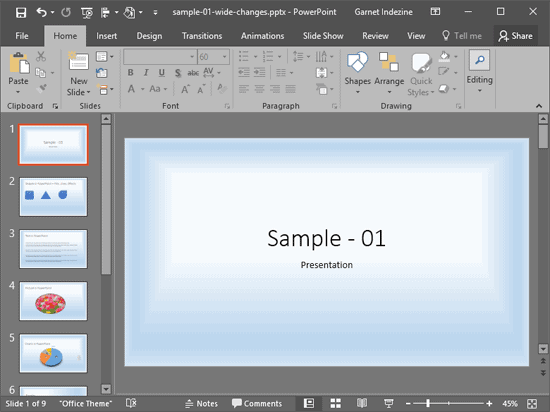
Gradient fills are typically blended fills between two or more colors that graduate and merge from one color to another, they are sometimes also called fountain fills or blended fills in other programs. Other than applying gradients as shape fill, you can also apply Gradient fills to your Slide Background. However, make sure that the two or more colors that you use for your Gradient work well with text and other foreground elements on all your slides.
To learn more, choose your version of PowerPoint. If we do not have a tutorial for your version of PowerPoint, explore the version closest to the one you use.
Gradient Fills for Slide Backgrounds in PowerPoint 2016
Gradient Fills for Slide Backgrounds in PowerPoint 2013
Gradient Fills for Slide Backgrounds in PowerPoint 2010
Gradient Fills for Slide Backgrounds in PowerPoint 2011
Tutorial Code: 08 06 04
Previous: 08 06 03 Solid Fills for Slide Backgrounds in PowerPoint
Next: 08 06 05 Picture Fills for Slide Backgrounds in PowerPoint
Filed Under:
F
Tagged as: 08-06, Fills for Slide Background, Fills Lines and Effects, PowerPoint Tutorials
Comments Off on Fills for Slide Background: Gradient Fills for Slide Backgrounds in PowerPoint
PowerPoint’s Slide Backgrounds can be filled with a solid color, a gradient, a texture or a picture, or even one of PowerPoint’s built-in patterns. We explored a generic walkthrough on changing the Slide Background in our Format Slide Background in PowerPoint tutorial. This tutorial explores how you can use a solid color as the fill for your Slide Background, solid color fills have the advantage of showing a large expanse in just one color. This does keep the slide uncluttered and draws the audience’s attention away from the background to the foreground elements, and that’s a good thing! Unless you use a bright orange, a fluorescent yellow, or some other striking color as a background for your slide! So do choose your colors with caution – neutral colors such as white, grey, black, blue, and green always work better.
To learn more, choose your version of PowerPoint. If we do not have a tutorial for your version of PowerPoint, explore the version closest to the one you use.
Solid Fills for Slide Backgrounds in PowerPoint 2016
Solid Fills for Slide Backgrounds in PowerPoint 2013
Solid Fills for Slide Backgrounds in PowerPoint 2010
Solid Fills for Slide Backgrounds in PowerPoint 2011
Tutorial Code: 08 06 03
Previous: 08 06 02 Format Slide Background in PowerPoint
Next: 08 06 04 Gradient Fills for Slide Backgrounds in PowerPoint
Filed Under:
F
Tagged as: 08-06, Fills for Slide Background, Fills Lines and Effects, PowerPoint Tutorials
Comments Off on Fills for Slide Background: Solid Fills for Slide Backgrounds in PowerPoint

Jan Ozer has worked with digital video since 1991, originally in the video compression industry and since 1996 as a contributing editor for EventDV and PC Magazine. Jan teaches courses in digital video production, both privately and for the University of Wisconsin Department of Continuing Education, and shoots and produces DVDs for local musicians near his hometown in Galax, Virginia.
Here’s a list of links on Indezine.com where he has been featured:
 Encoding Video for PowerPoint
April 18, 2005
An Interview with Jan Ozer
April 18, 2005
Filed Under:
J
Comments Off on Jan Ozer
When you create a new presentation in PowerPoint, you may typically see a single slide with a white background. Alternatively, if you open any of your existing presentations, the background of the slides may be in a different color or fill depending upon the Theme that the presentation is based upon. You can always change this slide background to a picture, a solid color, a pattern, or even a gradient. However, even without exploring all those options, there are twelve Background Styles that PowerPoint offers for every presentation by default. These styles are all coordinated and also designed to work well as a set of complementary backgrounds.
To learn more, choose your version of PowerPoint. If we do not have a tutorial for your version of PowerPoint, explore the version closest to the one you use.
Slide Background Styles in PowerPoint 2016
Slide Background Styles in PowerPoint 2013
Slide Background Styles in PowerPoint 2010
Slide Background Styles in PowerPoint 2007
Slide Background Styles in PowerPoint 2011

Tutorial Code: 08 06 01
Previous: 08 05 01 Change Default Shape Attributes in PowerPoint
Next: 08 06 02 Format Slide Background in PowerPoint
Filed Under:
F
Tagged as: 08-06, Fills Lines and Effects, PowerPoint Tutorials, Shape Effects
Comments Off on Fills for Slide Background: Slide Background Styles in PowerPoint
Microsoft and the Office logo are trademarks or registered trademarks of Microsoft Corporation in the United States and/or other countries.