
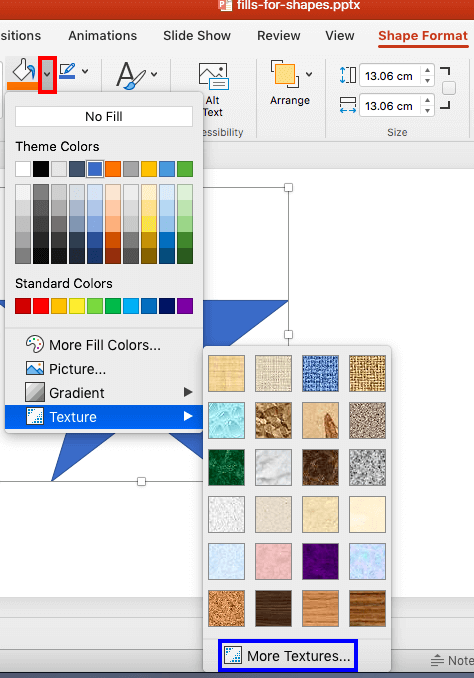
PowerPoint’s fill options for shapes are extensive. The texture fills for shape incidentally are not too different from picture fills, other than the fact that they can be tiled. PowerPoint includes a built-in library of textures, and you can also import any picture, to be used as a texture.
PowerPoint treats textures differently from pictures—both textures and pictures are bitmaps saved in pixel based formats like JPEG, GIF, BMP, PNG, TIFF, etc. The main difference between textures and pictures is that while textures are seamless, pictures are not necessarily seamless. Seamless means that if you tile up a texture, they will not show any edges while tiling thus provide an illusion of a seamless expanse.
To learn more, choose your version of PowerPoint. If we do not have a tutorial for your version of PowerPoint, explore the version closest to the one you use.
Microsoft Windows
Add Texture Fills to Shapes in PowerPoint 2016
Add Texture Fills to Shapes in PowerPoint 2013
Add Texture Fills to Shapes in PowerPoint 2010
Add Texture Fills to Shapes in PowerPoint 2007
Add Texture Fills to AutoShapes in PowerPoint 2002 and 2003
Apple Mac
Add Texture Fills to Shapes in PowerPoint 2016
Add Texture Fills to Shapes in PowerPoint 2011
Tutorial Code: 08 01 08
Previous: 08 01 07 Gradient Stops in PowerPoint
Next: 08 01 09 Tiling Options in PowerPoint
[…] Shape Fills: Texture […]