August 23rd, 2018
Shape Lines: Formatting Line Weight and Thickness for Shapes in PowerPoint

See Also:
PowerPoint and Presenting Notes
PowerPoint and Presenting Glossary
 August 8th, 2018
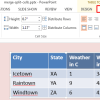 Table Cells: Merge and Split Table Cells
Add a table to your PowerPoint slide and then populate the table with content and then what comes next? Probably you need to add or remove rows and columns. That's the case with most people who work with tables. But very few people realize that the table cells can be made larger or smaller without ...
 Anand R Krishnan
Anand R Krishnan is a presentation expert and the founder of SlideBazaar, a presentation design agency. After his post-graduation in fine arts, he started off his career as a visual designer, creating presentations for in-house teams. He later worked extensively as a freelance presentation designer for Fortune 500 companies. He founded SlideBazaar when he realized ...
 Advanced SmartArt: Resize Shapes within SmartArt Graphics
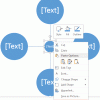
Similar to how you can change an individual shape within SmartArt, you can even resize shapes within a SmartArt graphic. This can be helpful if you want one shape to be larger than the others. Perhaps you want one shape to stand out? Whatever be the reason behind you wanting to resize these shapes, these ...
Microsoft and the Office logo are trademarks or registered trademarks of Microsoft Corporation in the United States and/or other countries.