Monthly Archives: May 2014

Browse posts released in May 2014. See all archives.

See Also:
PowerPoint and Presenting Notes
PowerPoint and Presenting Glossary


Interface & Basics: Normal View in PowerPoint May 28th, 2014
Views: Normal View (Editing View) in PowerPoint


Reposition Picture Fills with Crop in PowerPoint May 23rd, 2014
Pictures – Cropping: Reposition Picture Fills within Crop in PowerPoint


Crop Pictures (Crop to Shape) in PowerPoint May 22nd, 2014
Pictures – Cropping: Crop Picture to Shape in PowerPoint


Crop Pictures in PowerPoint May 22nd, 2014
Pictures – Cropping: Crop Pictures in PowerPoint


May 21st, 2014
Pictures: Changing


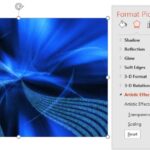
Artistic Effects for Pictures in PowerPoint May 20th, 2014
Pictures Basics and Adjustments: Artistic Effects for Pictures in PowerPoint


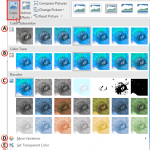
Changing Color of Pictures in PowerPoint May 20th, 2014
Pictures Basics and Adjustments: Changing Color of Pictures in PowerPoint


Picture Corrections in PowerPoint May 20th, 2014
Pictures Basics and Adjustments: Picture Corrections in PowerPoint


Recolor Picture Backgrounds in PowerPoint May 19th, 2014
Pictures Basics and Adjustments: Recolor Picture Backgrounds in PowerPoint


Adjust Picture Options in PowerPoint May 16th, 2014
Pictures Basics and Adjustments: Adjust Picture Options in PowerPoint


Insert and/or Link Pictures in PowerPoint May 13th, 2014
Pictures Basics and Adjustments: Insert or Link Pictures in PowerPoint


Nick Morgan May 9th, 2014
Nick Morgan


Share PowerPoint Presentations Online using OneDrive May 8th, 2014
OneDrive


Jeremey Donovan May 2nd, 2014
Jeremey Donovan


Popular Posts

Add Office.com SmartArt Graphics Advanced SmartArt: Add Office.com SmartArt Graphics

SmartArt in PowerPoint has replaced the diagram options in previous versions of PowerPoint. SmartArt also allows you to replace bullet points with info-graphic content using text-within-shapes that are more logical to view and present. There are different SmartArt categories available. Additionally, you can also add an additional SmartArt category that shows content from Office.com. To ...


Remove Animations in PowerPoint Advanced Animation Concepts: Remove Animations in PowerPoint

Removing an animation in PowerPoint is a simple select-and-click option, but even before you remove any animations, do ascertain why you want to remove them. If the animation is there for a particular reason, you may want to look at other options first, as explained below. To learn more, choose your version of PowerPoint. If ...


Slide Show View in PowerPoint Views: Slide Show View in PowerPoint

Have you created all your slides, and now you want to show it in front of an audience? Or you just want to use this slide deck in a webinar, or even see them yourself to understand how they look in full-screen view? In that case, the view that plays your presentation in full screen ...


Microsoft and the Office logo are trademarks or registered trademarks of Microsoft Corporation in the United States and/or other countries.


Plagiarism will be detected by Copyscape

© 2000-2025, Geetesh Bajaj - All rights reserved.

since November 02, 2000