
This is the print version of this page. All content is copyright Indezine.com 2000-2026.
Definitions and resources for terms and techniques used in the world of presentations
See Also:
PowerPoint and Presenting Notes
PowerPoint and Presenting Glossary
Presentations Glossary in alphabetical order:
A |
B |
C |
D |
E |
F |
G |
H |
I |
J |
K |
L |
M |
N |
O |
P |
Q |
R |
S |
T |
U |
V |
W |
X |
Y |
Z
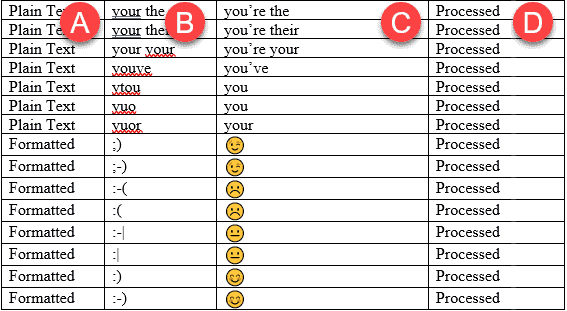
We looked at how you can manually save and share your AutoCorrect entries from one installation of PowerPoint or Word to another. However, this is a time-intensive task that is also prone to errors. Wouldn’t it be better if automated tools were available to perform these tasks?
To learn more, choose your version of PowerPoint. If we do not have a tutorial for your version of PowerPoint, explore the version closest to the one you use.
Exporting and Importing AutoCorrect Entries
Tutorial Code: 05 08 09
Previous: 05 08 08 Saving and Sharing AutoCorrect Entries in PowerPoint
Next: 05 08 10 Creating Formatted AutoCorrect Entries in PowerPoint
Filed Under:
S
Tagged as: 05-08, AutoCorrect, AutoCorrect Entries in PowerPoint, PowerPoint Tutorials, Spelling, Spelling AutoCorrect and Reference Tools
Comments Off on Spelling, AutoCorrect, and Reference Tools: Exporting and Importing AutoCorrect Entries
Digital Anarchy is a company based in San Francisco, California, United States that specializes in special effect filters for image editing and video programs.

Here are links to content on Indezine.com where Digital Anarchy products have been featured:
 3D Invigorator
April 28, 2009
 Backdrop Designer
January 29, 2005
Comments Off on Digital Anarchy
We’ve looked at AutoCorrect and how all options you set are not only available within PowerPoint, but also in other Office programs that use AutoCorrect such as Word, Excel, and Outlook. Over a while, your custom AutoCorrect entries will become a huge asset. You’ll be used to typing some characters that will automatically show up as a word or a phrase, and everything would seem awesome until your computer crashes, or if you want to move to a new computer system.
To learn more, choose your version of PowerPoint. If we do not have a tutorial for your version of PowerPoint, explore the version closest to the one you use.
Saving and Sharing AutoCorrect Entries in PowerPoint 365

Tutorial Code: 05 08 08
Previous: 05 08 07 Creating and Editing AutoCorrect Entries in PowerPoint
Next: 05 08 09 Exporting and Importing AutoCorrect Entries
Filed Under:
S
Tagged as: 05-08, AutoCorrect, AutoCorrect Entries in PowerPoint, PowerPoint Tutorials, Spelling, Spelling AutoCorrect and Reference Tools
Comments Off on Spelling, AutoCorrect, and Reference Tools: Saving and Sharing AutoCorrect Entries in PowerPoint
There’s more to text animation than just adding some movement to your selected text. By default, when you animate a text placeholder or text box, all the text contained animates at one go unless your text content is within a bulleted or numbered list. In that case, all text animates as sequenced paragraphs. Even then, the animation is sequenced to first-level paragraphs (first-level bullets), and any sub-bullet levels contained in your text placeholders or text boxes animate along with the parent level.
To learn more, choose your version of PowerPoint. If we do not have a tutorial for your version of PowerPoint, explore the version closest to the one you use.
Animate Text in PowerPoint 2013
Animate Text in PowerPoint 2010
Animate Text in PowerPoint 2007
Animate Text in PowerPoint 2011

Tutorial Code: 13 04 04
Previous: 13 04 03 Animate Charts in PowerPoint
Next: 13 04 05 Animate SmartArt in PowerPoint
Filed Under:
A
Tagged as: 13-04, Animate Slide Objects, Animations and Transitions, PowerPoint Tutorials
Comments Off on Animate Slide Objects: Animate Text in PowerPoint

Kristian Johansen is CEO and founder of Ampler, an integrated productivity platform for Microsoft Office. Ampler enables users to work faster, easier, and more efficiently in PowerPoint, Word, and Excel, and includes a series of tools that can be integrated into existing Office installations. Kristian has a background as a management consultant from Bain & Co, and has crafted thousands and thousands of slides and Excel models during his career.
Here’s a list of links on Indezine.com where he has been featured:
 Ampler: Conversation with Kristian Johansen
March 10, 2021
Filed Under:
K
Tagged as: Personality
Comments Off on Kristian Johansen
Microsoft and the Office logo are trademarks or registered trademarks of Microsoft Corporation in the United States and/or other countries.