
This is the print version of this page. All content is copyright Indezine.com 2000-2026.
Definitions and resources for terms and techniques used in the world of presentations
See Also:
PowerPoint and Presenting Notes
PowerPoint and Presenting Glossary
Presentations Glossary in alphabetical order:
A |
B |
C |
D |
E |
F |
G |
H |
I |
J |
K |
L |
M |
N |
O |
P |
Q |
R |
S |
T |
U |
V |
W |
X |
Y |
Z
We explored differences between formatted and unformatted AutoCorrect entries in our Saving and Sharing AutoCorrect Entries tutorial. In simple terms, formatted AutoCorrect entries include formatted attributes such as font choices, bold, italics, etc., but can also include images, tables, and other content types. On the other hand, unformatted AutoCorrect entries comprise plain text.
To learn more, choose your version of PowerPoint. If we do not have a tutorial for your version of PowerPoint, explore the version closest to the one you use.
Creating Formatted AutoCorrect Entries in PowerPoint

Tutorial Code: 05 08 10
Previous: 05 08 09 Exporting and Importing AutoCorrect Entries in PowerPoint
Next: 05 08 11 Find and Replace Words in PowerPoint
Filed Under:
S
Tagged as: 05-08, AutoCorrect, AutoCorrect Entries in PowerPoint, PowerPoint Tutorials, Spelling, Spelling AutoCorrect and Reference Tools
Comments Off on Spelling, AutoCorrect, and Reference Tools: Creating Formatted AutoCorrect Entries in PowerPoint
A Video Action in PowerPoint is something that causes an event for any inserted movie/video clip. These are simple events such as Play, Pause, Resume, and Stop. Although PowerPoint classifies Movie Actions as an animation type, these are not strictly animations. However, since Movie Actions can be accessed through the Add Animation gallery, we have included this tutorial in our Animations section.
To learn more, choose your version of PowerPoint. If we do not have a tutorial for your version of PowerPoint, explore the version closest to the one you use.
Media Actions for Video in PowerPoint 2013
Media Actions for Video in PowerPoint 2010
Media Actions for Video in PowerPoint 2007

Tutorial Code: 13 05 03
Previous: 13 05 02 Media Actions for Audio in PowerPoint
Next: 13 05 04 Add Trigger Animations for Media Actions in PowerPoint
Filed Under:
T
Tagged as: 13-5, Animations and Transitions, PowerPoint Tutorials, Triggers and Animation Actions
Comments Off on Triggers and Animation Actions: Media Actions for Video in PowerPoint
SlideTeam is a design agency that creates templates for industry processes and best practices, frameworks, and models.
Here are links to content on Indezine.com where SlideTeam has been featured:
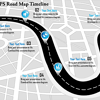 Timelines that are Different – 01
May 6, 2016
 SlideTeam Presentation App: Conversation with Ajay Mohan
February 24, 2016
Filed Under:
S
Tagged as: PowerPoint Templates
Comments Off on SlideTeam
We have already explored how you can add an audio clip within a PowerPoint slide. Once you place an audio clip, you can associate this clip with several Media actions such as Play, Pause, Resume, and Stop. And although Media actions work the same way for both audio and video clips, there are some subtle differences. Due to these differences, we will explore both of them separately.
To learn more, choose your version of PowerPoint. If we do not have a tutorial for your version of PowerPoint, explore the version closest to the one you use.
Media Actions for Audio in PowerPoint 2013
Media Actions for Audio in PowerPoint 2010
Media Actions for Audio in PowerPoint 2007

Tutorial Code: 13 05 02
Previous: 13 05 01 Trigger Animations in PowerPoint
Next: 13 05 03 Media Actions for Video in PowerPoint
Filed Under:
T
Tagged as: 13-5, Animations and Transitions, PowerPoint Tutorials, Triggers and Animation Actions
Comments Off on Triggers and Animation Actions: Media Actions for Audio in PowerPoint
SlideModel is a slide vendor based out of Uruguay.
Here are links to content on Indezine.com where SlideModel has been featured:
 Presentation Summit 2022: Conversation with Julián Magnone
October 5, 2022
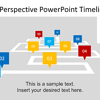 Timelines that are Different – 04
May 30, 2016
 SlideModel: Conversation with Germán Viera
December 11, 2014
Filed Under:
S
Tagged as: PowerPoint Templates
Comments Off on SlideModel
Microsoft and the Office logo are trademarks or registered trademarks of Microsoft Corporation in the United States and/or other countries.