
This is the print version of this page. All content is copyright Indezine.com 2000-2026.
Definitions and resources for terms and techniques used in the world of presentations
See Also:
PowerPoint and Presenting Notes
PowerPoint and Presenting Glossary
Presentations Glossary in alphabetical order:
A |
B |
C |
D |
E |
F |
G |
H |
I |
J |
K |
L |
M |
N |
O |
P |
Q |
R |
S |
T |
U |
V |
W |
X |
Y |
Z
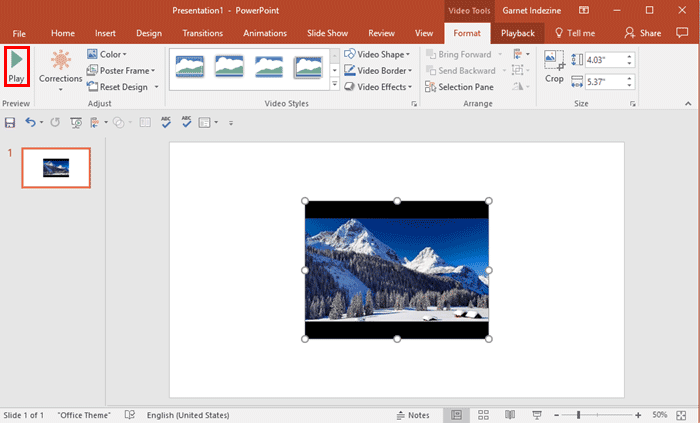
PowerPoint provides various sources for inserting online video within your slide. In this tutorial, we’ll cover how you can insert video from YouTube.
To learn more, choose your version of PowerPoint. If we do not have a tutorial for your version of PowerPoint, explore the version closest to the one you use.
Insert Video from YouTube in PowerPoint 2016
Insert Video from YouTube in PowerPoint 2013
Tutorial Code: 14 05 04
Previous: 14 05 03 Insert Video from OneDrive in PowerPoint
Next: 14 05 05 Insert Video Using Video Embed Code in PowerPoint
Filed Under:
O
Tagged as: 14-05, Multimedia, Online Video Clips, PowerPoint Tutorials
Comments Off on Online Video Clips: Insert Video from YouTube in PowerPoint
Our next option within the Insert Online Video series is inserting video from OneDrive. OneDrive is an online service which allows you to store files online – it also allows you to work on Microsoft Office web applications such as PowerPoint Online, where you can create and edit presentations. Remember that you will have to first sign in with your Microsoft account.
To learn more, choose your version of PowerPoint. If we do not have a tutorial for your version of PowerPoint, explore the version closest to the one you use.
Insert Video from OneDrive in PowerPoint 2016
Insert Video from OneDrive in PowerPoint 2013

Tutorial Code: 14 05 03
Previous: 14 05 02 Manually Embed YouTube Video in PowerPoint
Next: 14 05 04 Insert Video from YouTube in PowerPoint
Filed Under:
O
Tagged as: 14-05, Multimedia, Online Video Clips, PowerPoint Tutorials
Comments Off on Online Video Clips: Insert Video from OneDrive in PowerPoint
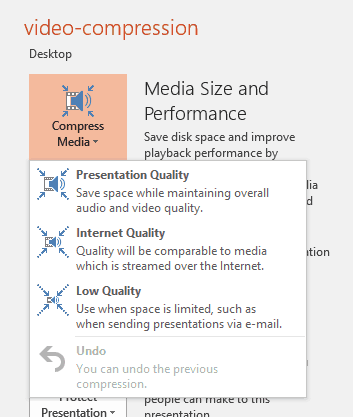
Recent versions of PowerPoint accept more video file formats than previous versions and can do a lot more with videos, including trimming of video clips. However, they also embed all inserted video clips by default, and this can result in huge presentations that contain huge video files! This ultimately occupies oodles of disk space and may also make PowerPoint work a wee bit slower. To tackle this problem, you can explore the media compression abilities built right inside PowerPoint. You no longer need any third-party media compression tool since PowerPoint’s native Media Compression options make this task very easy indeed.
To learn more, choose your version of PowerPoint. If we do not have a tutorial for your version of PowerPoint, explore the version closest to the one you use.
Video Compression Options in PowerPoint 2016
Video Compression Options in PowerPoint 2013
Video Compression Options in PowerPoint 2010
Tutorial Code: 14 04 02
Previous: 14 04 01 Trim Video Clips in PowerPoint
Next: 14 04 03 Fade Effect for Video Clips in PowerPoint
Filed Under:
V
Tagged as: 14-04, Multimedia, PowerPoint Tutorials, Video in PowerPoint - Advanced
Comments Off on Video in PowerPoint – Advanced: Video Compression Options in PowerPoint
Have you ever created a new presentation in PowerPoint and then closed it without saving it for even once? This scenario seems to be little strange and impossible since even if you accidentally close your presentation, PowerPoint prompts you whether you want to save your presentation. Yet, you can be in a similar scenario if you lose all your file changes to a system or PowerPoint crash. Fortunately, there are chances that your unsaved presentation is safe in some state! Most of the time, PowerPoint will salvage your file and offer to open it for you the next time you launch the program. Alternatively, even if you don’t see any files being offered for recovery, you can set the process in action manually.
To learn more, choose your version of PowerPoint. If we do not have a tutorial for your version of PowerPoint, explore the version closest to the one you use.
Recovering New Unsaved Presentations Manually in PowerPoint 2016
Recovering New Unsaved Presentations Manually in PowerPoint 2013
Recovering New Unsaved Presentations Manually in PowerPoint 2010

Tutorial Code: 16 03 03
Previous: 16 03 02 Recovering Unsaved Presentations in PowerPoint
Next: 16 03 04 Restoring Earlier Versions in PowerPoint
Filed Under:
M
Tagged as: 16-03, Manage Versions, PowerPoint Tutorials, Share and Prepare
Comments Off on Manage Versions: Recovering New Unsaved Presentations Manually in PowerPoint
When you insert video clips in your presentations, you may find that the video clip inserted may be too long. Or maybe you just need to show part of the video clip, rather than wasting your audience’s time showing them the entire clip. Yes, you can use the Player Controls bar to scrub and play the clip from exactly where you want it to begin. However, scrubbing a clip in front of an audience can appear unprofessional. Another way is to trim the video clip outside PowerPoint in a dedicated video program. You have one more option, and that is to use the Trim Video option within PowerPoint to get the results.
To learn more, choose your version of PowerPoint. If we do not have a tutorial for your version of PowerPoint, explore the version closest to the one you use.
Trim Video Clips in PowerPoint 2016
Trim Video Clips in PowerPoint 2013
Trim Video Clips in PowerPoint 2010

Tutorial Code: 14 04 01
Previous: 14 03 02 Remove Bookmarks from Video Clips in PowerPoint
Next: 14 04 02 Video Compression Options in PowerPoint
Filed Under:
B
Tagged as: 14-04, Multimedia, PowerPoint Tutorials, Video in PowerPoint - Advanced
Comments Off on Video in PowerPoint – Advanced: Trim Video Clips in PowerPoint
Microsoft and the Office logo are trademarks or registered trademarks of Microsoft Corporation in the United States and/or other countries.