
This is the print version of this page. All content is copyright Indezine.com 2000-2026.
Definitions and resources for terms and techniques used in the world of presentations
See Also:
PowerPoint and Presenting Notes
PowerPoint and Presenting Glossary
Presentations Glossary in alphabetical order:
A |
B |
C |
D |
E |
F |
G |
H |
I |
J |
K |
L |
M |
N |
O |
P |
Q |
R |
S |
T |
U |
V |
W |
X |
Y |
Z
When you start creating a new presentation, many users just launch PowerPoint and start creating their slides. Actually, there are three common ways in which you can create slides. Yet, the best way to start creating presentation slides is not from within PowerPoint but by creating an outline in another program. Many purists say that you should not even launch PowerPoint until you have an outline in place.
Filed Under:
C
Tagged as: 01-03, Creating Slides, Interface and Basics, PowerPoint Tutorials
Comments Off on Creating Slides: Creating PowerPoint Outlines Using Text Editors
Have you ever wanted to use PowerPoint as a graphic program to create posters, web-banner ads, YouTube cover art, etc.? You will then run into some limitations, especially when you tried to export a PowerPoint slide to a picture with exact size dimensions. In this tutorial, we will explore how a small improvement that Microsoft added in PowerPoint 2013 and newer versions is providing significant returns.
Filed Under:
S
Tagged as: 01-01, Interface and Basics, PowerPoint Tutorials, Slides
Comments Off on Slides: Slide Size Differences in PowerPoint
PowerPoint defaults to widescreen slides in all new presentations. However, you can change your presentation’s aspect ratio from Widescreen (16:9) to Standard (4:3), and also do the reverse. PowerPoint has some features up its sleeve that make these changes of aspect ratios easier to understand, and some quirks too!
Filed Under:
S
Tagged as: Interface and Basics, PowerPoint Tutorials, Slide Aspect Ratio
Comments Off on Slide Aspect Ratio: Change Aspect Ratio from Widescreen to Standard
Shapes in PowerPoint are very useful in representing design or content, or in showing a process or a sequence. However, when you create a slide that has many such shapes, you’ll find that most of your shapes may be the same size and may also share other similar attributes. Yes, you can go ahead and insert the same shape repeatedly, but that will consume much of your productive time that you could have used elsewhere! There are quicker alternatives for duplicating shapes in PowerPoint.
To learn more, choose your version of PowerPoint. If we do not have a tutorial for your version of PowerPoint, explore the version closest to the one you use.
Duplicate Shapes by Dragging in PowerPoint 2016
Duplicate Shapes by Dragging in PowerPoint 2013
Duplicate Shapes by Dragging in PowerPoint 2010
Duplicate Shapes by Dragging in PowerPoint 2016
Duplicate Shapes by Dragging in PowerPoint 2011

Tutorial Code: 06 04 01
Previous: 06 03 02 Select, Deselect, View, and Hide Shapes Using the Selection Pane in PowerPoint
Next: 06 04 02 Duplicate Shapes Using Keyboard Shortcuts in PowerPoint
Filed Under:
D
Tagged as: 06-04, Duplicating Shapes and Drawing Multiple Shapes, PowerPoint Tutorials, Shapes
Comments Off on Duplicating Shapes, and Drawing Multiple Shapes: Duplicate Shapes by Dragging in PowerPoint
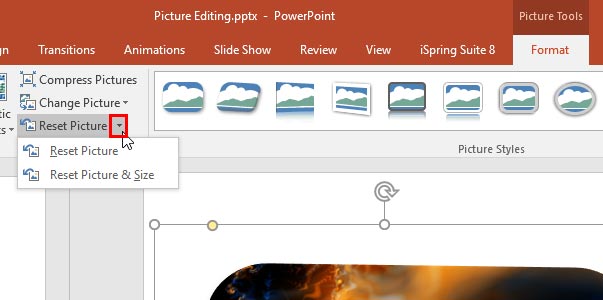
Once a picture is inserted within PowerPoint, any manipulations you make to that picture are strictly only on the surface. The appearance of the picture changes on the slide, but the unaltered picture is stored within your PowerPoint presentation. This is an awesome feature because if you make many changes to a picture and then regret experimenting, you can just reset your picture rather than starting all over again! There’s one caveat, though. The option to reset any picture back to its original form works only if you have not run any compression options for pictures within your presentation.
To learn more, choose your version of PowerPoint. If we do not have a tutorial for your version of PowerPoint, explore the version closest to the one you use.
Reset Pictures in PowerPoint 2016
Reset Pictures in PowerPoint 2013
Reset Pictures in PowerPoint 2010
Reset Pictures in PowerPoint 2011
Reset Pictures in PowerPoint Online
Tutorial Code: 09 01 19
Previous: 09 01 18 Change Picture in PowerPoint
Next: 09 02 01 Picture Layouts in PowerPoint
Filed Under:
P
Tagged as: 09-01, Pictures and Visuals, Pictures Basics and Adjustments, PowerPoint Tutorials
Comments Off on Pictures Basics and Adjustments: Reset Pictures in PowerPoint
Microsoft and the Office logo are trademarks or registered trademarks of Microsoft Corporation in the United States and/or other countries.